> ## Documentation Index
> Fetch the complete documentation index at: https://docs.tela.com/llms.txt
> Use this file to discover all available pages before exploring further.
# Integrating via API
Requirements:
* [You have a published canvas](/en/craft/publishing)
## Get your canvas data
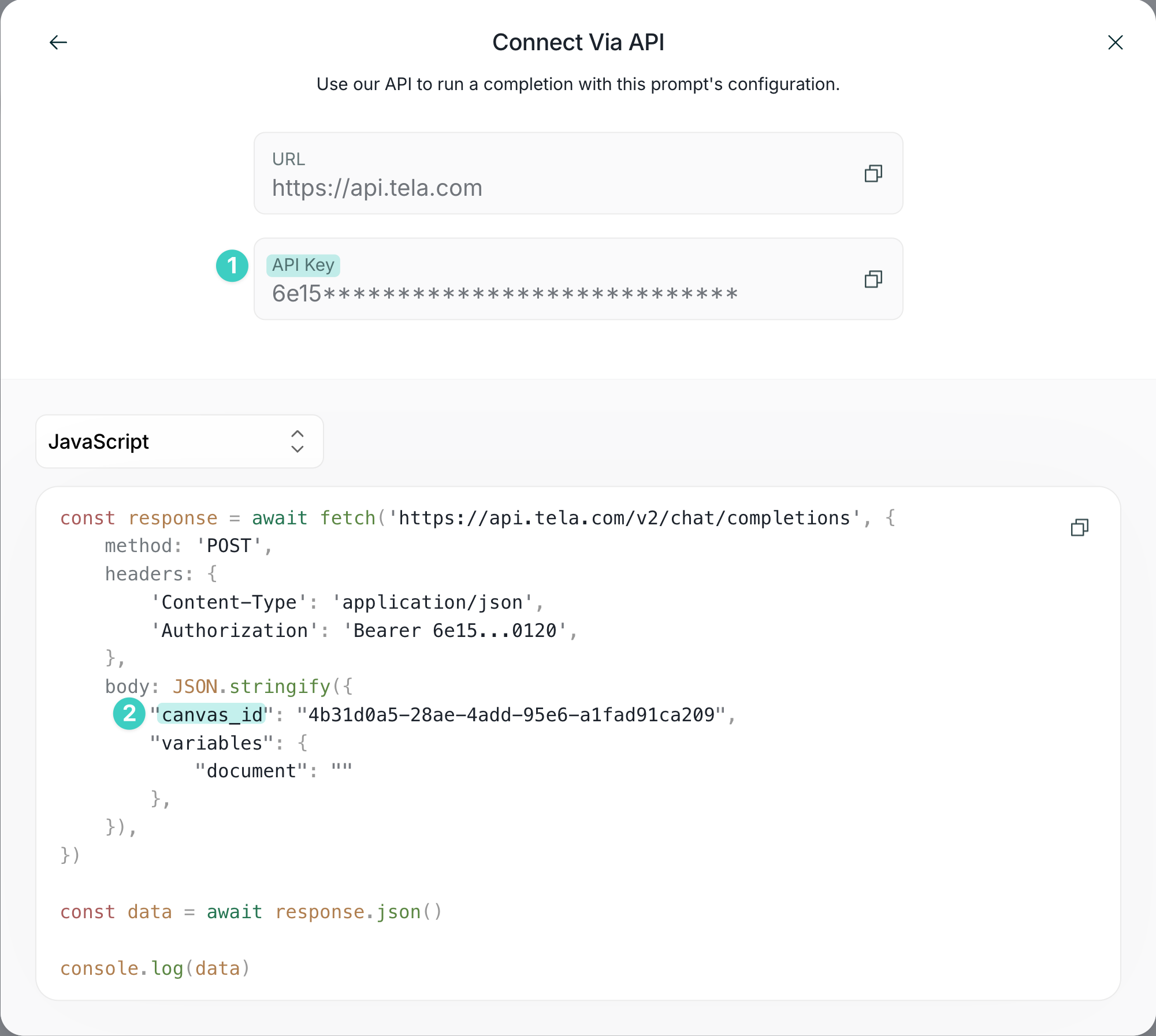
We need two things to start using our canvas:
1. API Key
2. The canvas ID
We can find both in the same place.
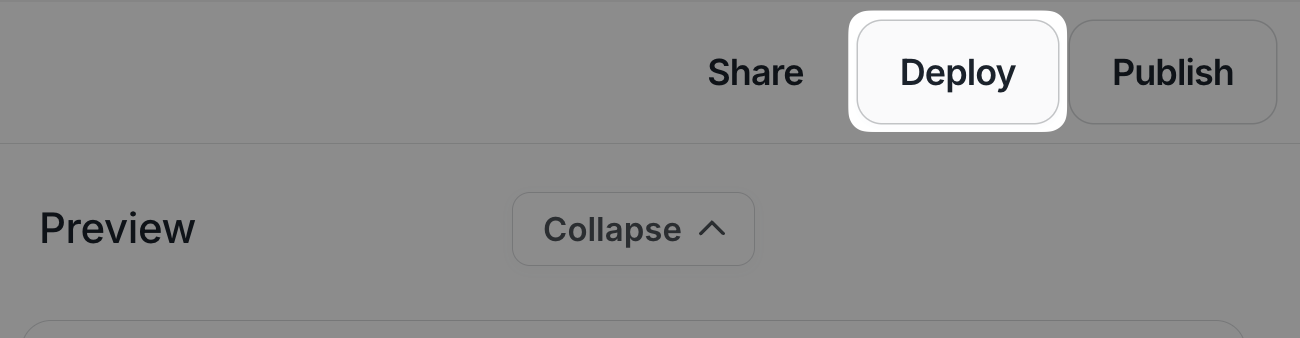
First click on deploy button at the right top corner of the application interface.
This will open the deploy options.
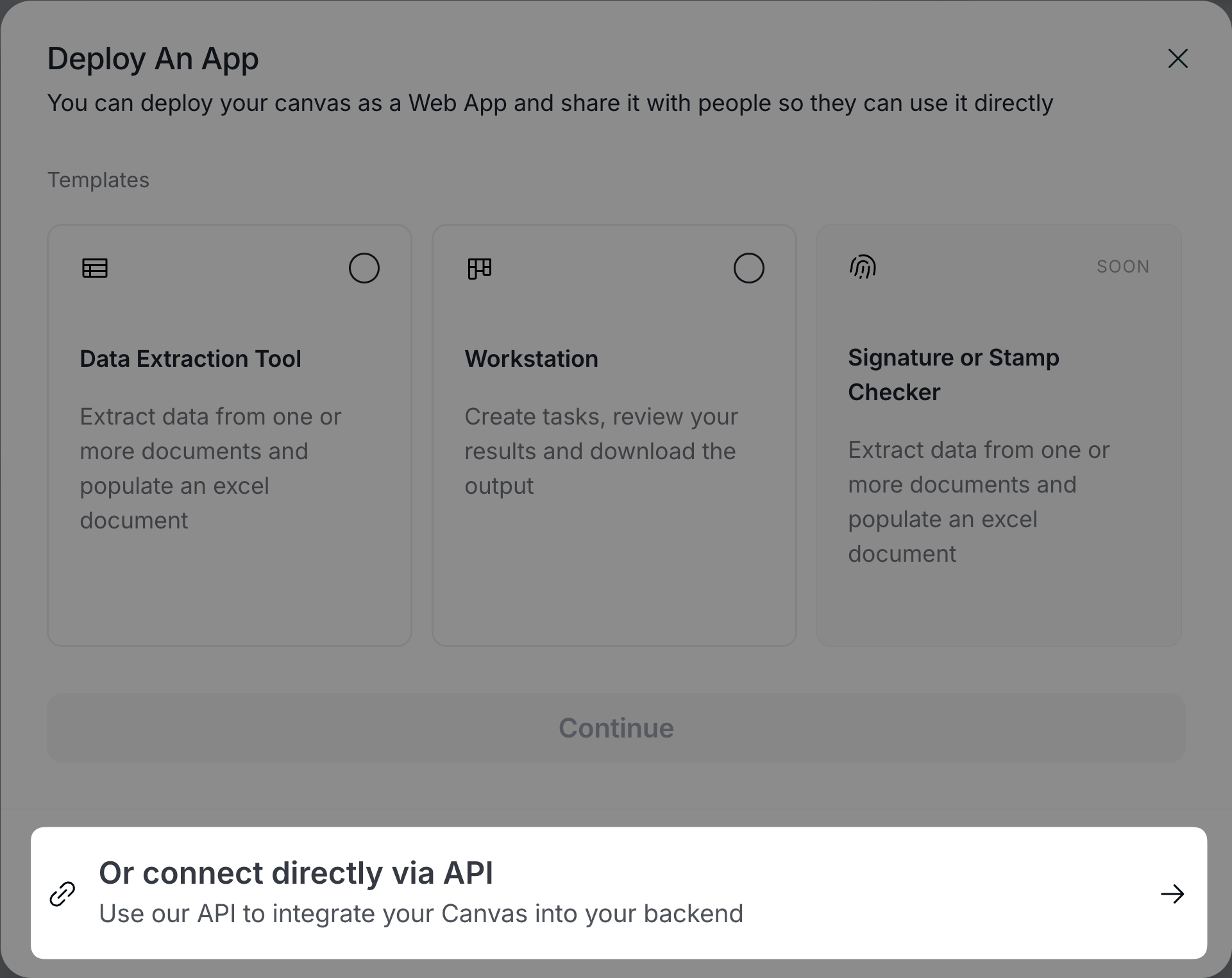
 There you will find how to deploy apps and how to connect to the API, click on "Or connect directly via API" at the bottom of the modal.
 Here you will find all the necessary info to start integrating! Choose your preferred language to get started.
 ## Constructing the Canvas Call Body
To achieve the desired behavior for your business and integration, your canvas call can include variables, historical messages, streaming, and webhook responses for asynchronous integrations.
Check out [API Reference](/api-reference/completion/create) for further details on our SDK and API specifications.
### Using Variables
[Variables](/en/craft/using-variables) are a key concept in prompt building with Tela. They are used to store and reuse data throughout your prompts and can be either a manual input or a file.
For information on supported file formats, visit [Supported files](/en/supported-file-formats).
When we have defined variables at our prompt the connect modal will generate the code snippets for us already filled with the variables keys.
## Constructing the Canvas Call Body
To achieve the desired behavior for your business and integration, your canvas call can include variables, historical messages, streaming, and webhook responses for asynchronous integrations.
Check out [API Reference](/api-reference/completion/create) for further details on our SDK and API specifications.
### Using Variables
[Variables](/en/craft/using-variables) are a key concept in prompt building with Tela. They are used to store and reuse data throughout your prompts and can be either a manual input or a file.
For information on supported file formats, visit [Supported files](/en/supported-file-formats).
When we have defined variables at our prompt the connect modal will generate the code snippets for us already filled with the variables keys.
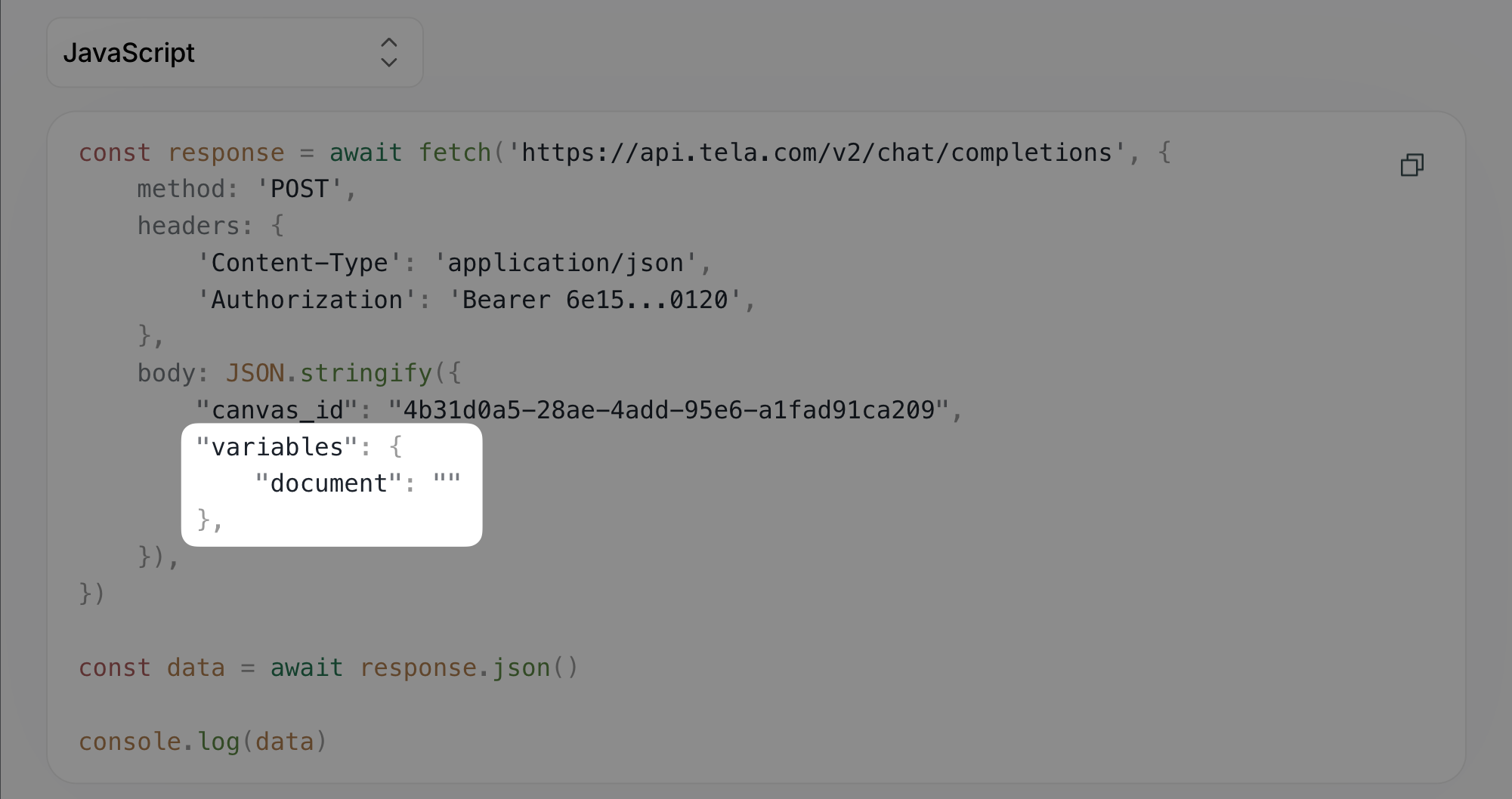 Fill the keys with the values you want, it can be a text, a file URL or a file base64 string.
```typescript Typescript Tela SDK theme={null}
variables: {
document: tela.createFile('https://www.wmaccess.com/downloads/sample-invoice.pdf'), // It is possible to pass a URL, Buffer, Blob, etc.
},
```
```python Python Tela SDK theme={null}
variables={
"document": client.create_file("https://www.wmaccess.com/downloads/sample-invoice.pdf"),
}
```
```typescript File Url theme={null}
variables: {
document: {
file_url: 'https://www.wmaccess.com/downloads/sample-invoice.pdf',
}
}
```
```typescript Base 64 theme={null}
variables: {
document: {
file_url: 'data:application/pdf;base64,JVBERi0xLjUKJeLjz9MKNCAwIG9ia...',
}
}
```
```typescript Text theme={null}
variables: {
document: "Document Content!"
}
```
[Check out](/api-reference/completion/create#files) file usage details with our SDK
### Using Messages
The Tela API allows you to include messages in your requests by extending the request body with the `messages` key.
This feature enables you to provide context or additional information to the model, enhancing the interaction and output quality.
```typescript Typescript Tela SDK theme={null}
const completion = await tela.completions.create<{ document: TelaFile }, { fileSummary: string }>({
canvasId: process.env.TELA_CANVAS_ID,
variables: {
document: tela.createFile('https://www.wmaccess.com/downloads/sample-invoice.pdf')
},
messages: [
{
role: 'assistant',
content: {
type: 'text',
text: 'Hello, how can I assist you today?'
}
},
{
role: 'user',
content: {
type: 'image_url',
image_url: {
url: 'https://example.com/image.png',
detail: 'high'
}
}
}
]
})
```
```typescript Javascript Tela SDK theme={null}
const completion = await tela.completions.create({
...,
messages: [
{
role: 'assistant',
content: {
type: 'text',
text: 'Hello, how can I assist you today?'
}
},
{
role: 'user',
content: {
type: 'image_url',
image_url: {
url: 'https://example.com/image.png',
detail: 'high'
}
}
}
]
})
```
```python Python Tela SDK theme={null}
completion = client.completions.create(
...,
messages=[
{
"role": "assistant",
"content": {
"type": "text",
"text": "Hello, how can I assist you today?"
}
},
{
"role": "user",
"content": {
"type": "image_url",
"image_url": {
"url": "https://example.com/image.png",
"detail": "high"
}
}
}
]
)
```
```sh Curl theme={null}
curl -XPOST https://api.tela.com/v2/chat/completions \
-H 'Content-Type: application/json' \
-H 'Authorization: Bearer API-KEY' \
-d '{
...,
"messages": [
{
"role": "assistant",
"content": {
"type": "text",
"text": "Hello, how can I assist you today?"
}
},
{
"role": "user",
"content": {
"type": "image_url",
"image_url": {
"url": "https://example.com/image.png",
"detail": "high"
}
}
}
],
}'
```
The sequence of messages in the array is crucial as it represents the chronological flow of the conversation. Each cycle begins with a user's message and is followed by the assistant's response, maintaining the dialogue's context and coherence.
Check out Running a Canvas [API Reference](/api-reference/completion/create) body for further details on the message schema.
### Streaming
To enable streaming for the canvas call, simply include the `stream` key set to `true` in the request body.
```typescript Typescript Tela SDK theme={null}
const completion = await tela.completions.create<{ document: TelaFile }, { fileSummary: string }>({
canvasId: process.env.TELA_CANVAS_ID,
variables: {
document: tela.createFile('https://www.wmaccess.com/downloads/sample-invoice.pdf')
},
stream: true
})
```
```typescript Javascript Tela SDK theme={null}
const completion = await tela.completions.create({
canvasId: process.env.TELA_CANVAS_ID,
variables: {
document: tela.createFile('https://www.wmaccess.com/downloads/sample-invoice.pdf')
},
stream: true
})
```
```python Python Tela SDK theme={null}
completion = client.completions.create(
canvas_id=TELA_CANVAS_ID,
variables={
"document": client.create_file("https://www.wmaccess.com/downloads/sample-invoice.pdf"),
},
stream=True,
)
```
```sh Curl theme={null}
curl -XPOST https://api.tela.com/v2/chat/completions \
-H 'Content-Type: application/json' \
-H 'Authorization: Bearer API-KEY' \
-d '{
"canvas_id": "95cec438-6080-44fe-8275-28b16bd40178",
"variables": {
"document": "data:application/pdf;base64,JVBERi0xLjUKJeLjz9MKNCAwIG9ia..."
},
"stream": true
}'
```
See [Streaming API Reference](/api-reference/completion/create#streaming) for more details consuming the stream.
### Async
To achieve asynchronous behavior, you have two options:
* Using the `async` flag
* Using a webhook
#### Using Async flag
Extending the body with an `async` key set to `true` is the easiest way to achieve asynchronous behavior, allowing you to continue with other tasks while waiting for the completion. An `id` will be returned so you can monitor the status of the call.
```sh Curl theme={null}
curl -XPOST https://api.tela.com/v2/chat/completions \
-H 'Content-Type: application/json' \
-H 'Authorization: Bearer API-KEY' \
-d '{
...,
"async": true
}'
```
See [Get completion API Reference](/api-reference/completion/get) for how to consume the completion with the received `id`
#### Using Webhook
You can pass a webhook URL to our API extending the body with an `webhook_url` key, this will make the completion asynchronous, and you will receive the response when the completion is finished with a POST request on the URL you provided.
```typescript Typescript Tela SDK theme={null}
const completion = await tela.completions.create<{ document: TelaFile }, { fileSummary: string }>({
canvasId: process.env.TELA_CANVAS_ID,
variables: {
document: tela.createFile('https://www.wmaccess.com/downloads/sample-invoice.pdf')
},
webhook_url: "https://example.com/webhook"
})
```
```typescript Javascript Tela SDK theme={null}
const completion = await tela.completions.create({
...,
webhook_url: "https://example.com/webhook"
})
```
```python Python Tela SDK theme={null}
completion = client.completions.create(
...,
webhook_url="https://example.com/webhook"
)
```
```sh Curl theme={null}
curl -XPOST https://api.tela.com/v2/chat/completions \
-H 'Content-Type: application/json' \
-H 'Authorization: Bearer API-KEY' \
-d '{
...,
"webhook_url": "https://example.com/webhook"
}'
```
When the `webhook_url` key is used, the call becomes asynchronous automatically, eliminating the need to include the async flag.
# Webhook Payload Structure
When your completion finishes, Tela will send a POST request to your webhook URL with the following structure:
**Headers:**
* `x-completion-run-id`: The unique identifier of the completion run
* `Content-Type`: `application/json`
**Body:**
The webhook payload contains the raw completion result:
```
{
"usage": {
"total_tokens": ,
"prompt_tokens": ,
"completion_tokens":
},
"object": "chat.completion",
"choices": [
{
"message": {
"role": "assistant",
"content": <... your completion content>
}
}
],
"created":
}
```
You can use the `x-completion-run-id` header to correlate the webhook
response with your original request and track completion status in your
application.
Fill the keys with the values you want, it can be a text, a file URL or a file base64 string.
```typescript Typescript Tela SDK theme={null}
variables: {
document: tela.createFile('https://www.wmaccess.com/downloads/sample-invoice.pdf'), // It is possible to pass a URL, Buffer, Blob, etc.
},
```
```python Python Tela SDK theme={null}
variables={
"document": client.create_file("https://www.wmaccess.com/downloads/sample-invoice.pdf"),
}
```
```typescript File Url theme={null}
variables: {
document: {
file_url: 'https://www.wmaccess.com/downloads/sample-invoice.pdf',
}
}
```
```typescript Base 64 theme={null}
variables: {
document: {
file_url: 'data:application/pdf;base64,JVBERi0xLjUKJeLjz9MKNCAwIG9ia...',
}
}
```
```typescript Text theme={null}
variables: {
document: "Document Content!"
}
```
[Check out](/api-reference/completion/create#files) file usage details with our SDK
### Using Messages
The Tela API allows you to include messages in your requests by extending the request body with the `messages` key.
This feature enables you to provide context or additional information to the model, enhancing the interaction and output quality.
```typescript Typescript Tela SDK theme={null}
const completion = await tela.completions.create<{ document: TelaFile }, { fileSummary: string }>({
canvasId: process.env.TELA_CANVAS_ID,
variables: {
document: tela.createFile('https://www.wmaccess.com/downloads/sample-invoice.pdf')
},
messages: [
{
role: 'assistant',
content: {
type: 'text',
text: 'Hello, how can I assist you today?'
}
},
{
role: 'user',
content: {
type: 'image_url',
image_url: {
url: 'https://example.com/image.png',
detail: 'high'
}
}
}
]
})
```
```typescript Javascript Tela SDK theme={null}
const completion = await tela.completions.create({
...,
messages: [
{
role: 'assistant',
content: {
type: 'text',
text: 'Hello, how can I assist you today?'
}
},
{
role: 'user',
content: {
type: 'image_url',
image_url: {
url: 'https://example.com/image.png',
detail: 'high'
}
}
}
]
})
```
```python Python Tela SDK theme={null}
completion = client.completions.create(
...,
messages=[
{
"role": "assistant",
"content": {
"type": "text",
"text": "Hello, how can I assist you today?"
}
},
{
"role": "user",
"content": {
"type": "image_url",
"image_url": {
"url": "https://example.com/image.png",
"detail": "high"
}
}
}
]
)
```
```sh Curl theme={null}
curl -XPOST https://api.tela.com/v2/chat/completions \
-H 'Content-Type: application/json' \
-H 'Authorization: Bearer API-KEY' \
-d '{
...,
"messages": [
{
"role": "assistant",
"content": {
"type": "text",
"text": "Hello, how can I assist you today?"
}
},
{
"role": "user",
"content": {
"type": "image_url",
"image_url": {
"url": "https://example.com/image.png",
"detail": "high"
}
}
}
],
}'
```
The sequence of messages in the array is crucial as it represents the chronological flow of the conversation. Each cycle begins with a user's message and is followed by the assistant's response, maintaining the dialogue's context and coherence.
Check out Running a Canvas [API Reference](/api-reference/completion/create) body for further details on the message schema.
### Streaming
To enable streaming for the canvas call, simply include the `stream` key set to `true` in the request body.
```typescript Typescript Tela SDK theme={null}
const completion = await tela.completions.create<{ document: TelaFile }, { fileSummary: string }>({
canvasId: process.env.TELA_CANVAS_ID,
variables: {
document: tela.createFile('https://www.wmaccess.com/downloads/sample-invoice.pdf')
},
stream: true
})
```
```typescript Javascript Tela SDK theme={null}
const completion = await tela.completions.create({
canvasId: process.env.TELA_CANVAS_ID,
variables: {
document: tela.createFile('https://www.wmaccess.com/downloads/sample-invoice.pdf')
},
stream: true
})
```
```python Python Tela SDK theme={null}
completion = client.completions.create(
canvas_id=TELA_CANVAS_ID,
variables={
"document": client.create_file("https://www.wmaccess.com/downloads/sample-invoice.pdf"),
},
stream=True,
)
```
```sh Curl theme={null}
curl -XPOST https://api.tela.com/v2/chat/completions \
-H 'Content-Type: application/json' \
-H 'Authorization: Bearer API-KEY' \
-d '{
"canvas_id": "95cec438-6080-44fe-8275-28b16bd40178",
"variables": {
"document": "data:application/pdf;base64,JVBERi0xLjUKJeLjz9MKNCAwIG9ia..."
},
"stream": true
}'
```
See [Streaming API Reference](/api-reference/completion/create#streaming) for more details consuming the stream.
### Async
To achieve asynchronous behavior, you have two options:
* Using the `async` flag
* Using a webhook
#### Using Async flag
Extending the body with an `async` key set to `true` is the easiest way to achieve asynchronous behavior, allowing you to continue with other tasks while waiting for the completion. An `id` will be returned so you can monitor the status of the call.
```sh Curl theme={null}
curl -XPOST https://api.tela.com/v2/chat/completions \
-H 'Content-Type: application/json' \
-H 'Authorization: Bearer API-KEY' \
-d '{
...,
"async": true
}'
```
See [Get completion API Reference](/api-reference/completion/get) for how to consume the completion with the received `id`
#### Using Webhook
You can pass a webhook URL to our API extending the body with an `webhook_url` key, this will make the completion asynchronous, and you will receive the response when the completion is finished with a POST request on the URL you provided.
```typescript Typescript Tela SDK theme={null}
const completion = await tela.completions.create<{ document: TelaFile }, { fileSummary: string }>({
canvasId: process.env.TELA_CANVAS_ID,
variables: {
document: tela.createFile('https://www.wmaccess.com/downloads/sample-invoice.pdf')
},
webhook_url: "https://example.com/webhook"
})
```
```typescript Javascript Tela SDK theme={null}
const completion = await tela.completions.create({
...,
webhook_url: "https://example.com/webhook"
})
```
```python Python Tela SDK theme={null}
completion = client.completions.create(
...,
webhook_url="https://example.com/webhook"
)
```
```sh Curl theme={null}
curl -XPOST https://api.tela.com/v2/chat/completions \
-H 'Content-Type: application/json' \
-H 'Authorization: Bearer API-KEY' \
-d '{
...,
"webhook_url": "https://example.com/webhook"
}'
```
When the `webhook_url` key is used, the call becomes asynchronous automatically, eliminating the need to include the async flag.
# Webhook Payload Structure
When your completion finishes, Tela will send a POST request to your webhook URL with the following structure:
**Headers:**
* `x-completion-run-id`: The unique identifier of the completion run
* `Content-Type`: `application/json`
**Body:**
The webhook payload contains the raw completion result:
```
{
"usage": {
"total_tokens": ,
"prompt_tokens": ,
"completion_tokens":
},
"object": "chat.completion",
"choices": [
{
"message": {
"role": "assistant",
"content": <... your completion content>
}
}
],
"created":
}
```
You can use the `x-completion-run-id` header to correlate the webhook
response with your original request and track completion status in your
application.