> ## Documentation Index
> Fetch the complete documentation index at: https://docs.tela.com/llms.txt
> Use this file to discover all available pages before exploring further.
# Tags
> Categorize and organize your Canvas executions with static or dynamic labels based on AI responses
## What are Tags?
Tags are labels you can add to your Canvas executions to organize them. For example, if you have a Canvas that analyzes documents, you might want to label each execution with:
* The type of document analyzed
* The analysis status
* The content category
There are two types of tags:
| Type | Description | Example |
| ---------------- | ----------------------------------------------- | -------------------------------------- |
| **Static Tags** | Fixed values defined by you | `support`, `urgent`, `vip-client` |
| **Dynamic Tags** | Values automatically extracted from AI response | `$output.category`, `$output.priority` |
## How Dynamic Tags Work
Dynamic tags use the special variable `$output` to access values from the AI response. When the execution completes, the system automatically replaces the variable with the actual value.
### Practical Example
Imagine your Canvas analyzes support tickets and returns the following response:
```json theme={null}
{
"category": "billing",
"priority": "high",
"department": "finance"
}
```
If you configured the following dynamic tags:
* `sector-$output.category`
* `priority-$output.priority`
After execution, the registered tags will be:
* `sector-billing`
* `priority-high`
## Configuring Tags in Canvas
### Step 1: Access Canvas Settings
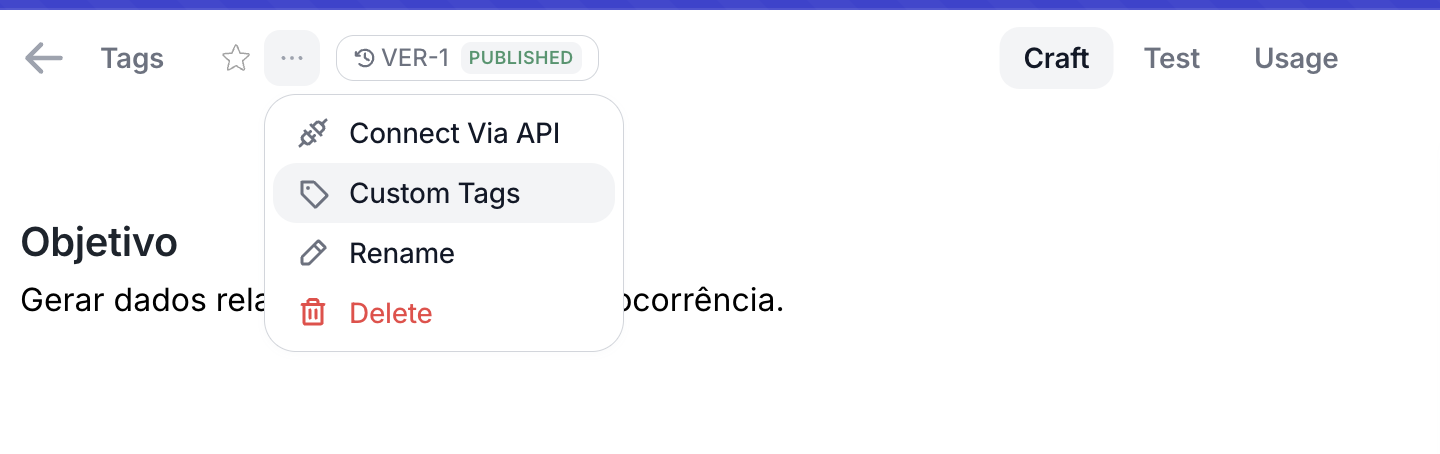
In the Canvas editing screen, locate the **Custom Tags** section in the settings.
 ### Step 2: Add Your Tags
You can add two types of tags:
### Step 2: Add Your Tags
You can add two types of tags:
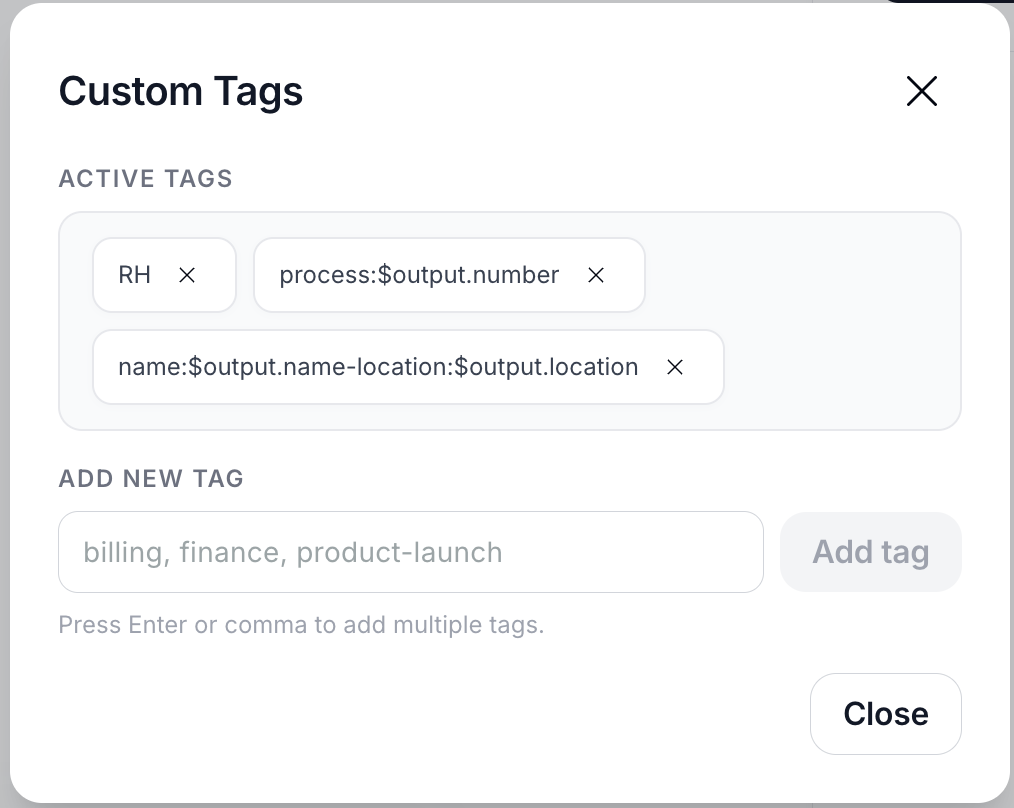 Type the tag name directly:
```
my-tag
fixed-category
automated-process
```
Use the `$output.` prefix followed by the value path in the response:
```
$output.type
$output.data.category
$output.result.status
```
### Step 3: Save the Canvas
Tags will be automatically applied to all future executions.
## Dynamic Tag Syntax
### Basic Format
```
$output.field
```
Where `field` is the name of the value you want to extract from the response.
### Accessing Nested Values
If the response has a more complex structure, use dots to navigate:
```
$output.data.client.name
$output.analysis.result.score
```
### Accessing List Items
To access a specific item from a list, use brackets with the position number (starting at 0):
```
$output.items[0].name // first item
$output.items[1].category // second item
```
### Combining with Fixed Text
You can combine fixed text with dynamic values:
```
client-$output.client_id
status-$output.result
type-$output.category-$output.priority
```
## Sending Tags via API
In addition to tags configured in the Canvas, you can also send additional tags directly through the API call. These tags will be **merged** with the Canvas tags.
### Request Example
```json theme={null}
{
"messages": [...],
"tags": [
"origin-api",
"client-123",
"type-$output.category"
]
}
```
### How Merging Works
| Source | Tags |
| ---------------- | ------------------------------------------------------------ |
| Canvas | `automated-process`, `$output.status` |
| API | `origin-api`, `client-123` |
| **Final Result** | `automated-process`, `completed`, `origin-api`, `client-123` |
If the same tag appears in both Canvas and API, it will be registered only once (no duplication).
## Viewing Tags in Usage
All tags (static and already processed dynamic ones) are registered in the Canvas **Usage** section.
### Where to Find
1. Access the desired Canvas
2. Go to the **Usage** or **Execution History** tab
3. Each execution will show its associated tags
### Filtering by Tags
You can filter executions by specific tags to:
* Analyze usage by category
* Identify behavior patterns
* Generate segmented reports
* Monitor specific types of requests
## Common Use Cases
**Scenario:** Canvas that analyzes customer messages
**Configured tags:**
* `support` (static)
* `sentiment-$output.sentiment`
* `subject-$output.subject`
**Result:** Allows filtering support tickets by sentiment (positive, negative, neutral) and subject.
**Scenario:** Canvas that analyzes contracts
**Configured tags:**
* `document` (static)
* `type-$output.contract_type`
* `value-$output.value_range`
* `risk-$output.risk_level`
**Result:** Makes it easy to find contracts by type, value range, or risk level.
**Scenario:** Canvas that qualifies leads
**Configured tags:**
* `lead` (static)
* `score-$output.qualification`
* `origin-$output.channel`
* `product-$output.interest`
**Result:** Allows segmenting leads by qualification, origin channel, and product interest.
## Best Practices
* Use descriptive and standardized tag names
* Combine static tags for fixed context with dynamic tags for variable data
* Configure your Canvas Output Format to return the fields you want to use as tags
* Test tags in development environment before going to production
* Create very long tags (256 character limit)
* Use spaces in tag names (use hyphen or underscore)
* Depend on fields that may not exist in the response (the tag will be ignored if the field doesn't exist)
* Create too many different tags that make organization difficult
## Special Case Behavior
| Situation | Behavior |
| -------------------------------- | ------------------------------------------- |
| Field doesn't exist in response | Dynamic tag is ignored (no error) |
| Field returns empty value | Tag is ignored |
| Value too long (+256 characters) | Value is truncated |
| Error processing tag | Tag is ignored, other tags continue working |
## Frequently Asked Questions
No. Tags are only for organization and tracking. They don't alter Canvas execution.
No. Tags are registered at execution time and remain permanently associated with that record.
There's no strict limit, but we recommend using between 3 to 10 tags per execution to maintain organization.
Yes, as long as the response is valid JSON. The system can navigate through nested objects and arrays.
No. Tags are merged. API tags are added to Canvas tags, without replacement.
## Summary
| Feature | Description |
| ---------------- | ---------------------------------------------------- |
| **Static Tags** | Fixed values defined in Canvas |
| **Dynamic Tags** | Values extracted from response using `$output.field` |
| **Via API** | Additional tags sent in the request |
| **Registration** | All tags are stored in Canvas Usage |
| **Usage** | Filter, organize, and analyze executions |
Tags are a tool to transform AI response data into organized and searchable information, facilitating the monitoring and analysis of your Canvas usage.
Type the tag name directly:
```
my-tag
fixed-category
automated-process
```
Use the `$output.` prefix followed by the value path in the response:
```
$output.type
$output.data.category
$output.result.status
```
### Step 3: Save the Canvas
Tags will be automatically applied to all future executions.
## Dynamic Tag Syntax
### Basic Format
```
$output.field
```
Where `field` is the name of the value you want to extract from the response.
### Accessing Nested Values
If the response has a more complex structure, use dots to navigate:
```
$output.data.client.name
$output.analysis.result.score
```
### Accessing List Items
To access a specific item from a list, use brackets with the position number (starting at 0):
```
$output.items[0].name // first item
$output.items[1].category // second item
```
### Combining with Fixed Text
You can combine fixed text with dynamic values:
```
client-$output.client_id
status-$output.result
type-$output.category-$output.priority
```
## Sending Tags via API
In addition to tags configured in the Canvas, you can also send additional tags directly through the API call. These tags will be **merged** with the Canvas tags.
### Request Example
```json theme={null}
{
"messages": [...],
"tags": [
"origin-api",
"client-123",
"type-$output.category"
]
}
```
### How Merging Works
| Source | Tags |
| ---------------- | ------------------------------------------------------------ |
| Canvas | `automated-process`, `$output.status` |
| API | `origin-api`, `client-123` |
| **Final Result** | `automated-process`, `completed`, `origin-api`, `client-123` |
If the same tag appears in both Canvas and API, it will be registered only once (no duplication).
## Viewing Tags in Usage
All tags (static and already processed dynamic ones) are registered in the Canvas **Usage** section.
### Where to Find
1. Access the desired Canvas
2. Go to the **Usage** or **Execution History** tab
3. Each execution will show its associated tags
### Filtering by Tags
You can filter executions by specific tags to:
* Analyze usage by category
* Identify behavior patterns
* Generate segmented reports
* Monitor specific types of requests
## Common Use Cases
**Scenario:** Canvas that analyzes customer messages
**Configured tags:**
* `support` (static)
* `sentiment-$output.sentiment`
* `subject-$output.subject`
**Result:** Allows filtering support tickets by sentiment (positive, negative, neutral) and subject.
**Scenario:** Canvas that analyzes contracts
**Configured tags:**
* `document` (static)
* `type-$output.contract_type`
* `value-$output.value_range`
* `risk-$output.risk_level`
**Result:** Makes it easy to find contracts by type, value range, or risk level.
**Scenario:** Canvas that qualifies leads
**Configured tags:**
* `lead` (static)
* `score-$output.qualification`
* `origin-$output.channel`
* `product-$output.interest`
**Result:** Allows segmenting leads by qualification, origin channel, and product interest.
## Best Practices
* Use descriptive and standardized tag names
* Combine static tags for fixed context with dynamic tags for variable data
* Configure your Canvas Output Format to return the fields you want to use as tags
* Test tags in development environment before going to production
* Create very long tags (256 character limit)
* Use spaces in tag names (use hyphen or underscore)
* Depend on fields that may not exist in the response (the tag will be ignored if the field doesn't exist)
* Create too many different tags that make organization difficult
## Special Case Behavior
| Situation | Behavior |
| -------------------------------- | ------------------------------------------- |
| Field doesn't exist in response | Dynamic tag is ignored (no error) |
| Field returns empty value | Tag is ignored |
| Value too long (+256 characters) | Value is truncated |
| Error processing tag | Tag is ignored, other tags continue working |
## Frequently Asked Questions
No. Tags are only for organization and tracking. They don't alter Canvas execution.
No. Tags are registered at execution time and remain permanently associated with that record.
There's no strict limit, but we recommend using between 3 to 10 tags per execution to maintain organization.
Yes, as long as the response is valid JSON. The system can navigate through nested objects and arrays.
No. Tags are merged. API tags are added to Canvas tags, without replacement.
## Summary
| Feature | Description |
| ---------------- | ---------------------------------------------------- |
| **Static Tags** | Fixed values defined in Canvas |
| **Dynamic Tags** | Values extracted from response using `$output.field` |
| **Via API** | Additional tags sent in the request |
| **Registration** | All tags are stored in Canvas Usage |
| **Usage** | Filter, organize, and analyze executions |
Tags are a tool to transform AI response data into organized and searchable information, facilitating the monitoring and analysis of your Canvas usage.