Creating Tasks
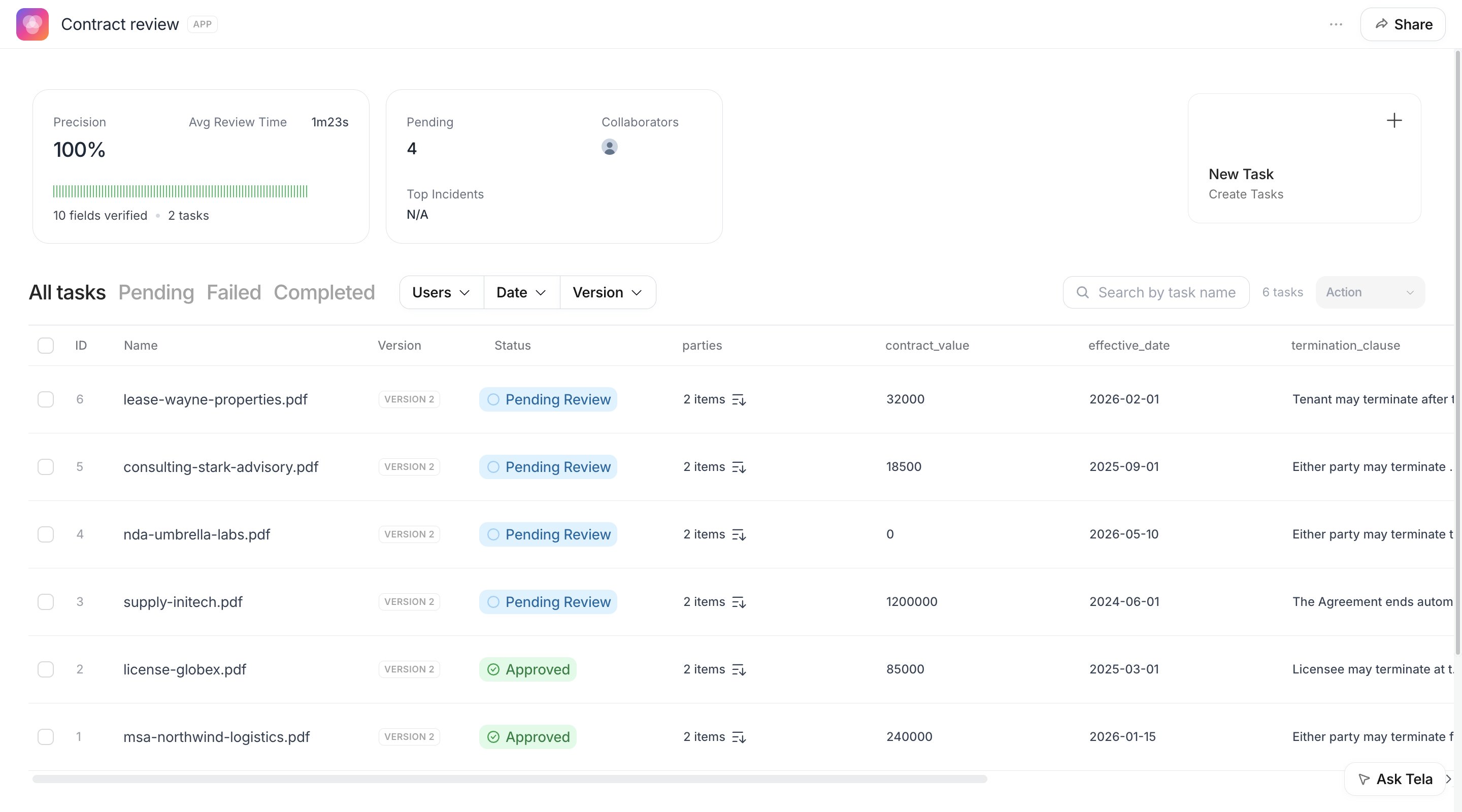
Every task is an execution of your Canvas, with a file or a text used as the content of your Canvas’ variable. You can create tasks by:- Clicking New Task and choosing the files you want. Each file becomes a task;
- Following our guide to create tasks via API, with files or text;
Reviewing Tasks
When a task finishes running, its status changes to Pending Review. Click the name of the task to open the review dialog.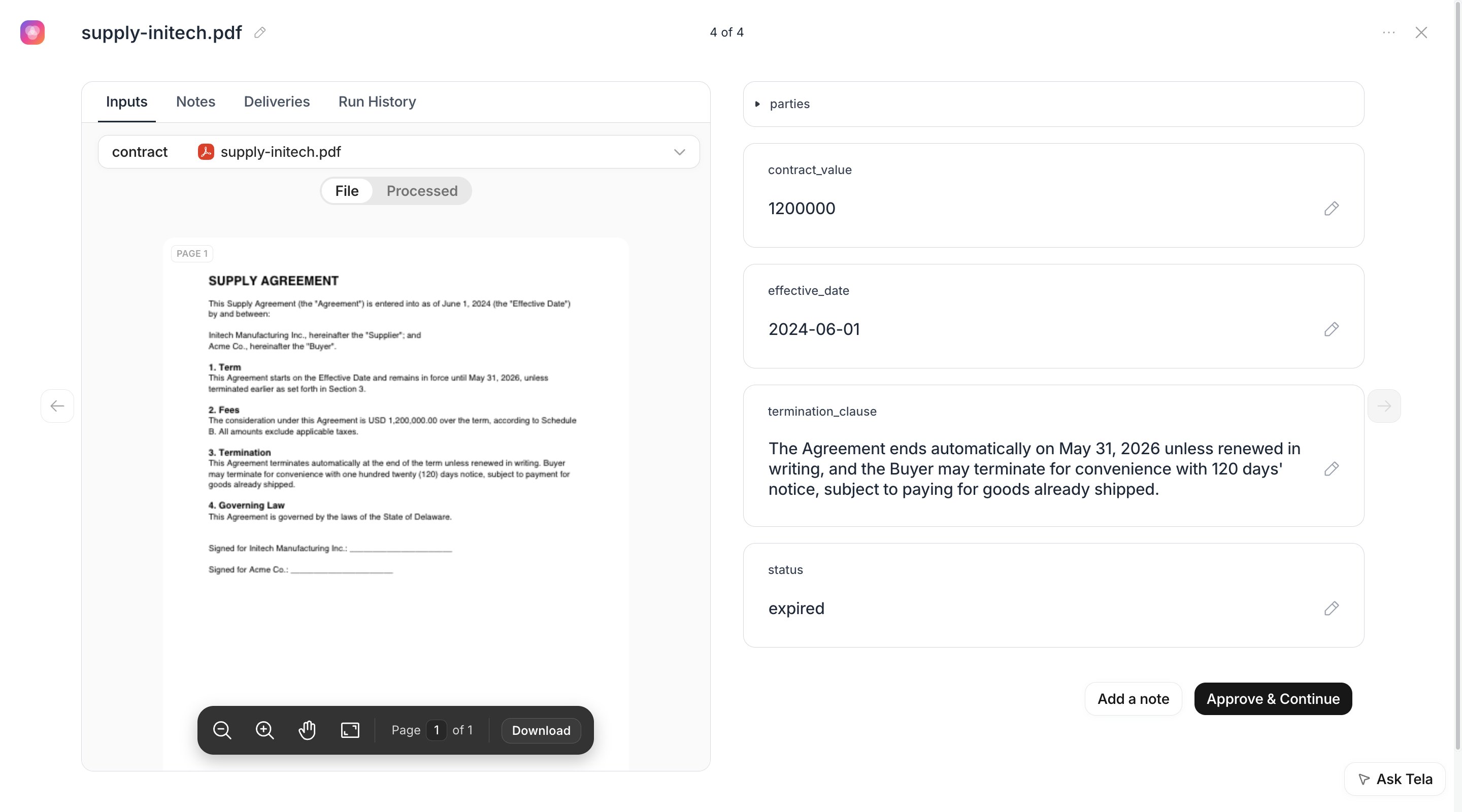
- See the file that was provided to your Canvas on the left, in the Inputs tab. Switch between File and Processed to see the original or the text Tela extracted;
- See the result of the run on the right, one card per attribute;
- Edit the content of any attribute with the pencil icon if you think it can be better;
- Click Add a note to leave a comment for your team, and see past notes in the Notes tab;
- Click the
…button on the top right. While the task is pending the menu has Reset to Original (discard your edits) and Delete Task. Once the task is approved it has Undo Approval, Create Test Case and Delete Task;
Turning a task into a Test Case
A reviewed task is a good Test Case: it has a real input and an output you checked. After you approve a task, Tela suggests creating a Test Case from it. You can also do it later by opening the approved task and choosing Create Test Case in the… menu.
In the Create a Test Case from Task dialog, give the Test Case a title and, if you corrected any field, explain what was wrong. The Test Case appears in the Test experience of the Canvas behind the app. Failed tasks can’t be turned into Test Cases.
If Approval Required is turned on in the app’s Settings, tasks must be approved before they can be downloaded or added as test cases. Use it when every result needs a human check before it is used.
Completed tasks
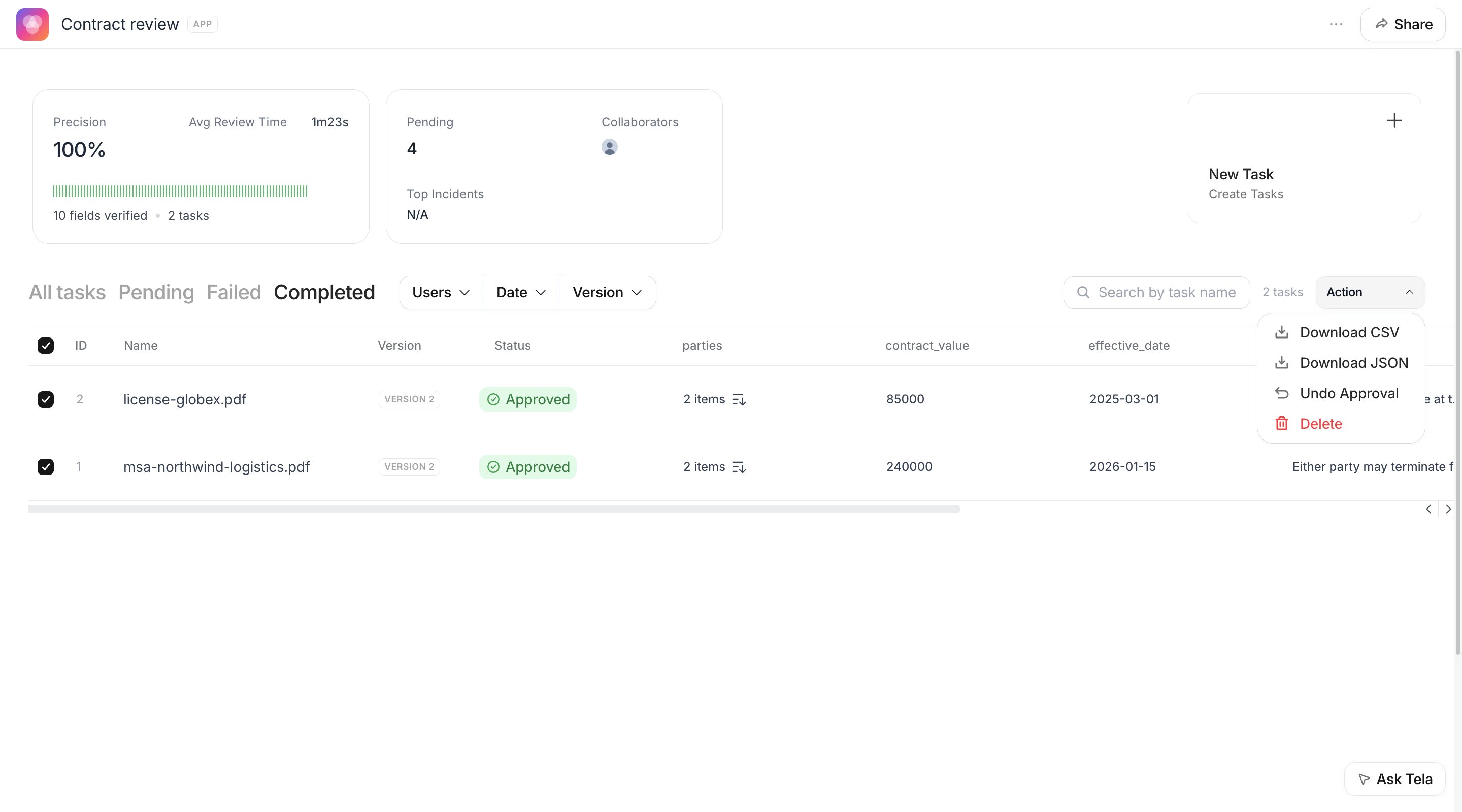
Approved tasks are listed in the Completed tab. Select one or more tasks and open the Action menu to:- Download CSV or Download JSON with the results (see Downloading results);
- Undo Approval to send a task back to review;
- Delete the tasks.