

This page uses a Canvas as the example, but Workflows and Agents can be turned into Apps as well once they are published.
What are apps?
Apps are one of Tela’s main features. They are useful when you already have a reliable Canvas and need to give different users a way to create multiple runs of your Canvas at the same time, providing files or text to populate a Variable and downloading the result of all the runs in a spreadsheet.Creating an App
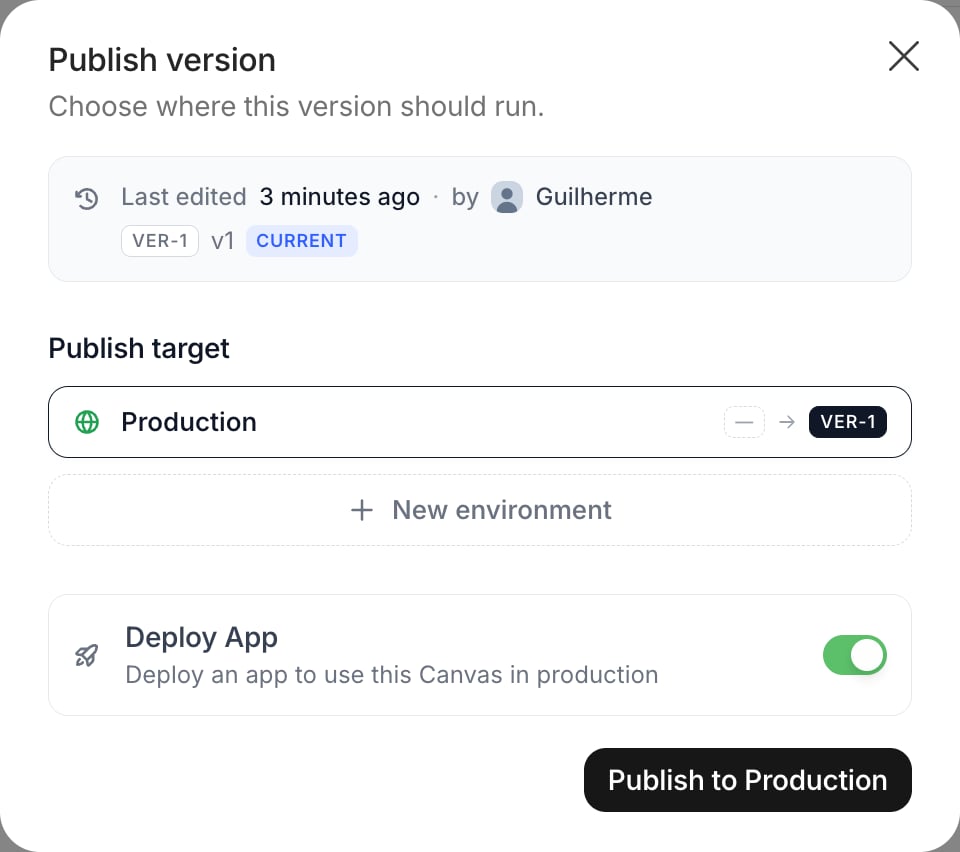
Click thePublish button in the top right corner of your canvas page and turn on Deploy App in the publish dialog:
… button next to Share on the app page) to give it a name and a simple description and choose who in your Workspace can access it. The app is created as a Workstation with the same configuration as your Canvas.
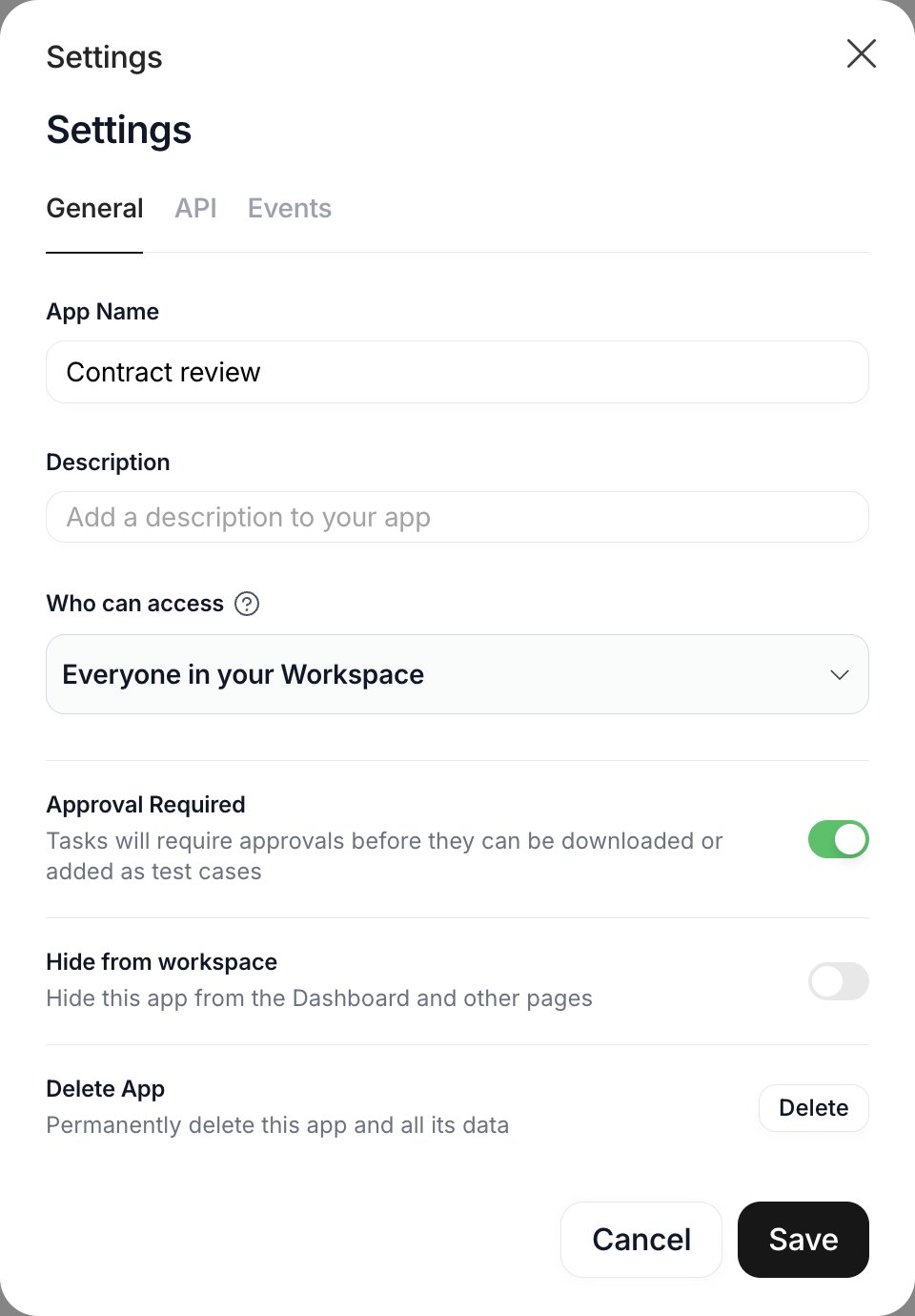
- Turn on Approval Required, so tasks must be approved before they can be downloaded or added as test cases
- Turn on Hide from workspace to keep the app out of the Dashboard and other pages
We currently support only one variable per app, but we are working on experiences with multiple variables
Open Web App to see your app in action!
Now that you have configured and opened your app’s page, we can dive deeper into the Workstation.