

Which version runs
Every run belongs to one version of the Canvas. The Test experience shows, and runs against, the version you are viewing: by default the version you are editing, marked Current in the Version History. To run the suite on an older version, open the Version History from the version button next to Publish, click View on that version, and come back to Test. See Comparing versions. A Test Case can run when it has no run yet on the version you are viewing, when the version is still an unpublished draft you are editing, or when its last run Failed, was Stopped or hit Timeout. A Test Case that already Completed on this version is not run again by Run All; use Run Again on it instead.Running a Test Case on a draft you are editing fixes that draft as a version, so the result stays attached to exactly what was tested. Your next edit starts a new version. For Workflows, the version must be saved first; an edit still being persisted blocks the run for a moment.
Running the suite
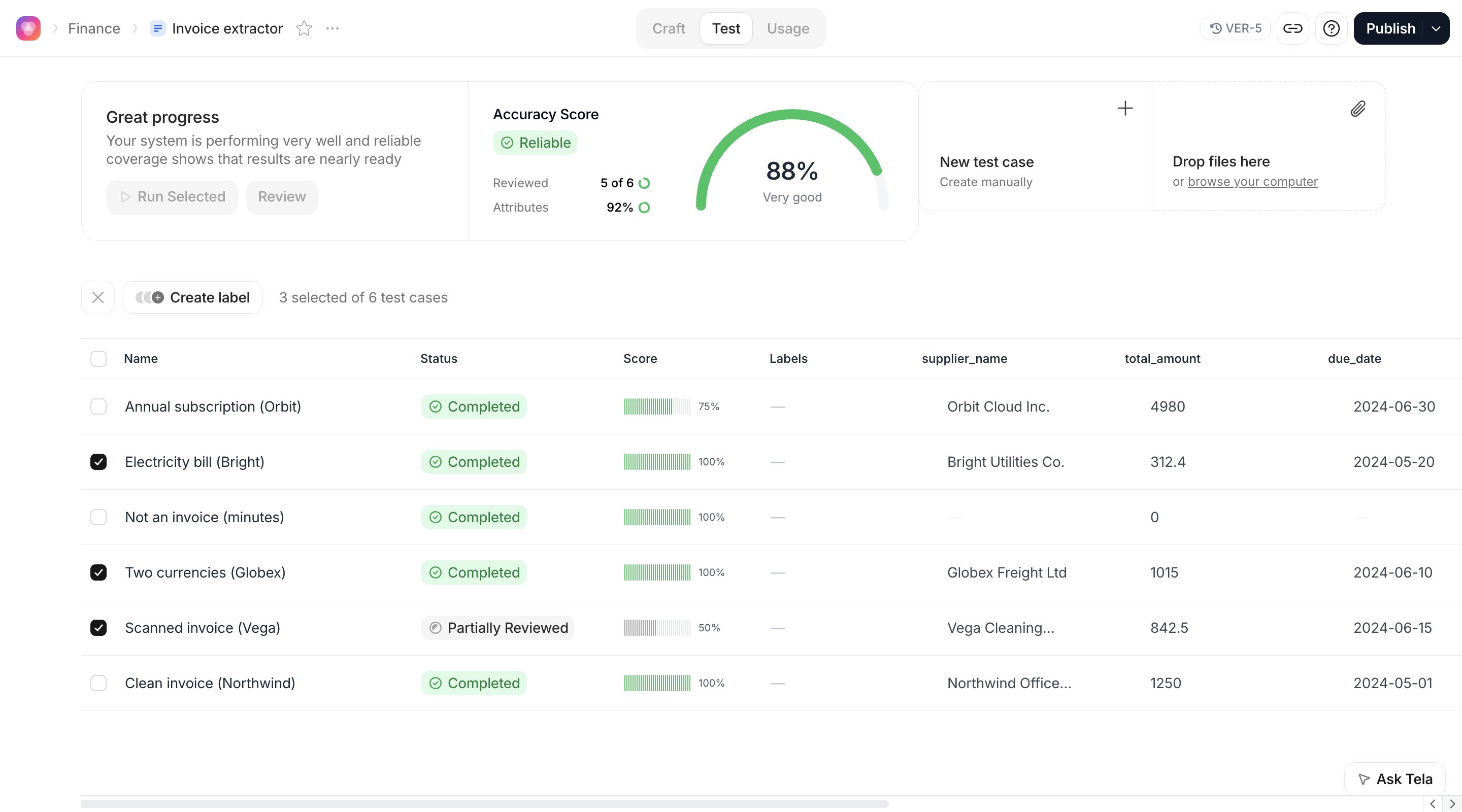
The Run All button sits in the summary card at the top. Its label changes with what it will do:
Hover the button when it is disabled: the tooltip explains why (Create a test case first, Selected test cases already ran, Selected test cases have required variables without value, or Complete all steps first on a Workflow with unconfigured steps). Test Cases missing a required variable are skipped with a warning. Runs count towards the inference quota of your Workspace.
Cmd/Ctrl + Enter). While it runs the button reads Stop; clicking it cancels the run, which then shows Stopped.
Through the API, POST /test-case/{id}/run runs one Test Case and POST /test-case/run-all runs many, both against a promptVersionId; POST /test-case/{id}/abort stops a run. run-all accepts explicit testCaseIds or the same filters as the table (labels, status, user, dates) and answers with the testCaseIds it started; Test Cases already running on that version are left out. Read the results back with GET /test-case?promptId=…&promptVersionIds=…&includeGenerations=true.
Statuses
The Status column and the badge at the top of each Test Case follow the last run on the version you are viewing.
Rows in grey have no run yet on the version you are viewing; their attribute columns are empty and their score does not count. Filter the table with Completed or Pending Review to find what is left to do, and click Review in the summary card to jump to the first Pending Review case.
Reading a result
Click a row to open the Test Case in full screen.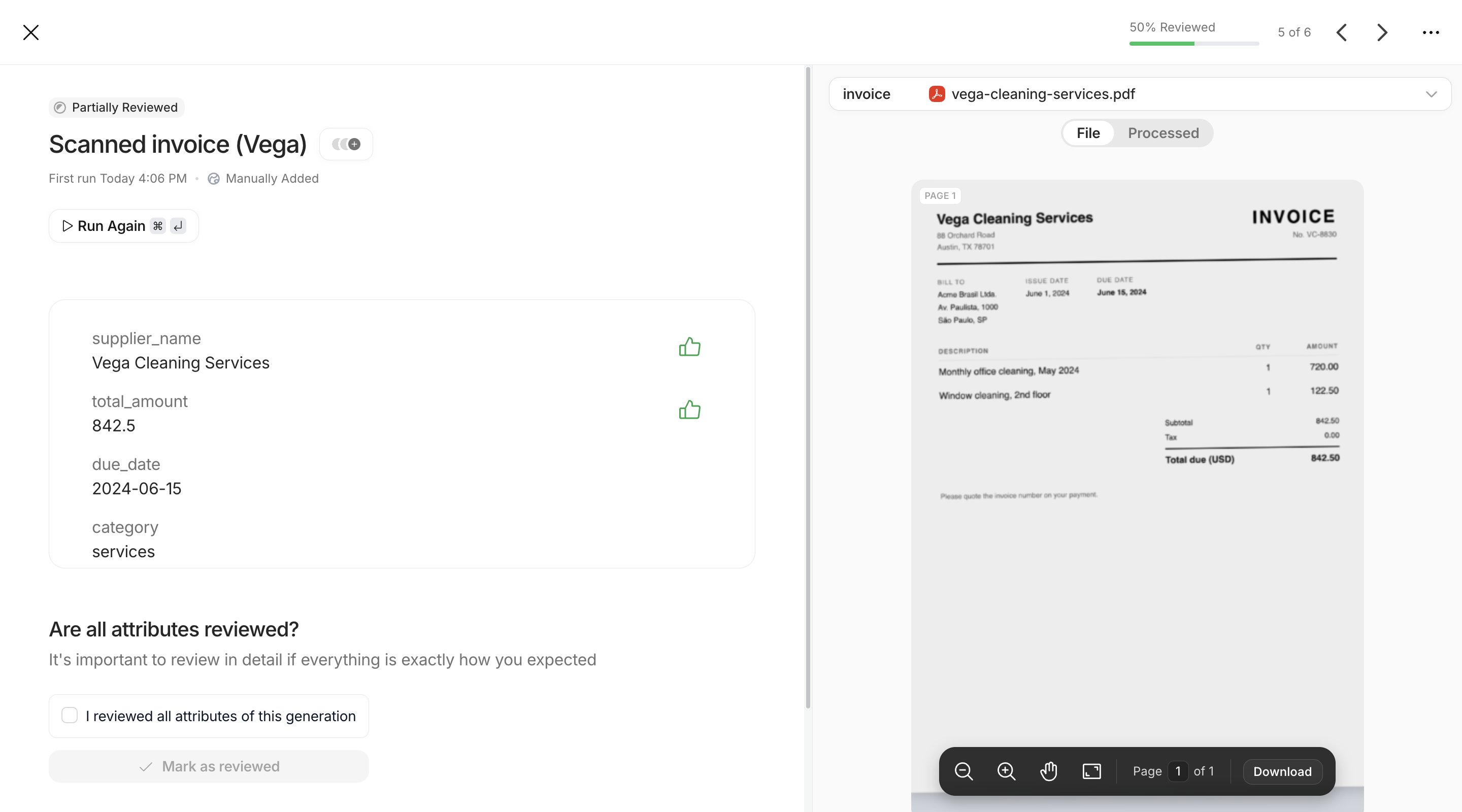
- Left: the title, labels, the date of the First run or Last run, the source (Manually Added or Production), the Run / Run Again button, and the result as one card per attribute of the Output Format. A Canvas without Output Format shows a single Result.
- Right: the inputs. Select Variable picks a variable or a file; for a file, File shows the original and Processed shows the text Tela extracted from it. Drag the divider to resize, or open the preview full screen.
- Header: the review progress (% Reviewed), N of M, arrows to move to the previous or next Test Case (also the ← and → keys), and the
…menu with Edit Inputs, Show Code (the raw JSON of the result) and Delete.
total_amount against the total printed on the page, not against what you remember.
In Workflows
The left side lists one card per step, in order. Steps with an Output Format show their attributes with thumbs; other steps (code, split, crop, conditions) show their output, and Map steps let you browse each iteration. A step that failed shows its error. See In Test Cases.In Agents
Agent test cases show the Agent’s reasoning, the result card by card and an Evaluation result with a pass or fail verdict. See Reading a result.Reviewing attribute by attribute
Hover an attribute and two icons appear: thumbs up (Mark as correct) and thumbs down (Mark as incorrect). Click one to record your verdict; click it again (Remove evaluation) to undo. What a mark does:- Good stores the value as an Expected Answer of this Test Case for this attribute. The next time a run produces the same value, the attribute is reviewed automatically.
- Bad stores the value as a Wrong Answer and opens the Validations popover on the Examples tab, so you can type the right value as a Right answer straight away. For the two-currency invoice, mark
total_amount=1,250.00 USDas Bad and add1,250.00as the right answer.
Finishing a review
Under the result, when some attributes have no verdict, the Are all attributes reviewed? block offers a shortcut: tick I reviewed all attributes of this generation and click Mark as reviewed to mark every remaining attribute Good. Use it only after you actually looked at each of them; it is what moves the Test Case to Completed and puts its attributes in the Accuracy Score. Open Notes at the bottom to Add a note about the run, for example scan is rotated 90 degrees, the model still reads the total. Notes are kept per run and shown to whoever opens the Test Case next.For developers. Attribute feedback is stored on the run as a map of attribute path to
1 (Good), 0 (Bad) or absent, through PATCH /generation/{id}/attribute-feedbacks-bulk. Paths follow the Output Format, with indexes for list items, such as line_items.2.amount.What passing means
There is no single pass/fail flag on a Canvas Test Case. A Test Case is in good shape when its status is Completed and its Score bar is full: every attribute has a verdict and every verdict is Good. The table shows the score of each row; the summary shows the Accuracy Score across the suite. A Completed Test Case with a 75% score tells you one of four attributes is wrong on this version, and the red cell in its row tells you which.Running again
A Completed, Pending Review or Partially Reviewed Test Case shows Run Again. Clicking it opens Run Test Case Again with two choices:- Run Again: Run this test case again with the same settings. A new run replaces the last one as the result you see for this version. Use it when the prompt did not change and you want to check that the output is stable.
- Duplicate: Create a copy of this test case to edit before running. Use it to make a variant, for example the same invoice with a different question.