

From a run in Craft
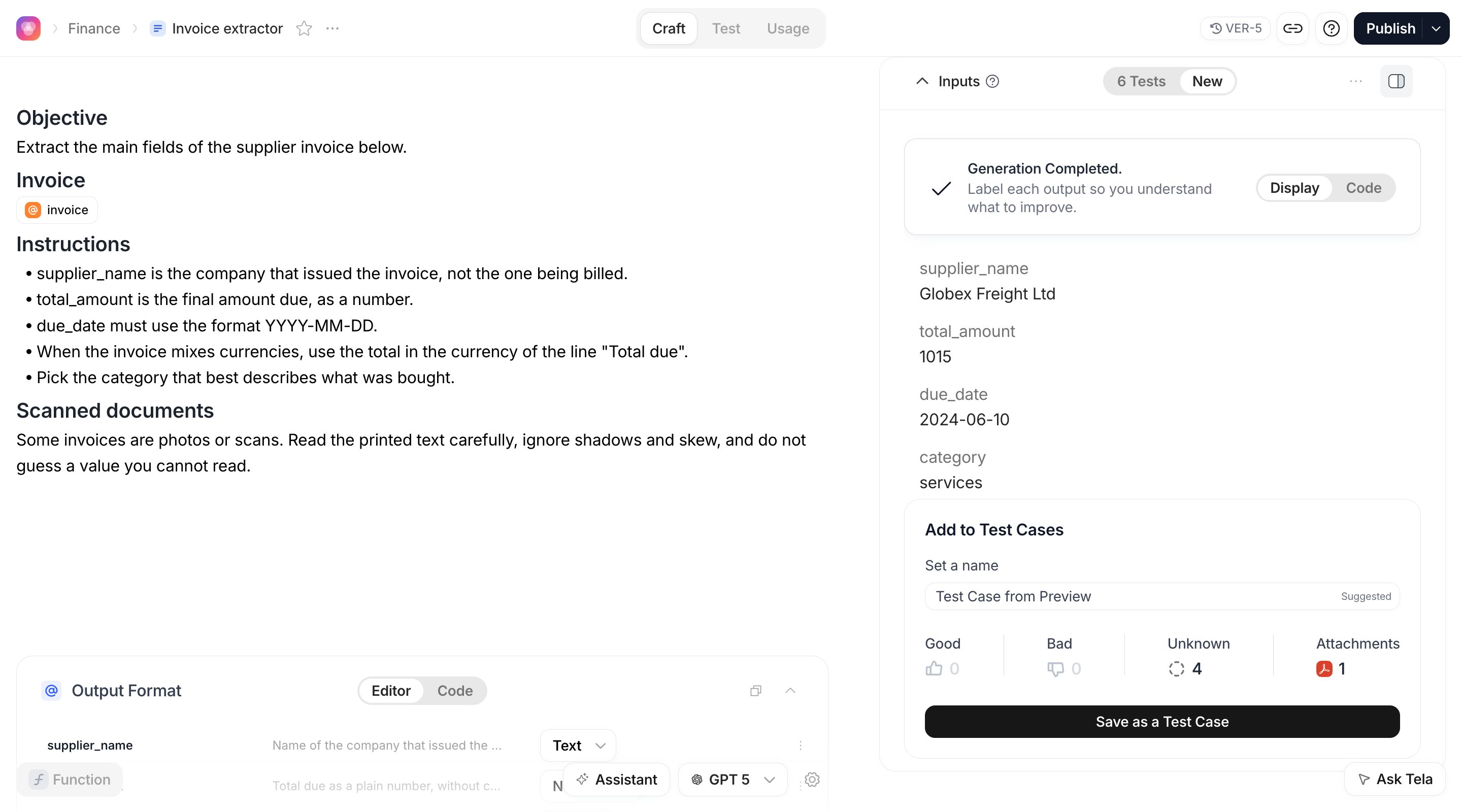
You have just clicked Run Preview on the clean invoice and the four attributes look right. Save the run before you touch the prompt again.1
Review the result in place
Hover an attribute in the result and click the thumbs up or thumbs down. The marks you make here are saved with the Test Case as its first review, so the Test Case is born already reviewed.
2
Open Add to Test Cases
Under the result, the Add to Test Cases card shows a suggested name under Set a name, and how many attributes are positive, negative and pending. Click Save as a Test Case.
3
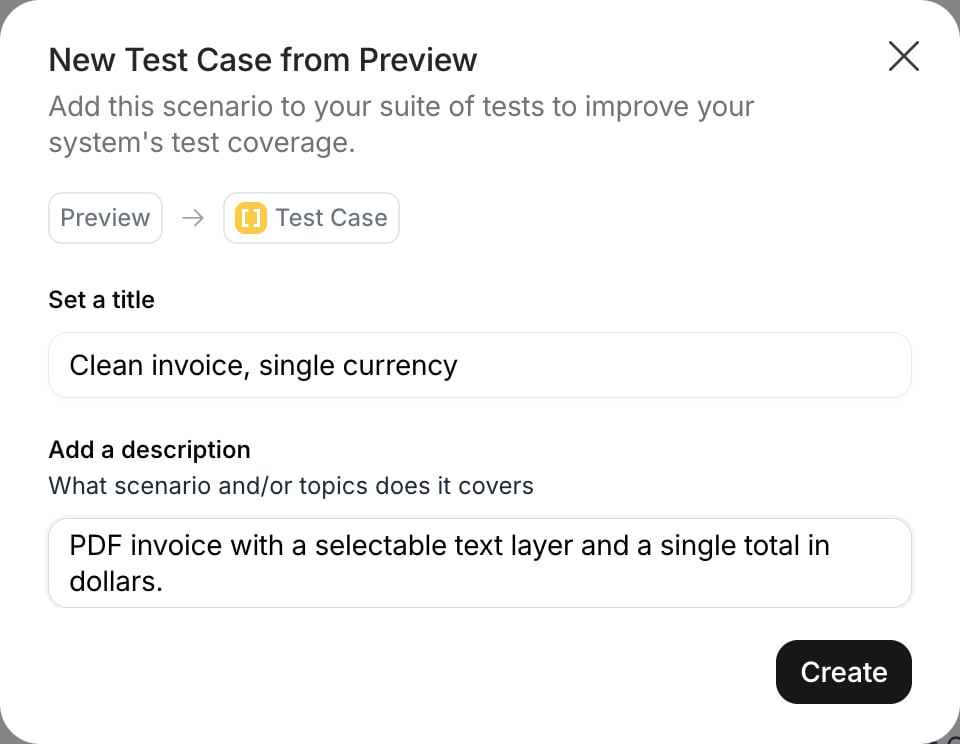
Name it and describe it
In New Test Case from Preview, give it a title under Set a title (for example Clean invoice, single currency) and, under Add a description, say what scenario it covers. The description is stored as a note on the run. Click Create.
… menu of the Inputs panel also has Create Test Case, which opens the same dialog for the current inputs and result. The Test Case keeps the variables, the files and the chat messages of the preview, and shows Manually Added as its source.
In Workflows
After a Workflow run completes in Craft, the same Add to Test Cases card appears in the result pane. It saves the Inputs of the run, including files, and the output of every step. See Running, testing and publishing.In Agents
In the Test your agent panel, click Review after a run to save it as a test case and open it in the Test experience. See Testing an Agent.From a reviewed Workstation task
A task your team reviewed in a Workstation App is the best Test Case you can get: a real document, and an output a person checked and corrected. Suppose a reviewer opened the invoice with two currencies, foundtotal_amount in the wrong currency and fixed it before approving.
- Right after Approve & Continue, Tela suggests creating a Test Case from the task. Tick Snooze Test Case suggestions for today. to stop the suggestion for a day.
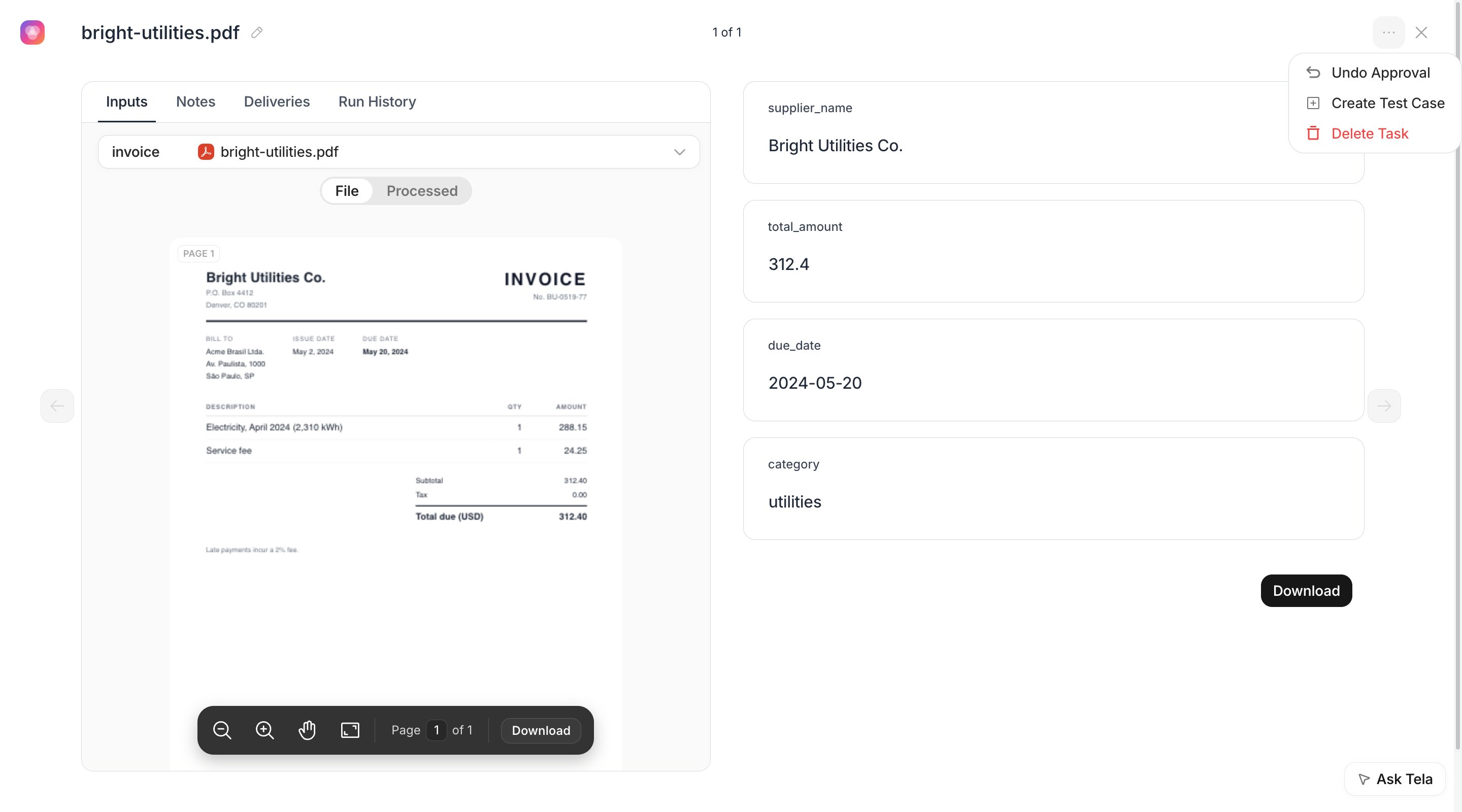
- Later, open the approved task and choose Create Test Case in the
…menu. The option only appears once the task is approved.
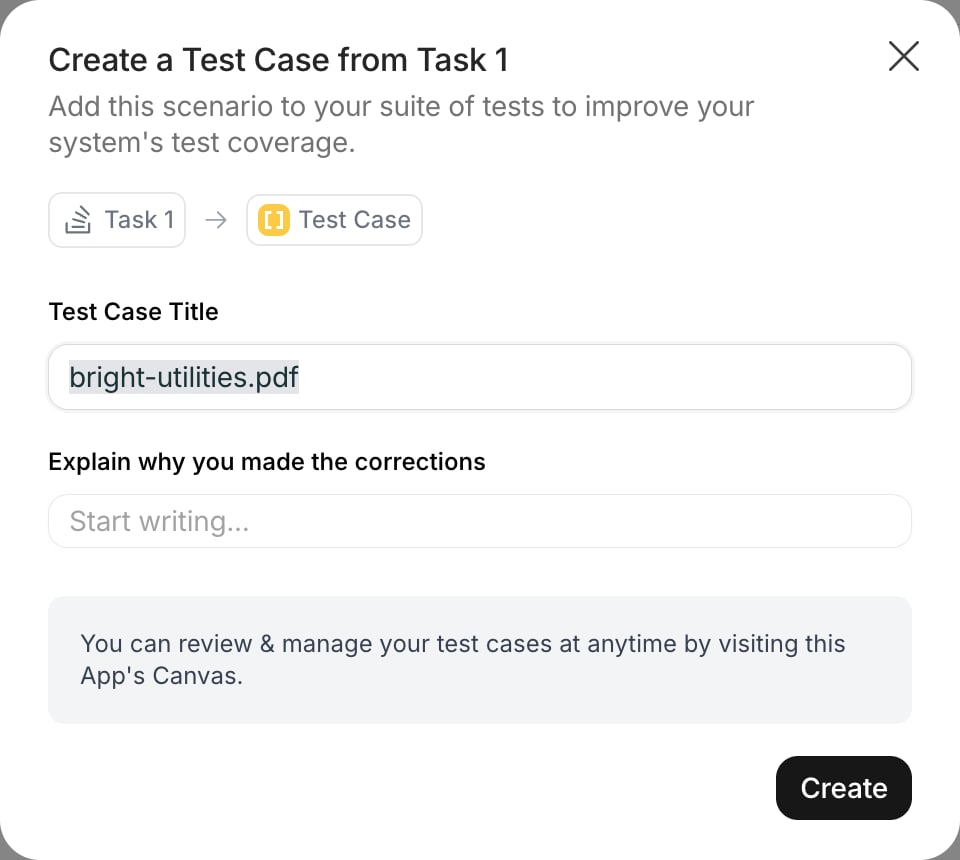
- The task’s files and variables become the inputs of the Test Case.
- Every attribute the reviewer left untouched is saved as an Expected Answer and marked Good.
- For every attribute the reviewer edited, the original value is saved as a Wrong Answer and the corrected value as an Expected Answer, and the attribute is marked Bad on the original run.
- Your explanation is stored as a note on the run.
From files
To cover an input you have not run yet, drop the file on the Test experience, or click Drop files here / browse your computer.- When the Canvas has a single variable, each file becomes one Test Case named after the file, and it runs right away.
- When the Canvas has several variables, or you selected several files for one Test Case, the Create Test Cases dialog opens. For each Test Case, pick a name and Assign file to each variable. Add another test case adds a row; Create N test cases confirms. Every Test Case must have all required variables assigned.
By hand
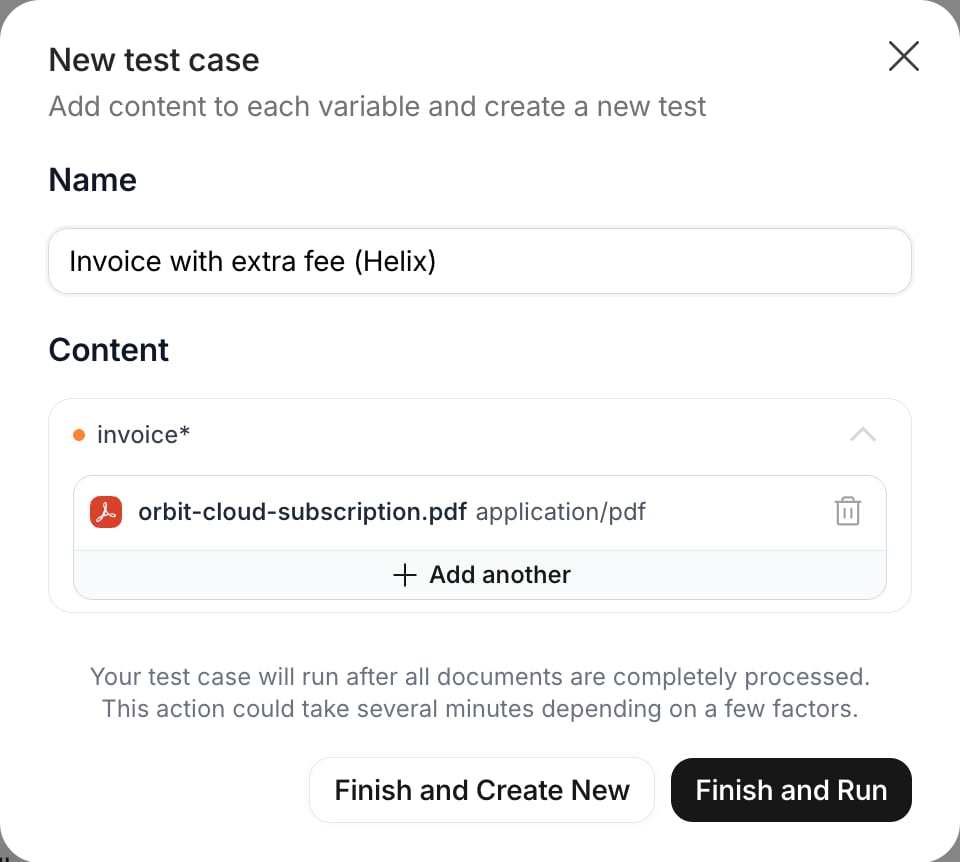
Click New test case (Create manually). The dialog has a Name (prefilled as Untitled Test Case #N) and, under Content, one field per variable where you write text or attach a document. Required variables must be filled. Then:- Finish and Run creates the Test Case and runs it against the version you are viewing.
- Finish and Create New creates it and opens an empty dialog for the next one.
invoice, to check that the Canvas does not invent a total_amount.
… menu; Save and Run saves and runs it again. Duplicate, in the row menu of the table or in the rerun dialog, creates a copy named (Copy) with the same inputs and no runs, useful for a variant of an existing case.
Through the API
POST /test-case creates one Test Case, or several when the body is an array. The required fields are promptId (the Canvas ID from Connect via API), messages (an empty array for a Canvas without chat) and variablesRichContent. Text inputs go in variables; files go in files, each pointing at a file in your Vault and at the variable it fills.
promptVersionId to run, or Run many test cases. The full schema, including expectedOutput, is in Create Test Cases; PATCH /test-case/{id} updates a Test Case and DELETE removes it.
The Tela SDKs cover the Completion API. Test Case endpoints are called over HTTP, in camelCase as shown above.
Organizing with labels
Labels group Test Cases so you can run and read a subset:scanned, multi-currency, regression. Open a Test Case and use the label selector next to its title to Assign label or Create label with a name and a color. In the table, the Labels column shows them and the Labels filter narrows the list; with a filter on, the run button becomes Run Filtered.
Labels belong to the Canvas. Through the API, create them with POST /test-case-tags, assign them with POST /test-case/{id}/tags or in bulk with POST /test-case/bulk-add-tags, and pass tagIds in the filters of Run many test cases to run only those.
Test Case labels are not the Tags stored with runs for Usage. The two are separate.