

supplier_name, total_amount, due_date and category, and it has one file variable, invoice. The test suite holds a handful of cases: a clean PDF invoice, a scanned one, an invoice with two currencies and a document that is not an invoice at all.
What a Test Case is
A Test Case is a saved input: the value of every variable of the Canvas, including the files, plus a title and optional labels. When you run it, Tela executes the Canvas with those inputs and stores the result as a run of that Test Case on that version. What makes it a test is what you attach to the result:- Reviews. Each attribute of the result gets a thumbs up or down. For the clean invoice,
total_amount=1,250.00is Good;due_date=2024-01-05when the invoice says2024-05-01is Bad. - Examples. The values you mark are kept as Expected Answers and Wrong Answers of the Test Case. On the next run, an attribute that matches one of them is reviewed automatically.
- Rules. Plain-language rules per attribute, such as The total must be a number without currency symbol, that an AI judge applies when no example matches.
In the API, a Test Case is a
test-case object with variables, variablesRichContent, files, title, answers (the examples) and validationRules. Each run is a generation. See Create Test Cases.Why test
- Validate results on real inputs. Running the invoice Canvas once in Craft tells you it works on that invoice. Five Test Cases with different layouts tell you where it does not.
- Measure quality over time. The Accuracy Score of a version is computed from your reviews. It gives you a number you can compare before and after a change to the prompt.
- Catch regressions. Changing the prompt to fix the scanned invoice can break the one with two currencies. Running the suite shows it before your team sees it in the Workstation.
- Decide what to publish. A version with a reviewed, green suite is a version you can publish to Production and hand to the API with confidence. See Publishing and environments.
- Learn from production. Every task your team corrects in the Workstation is a real input with a verified output. Turning it into a Test Case closes the loop between production and the next version.
Where Test Cases live
Every Canvas, Workflow and Agent has three experiences in the top center of its page: Craft, Test and Usage. Test Cases live in Test.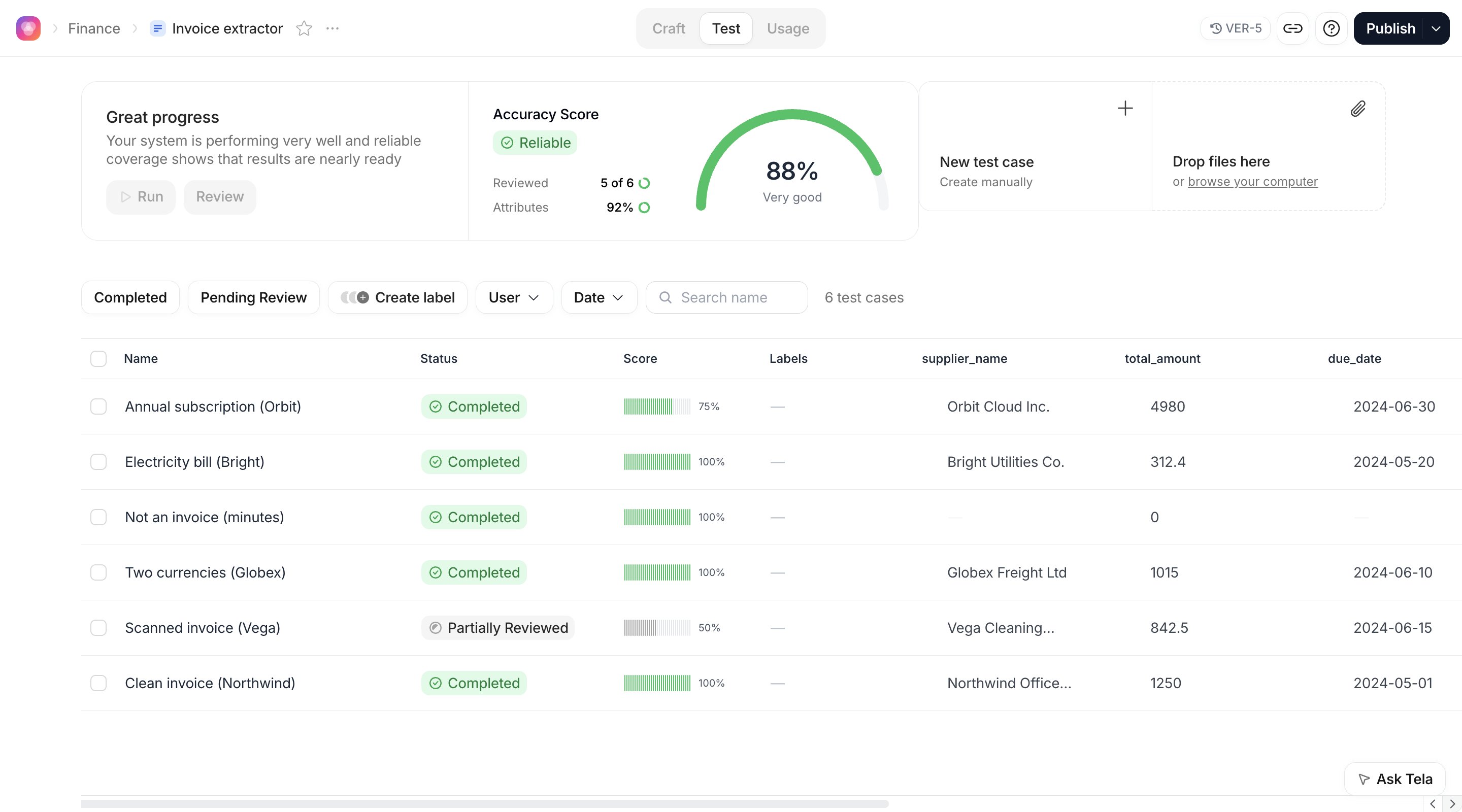
Click a row to open the Test Case in full screen: the result on the left, attribute by attribute, and the inputs on the right. This is where you review.
The Test experience always shows the runs of the version you are viewing, the one marked Current in the Version History. Switch versions and the table, the statuses and the metrics switch with it.
Test is hidden when file storage is disabled for your Workspace. When data retention is turned on, a banner at the top of the experience tells you after how many hours files and Test Cases are deleted.
In Workflows
A Workflow has the same Test experience. A run executes every step, and the result is grouped by step; the attributes you review are those of the Output Formats of the AI steps. The Workflow docs explain what becomes reviewable and the specifics of Test Cases in a Workflow.In Agents
Agents have their own Test Cases, with an Expected output, Rules for an evaluator and a pass or fail verdict with a reason. The metrics at the top of the experience are the same. The Agent docs cover them in Testing an Agent.The lifecycle
1
Create
Save a run you liked in Craft, turn a reviewed Workstation task into a Test Case, drop files on the Test experience, or create one by hand. For the invoice Canvas, start with the clean invoice and the document that is not an invoice.
2
Run
Run All, or open a Test Case and click Run. Each Test Case runs against the version you are viewing.
3
Review
Open each result and mark every attribute Good or Bad. Add the right value when something is wrong. The status moves from Pending Review to Completed when nothing is left to review.
4
Fix and rerun
Change the prompt in Craft, come back to Test and run again. Attributes that match your examples or pass your rules are reviewed for you; you only look at what changed.
5
Compare and publish
Open the previous version from the Version History and compare its Accuracy Score with the new one. When the new version is at least as good on every case that matters, Publish.
Pages in this section
Creating Test Cases
From a Craft run, from a Workstation task, from files, by hand, in bulk or through the API
Running and reviewing
Run one or all, read the statuses, review attribute by attribute, rerun
Validation rules and metrics
Expected Answers, Wrong Answers, AI rules, and how the Accuracy Score is computed
Comparing versions
Run the same Test Cases on several versions, read the difference and choose what to publish