

What a run returns
Every step that runs stores its output. The result of the run is the output of the last step that ran on the path the run took: in the running example, the escalation note for a high-value contract, or the generated letter for the others.What becomes reviewable
When a Workflow runs in Test or in a Workstation App, people review the result attribute by attribute: a thumbs up or down on each field. Those attributes come from the Output Formats of the steps: each AI Module with an Output Format, each Existing Canvas whose Canvas has an Output Format, contributes its attributes under the step’s name (the UI calls this “N attributes from Step N”). Steps without a structured output (plain-text AI Modules, Code Execution, document steps) show their output but do not give reviewers fixed attributes to judge.For developers: a Workflow saved through the API can also declare an explicit
outputs map (field name → type and the step reference it comes from), which is what the run returns and what a Test Case result makes reviewable. In the editor there is no separate outputs panel: the steps themselves define the outputs, and the last step defines the final result.In the result pane
After Run, the right-hand pane shows the run while it progresses and, when it finishes, two tabs:- Preview: the Workflow Status (Completed, Failed, Cancelled, Timed out) and one collapsible section per step with its status (Completed, Failed, Skipped for branches not taken, Waiting To Run) and its output. Structured outputs show as fields, files show with a preview you can open full screen, code outputs show the returned value, and a Map shows its iterations with previous/next controls. Errors appear in the failed step’s section.
- Debug: the cost (in dollars or credits), duration, input and output tokens, the completion and request IDs, the dates and who started the run, and an Execution timeline with the detail of each step.
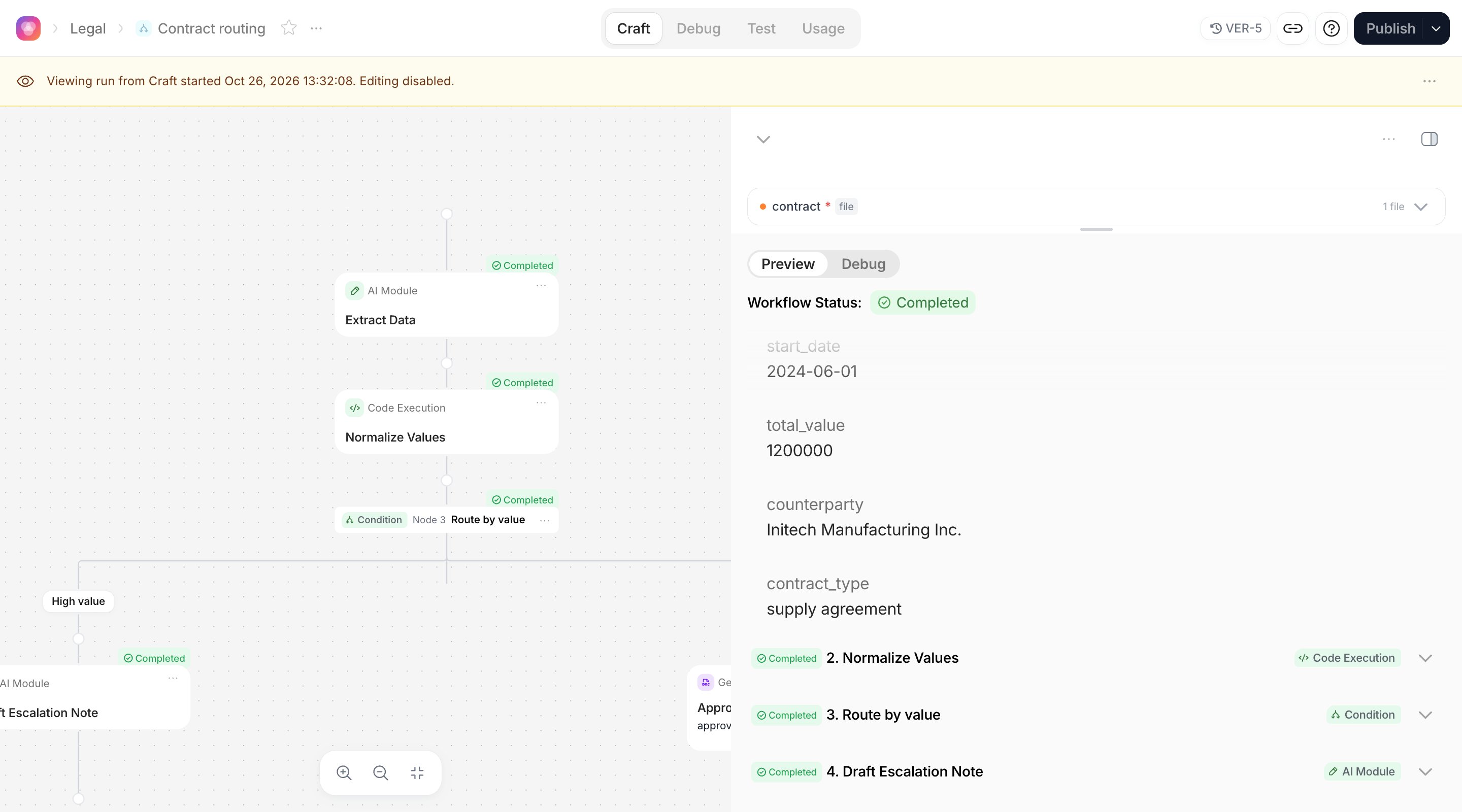
The Debug tab loads the timeline a few seconds after the run ends. Missing cost or token figures appear as
- rather than zero.In the Debug experience
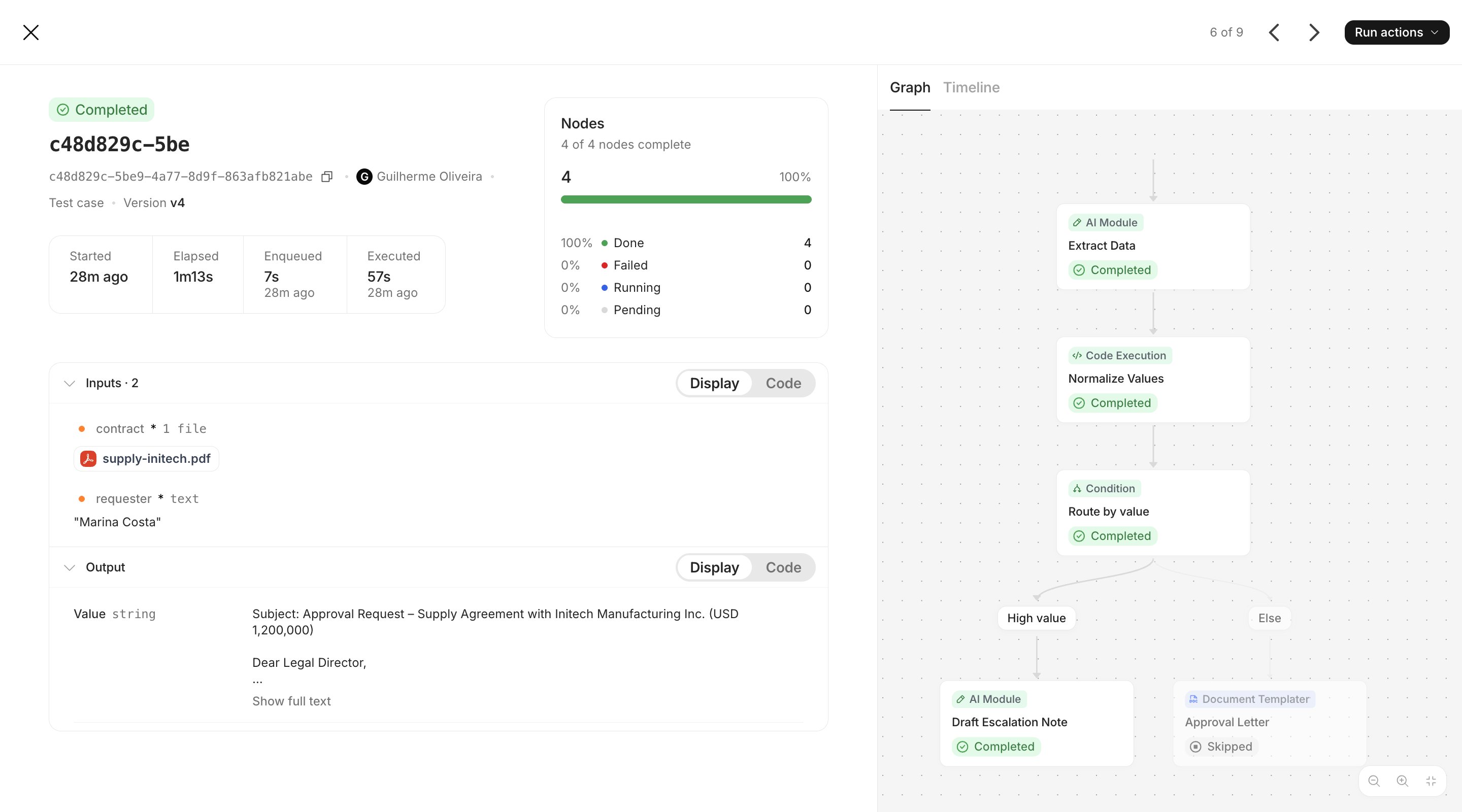
The Debug experience lists every run of the Workflow, from Craft, Test Cases, the Workstation, the API and schedules, with Status, Source, Started, Duration and Version. Filter by status, source, version, author or date range, then select a run. For a run you get:- an Execution overview: run ID, version, source, how many nodes completed, the Inputs it received and the run’s output;
- a Graph and a Timeline view of the steps;
- a node inspector for each step with Input, Output, Error and Metadata; for AI steps, the prompt as sent and the Expected output; for Code Execution, the Terminal; for a Condition, which case Matched and the Referenced values; for a Map, the Iterations with Open iteration as run.
- Run actions: Re-run the same version with these inputs (editable before running), Edit in Craft (opens Craft on the latest version with this run’s inputs filled in) or View in Craft (opens the run read-only).
In a Workstation App
When you publish with Deploy App, your team runs the Workflow from a Workstation: each input they send becomes a task. A task runs the Workflow once, then waits in Pending Review with the result laid out for approval.- Reviewers see the reviewable attributes described above, can edit values, and Approve the task. Generated files are available to download.
- Approved tasks can be downloaded as CSV or JSON and turned into Test Cases.
- Through the Tasks API, a Workflow task’s
outputContentwraps{ response, stepOutputs, error? }:responseis the run’s result andstepOutputsthe output of every step by name. See Creating tasks via API.
A Workstation App currently exposes one variable. A Workflow with several Inputs can still be deployed, but check how the App maps them before relying on it.
Through the API
Two APIs give you results from your own systems.The Completion API
Running a published Workflow withPOST /v2/chat/completions works like a Canvas: canvas_id is the Workflow ID from Connect via API, variables carries the Inputs, and choices[0].message.content carries the Workflow response when the run finishes. Use async: true or webhook_url for long runs. See Completion API overview and Async and webhooks.
The Workflow Run API
To read every step, use the Workflow Run endpoints:GET /workflow/runs?promptId=<workflow id>lists runs, newest first. Filter withstatus(pending,running,completed,failed,cancelled),environment(craft-preview,test-case,workstation,api),promptVersionId, androotOnly=trueto hide the child runs created by Map iterations.GET /workflow/runs/{id}returns one run with itsstepsand the executedgraph.idis the run ID, or the external execution ID you received when you started the run through the API.POST /workflow/runs/{id}/cancelcancels a run that is still active.
cURL
stepslists the visible steps in order; steps on branches not taken areskipped.outputis the completed leaf step whose output is the run’s result;nullwhile no leaf step has completed. Itsmetadatamay carryoutputFormatMismatch: truewhen an AI step could not honour its Output Format.statuscan bepending,running,completed,failed,requires-action,cancelled,timeoutorwaiting-for-review. Terminal statuses arecompleted,failed,cancelledandtimeout.- In
GET /workflow/runs/{id},graph.nodesrepeats each step with its ports, status and output, and a node that ran inside a Map has arunsarray with one entry per iteration (index,status,output,error).
Which field of the Completion API response carries the external execution ID to pass to
GET /workflow/runs/{id} is not documented here. When in doubt, list runs by promptId and environment=api and match them by startedAt or by the Inputs.