

contract file and a requester text, and the Extract Data step reads the contract while the Approval Letter step uses both the extracted values and the requester.
Declaring Inputs
Inputs live in the Inputs section of the right-hand pane in Craft. They are the variables the Workflow receives on every run, from the person running it in Craft, from a Test Case, from a Workstation App or from the API.1
Add a variable
Click Add Variable in the Inputs section (or New Variable in the pane menu). Give it a Name: this is how you will refer to it in every step, so pick something short and clear, like
contract.2
Choose the type
Type is Text or File. A text Input receives typed content; a file Input receives one or more uploaded files.
3
Decide if it is required
Turn on Required when a run cannot happen without this Input. Required Inputs are also required in Test Cases, in the App and in API calls.
4
For files, choose how the AI reads them
A file Input is parsed by default: Tela extracts its text and the AI steps receive that text. Turn on Multimodal to send the file itself to the model instead, so it can look at scans, images, layout or audio. The tooltip in the dialog says it plainly: enabling multimodal disables the default data extraction.
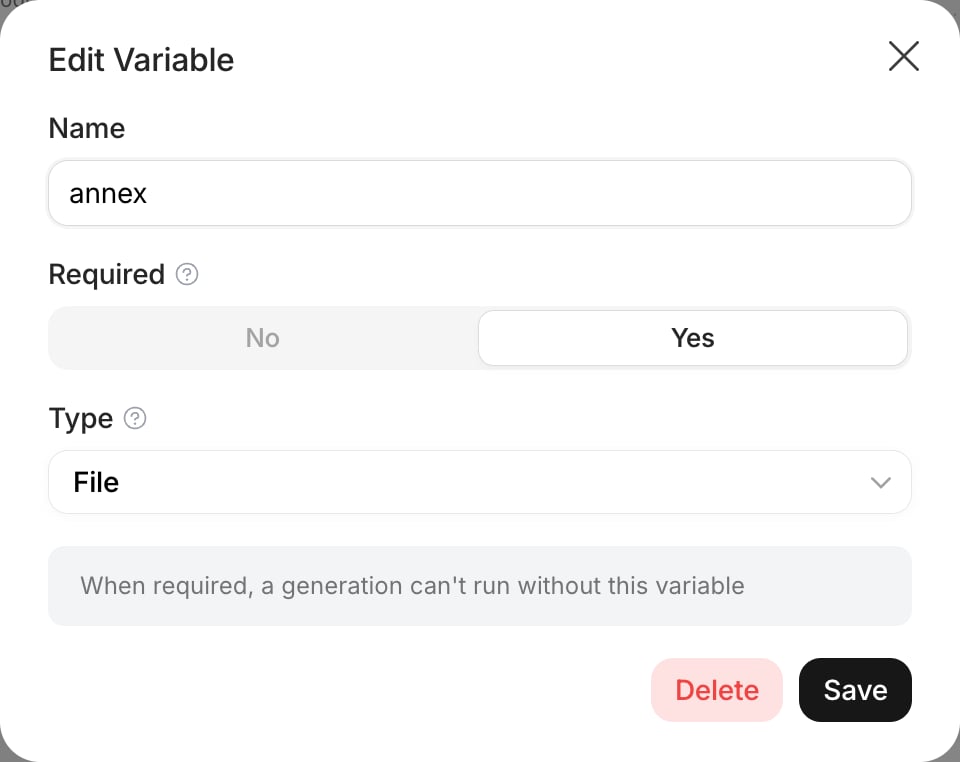
Rules for names
Step names and Input names share one namespace. The editor refuses to save when:- two steps have the same name, or two Inputs have the same name;
- a step and an Input have the same name;
- a step or an Input has no name.
@ menu, in results and in code.
Referencing Inputs and previous steps
Anywhere a module accepts a value (the prompt of an AI Module, the file of a Split, a placeholder of a Document Templater, a variable of an Existing Canvas), type@ to open the reference menu.
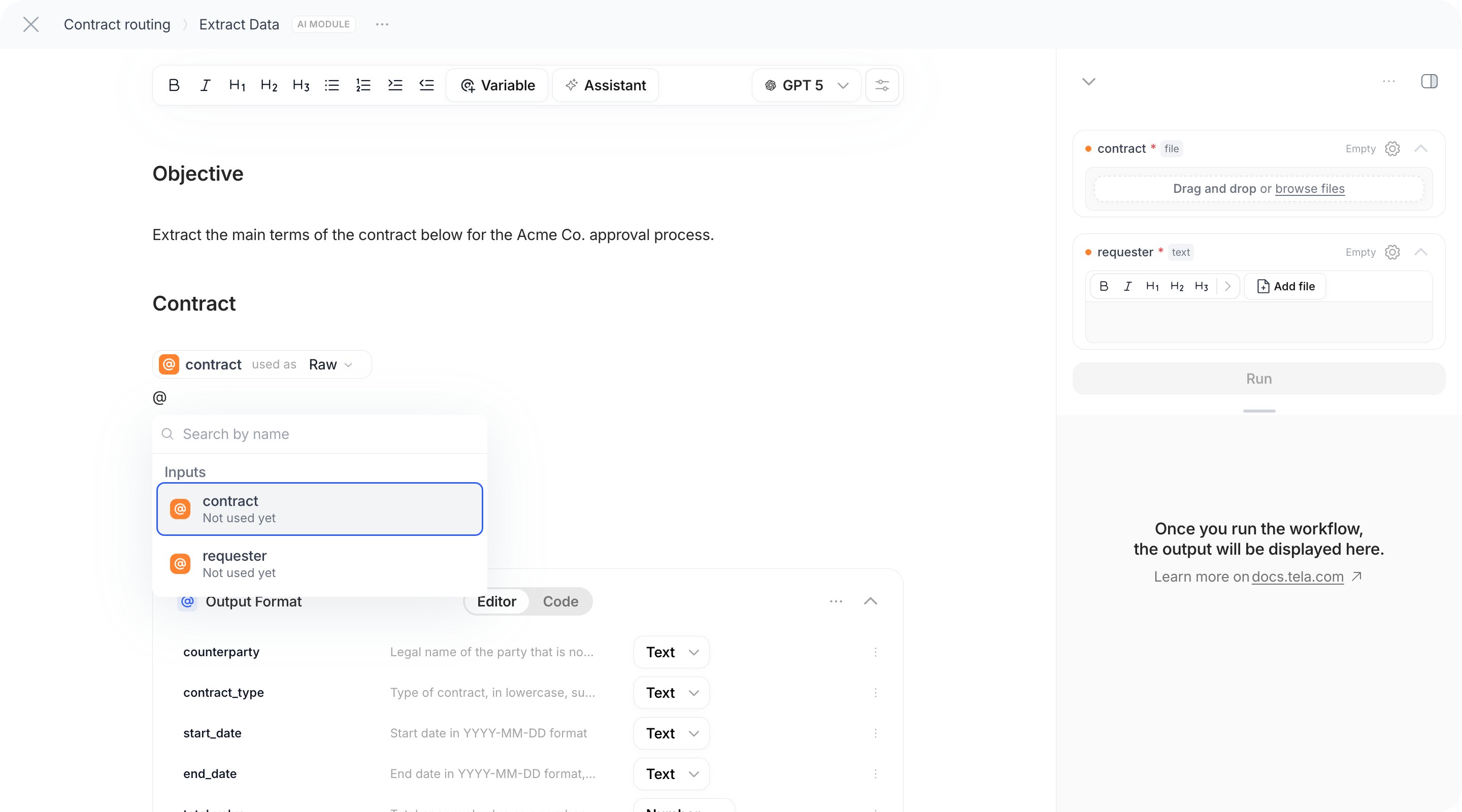
- Workflow variables: the Inputs you declared.
- Expected Outputs: the outputs of the steps before this one, labeled with the step name and number. A step with an Output Format expands into its attributes, so you can pick
Extract Data › total_valueinstead of the whole output. Nested attributes expand the same way. Use the search field to filter by name, and Select all to insert every attribute of a step.
@contract, and the Approval Letter step maps its {counterparty} placeholder to @Extract Data › counterparty and {requester} to @requester.
How a reference is used
Each chip shows how the value is used as: Parser, Multimodal, JSON, String or Raw. The default depends on the field and the value:
The rule of thumb: when the whole field is a single reference, the value keeps its type (a file stays a file, a list stays a list). When the reference is embedded in text, it is turned into text in the chosen format.
Nested values and lists
When a previous step returned an object, pick the attribute you need from the menu rather than the whole object. For lists, a reference to the list is what a Map iterates over, and inside the Map you refer to one item at a time through the Map Variable (see Split, Crop and Map). In Code Execution and in a Condition in code mode you do not use@. Values arrive in an input object keyed by Input and step names: input["contract"], input["Extract Data"].total_value. See Code Execution.
What a step can see
A step can reference:- every Input of the Workflow;
- the output of every step before it on its own path. Inside a Condition branch, that includes the steps before the Condition plus the earlier steps of the same branch. Inside a Map, that includes the steps before the Map plus the earlier steps inside the Map and the Map Variable.
@ menu only lists what is available at that step, so if you do not see a step in the menu, it is not reachable from where you are.
After a Connect joins two branches, the steps after the junction run whichever branch was taken. A value produced by a step on the branch that was not taken is not available on that run. Design the steps after a junction to rely on values produced before the Condition, or add a shared step after the branches join and have it read the value from whichever branch ran.
Inputs when the Workflow runs elsewhere
The Inputs you declare are exactly what each surface asks for:- Test: each Test Case fills every Input, and files can be dropped to create cases automatically.
- Workstation App: each input your team sends becomes a task; see the note about one variable per App.
- API: send the Inputs as
variables, with text or files.
For developers: in the saved Workflow, a reference is a URI,
{{input://<input-id>}} for an Input and {{step://<step-id>?path=<attribute>}} for a step output, with an optional format (raw, string, json, ai-xml). The chips in the editor are these URIs. Inputs are referenced by ID, so renaming an Input does not break references.