

.docx template you upload. In all three, configuration is mostly mapping: deciding which Workflow value goes into which variable, input or placeholder.
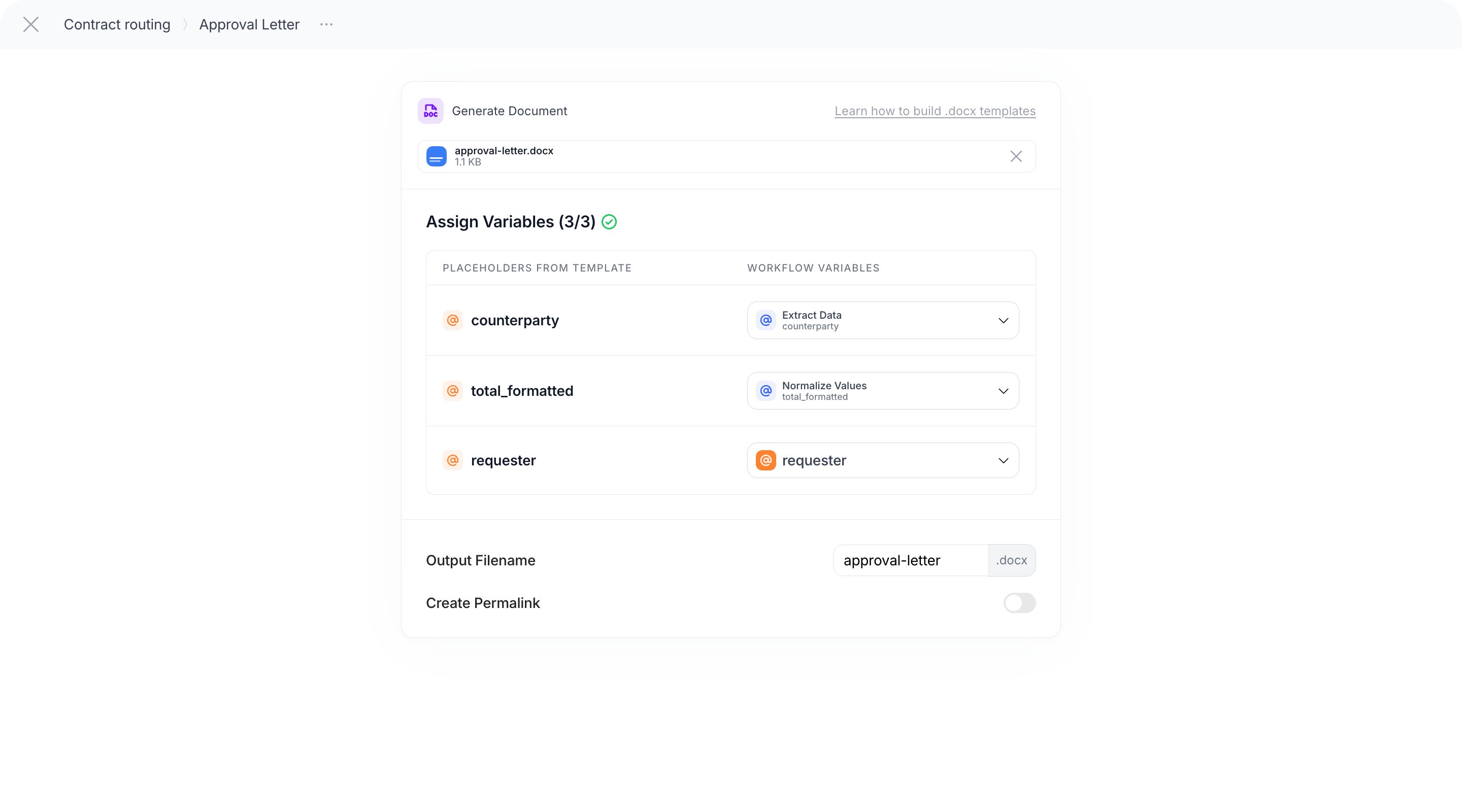
In the running example, Approval Letter is a Document Templater that fills approval-letter.docx with the counterparty, the formatted amount and the requester.
Existing Canvas
Existing Canvas (group Modules) runs a Canvas of your Workspace as one step. Use it when a Canvas is already tested and in production: you keep one place to improve the prompt, and every Workflow that uses it benefits.1
Select the Canvas
Click Select Canvas and search by name or project. The list shows when each Canvas was last published; a Canvas that is Not Published cannot be used. You can also select a Workflow here to run another Workflow as a step.
2
Choose how to proceed
- Reference it directly: the step runs the Canvas as it is published. You cannot edit the prompt from the Workflow.
- Make a copy: duplicates the Canvas into this Workflow so you can edit it directly, independent of the original.
3
Choose the version
- Always use Production version: the step follows whatever is published to Production. Publishing a new version of the Canvas changes the Workflow’s behaviour.
- Pin current published version: the step keeps using this exact version until you change it.
- Environment: follow the version published to a specific environment, for example
staging.
4
Assign Variables
Variables from Canvas lists the variables of the published version. For each, type
@ and pick the Workflow variable (an Input or a previous output) that fills it. A file variable of the Canvas takes a file Input or a file output.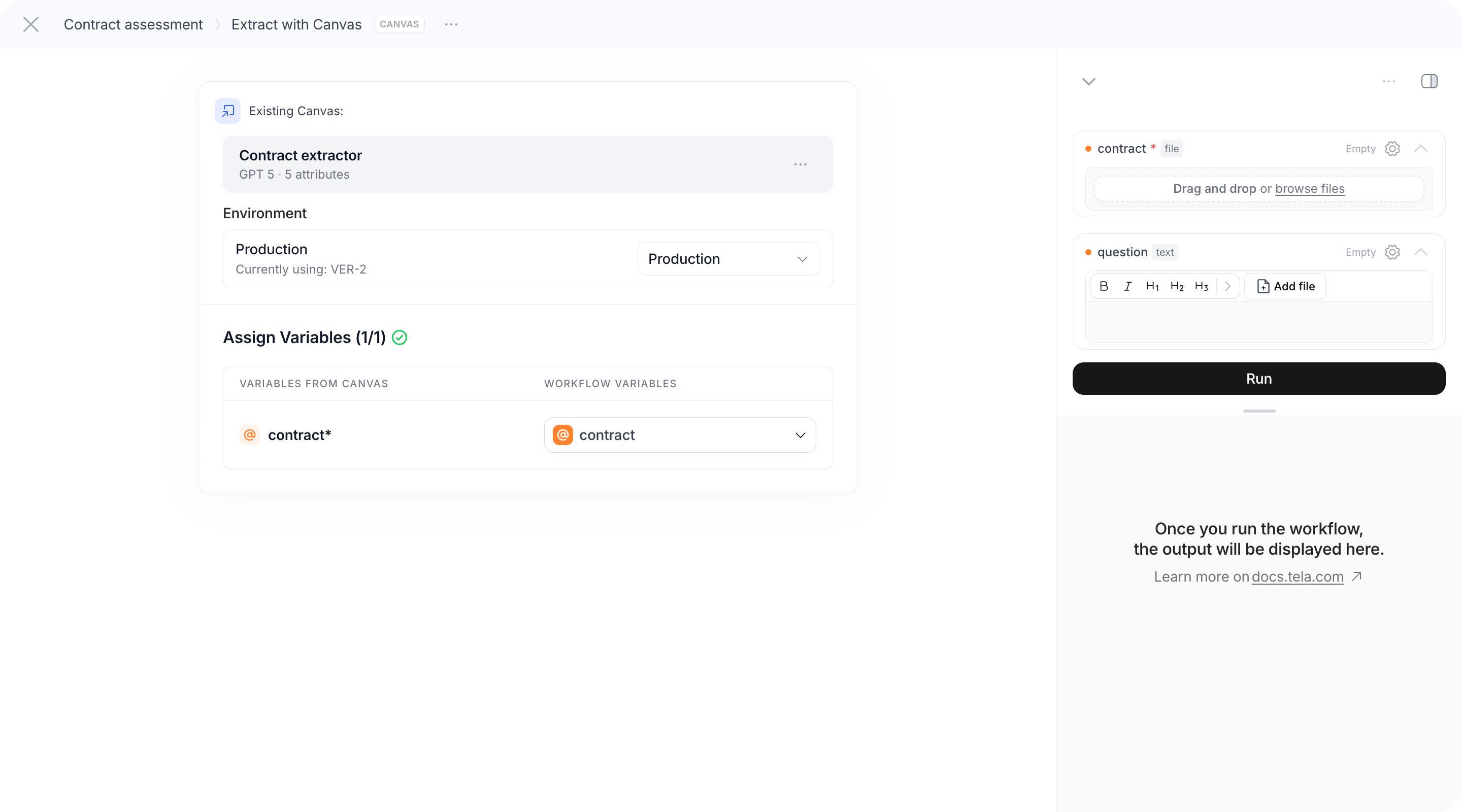
What the step returns
The output of the Canvas: an object with the attributes of its Output Format when it has one, otherwisecontent with the text. Those attributes appear in the @ menu of later steps. When the selected item is a Workflow, the output is an object with one key per step of that Workflow, holding each step’s output.
The Canvas needs a published version. The step runs the Canvas through the same path as the API, so its runs appear in the Canvas Usage as well as in the Workflow’s Debug.
Existing Agent
Existing Agent runs a published Agent of your Workspace, always its published version: publishing the Agent again changes what the step does. Use it for the part of the process that cannot be drawn in advance: research, a multi-step interaction with an external system, work that needs tools.1
Select the Agent
Click Select Agent and choose a Published Agent. Unpublished Agents are listed but cannot run.
2
Assign Inputs
Inputs from Agent lists the inputs declared by the Agent. Map each to a Workflow variable with
@, as for a Canvas.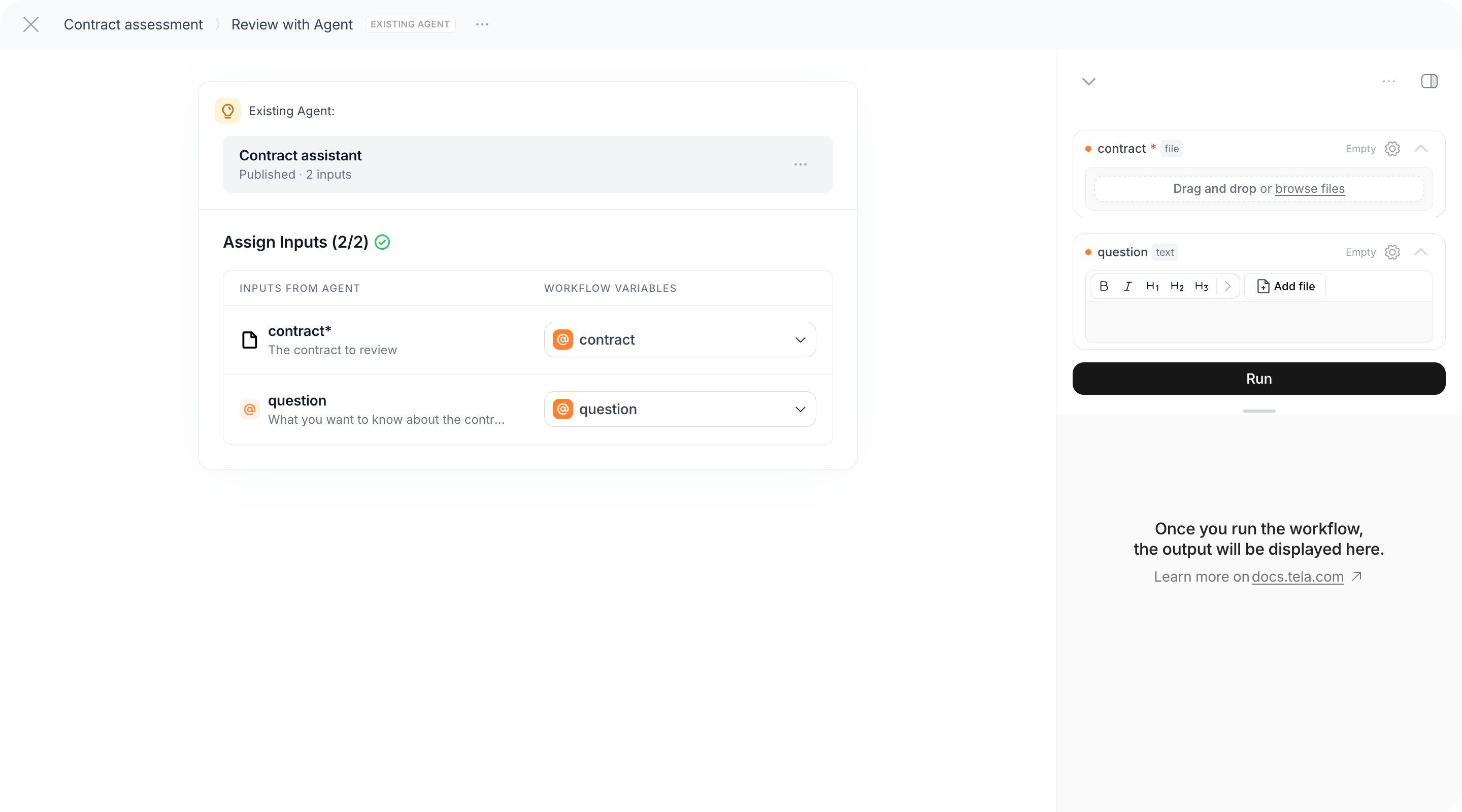
Agent runs take longer and cost more than an AI Module, and their result is less predictable. Prefer an AI Module when the task fits in one instruction, and reserve Existing Agent for the steps that need autonomy.
Document Templater
Document Templater (group Resources) generates a document from a.docx template by replacing its placeholders with Workflow values. In the graph the step appears as Generate Document.
Build the template first; Building .docx templates explains the {placeholder} syntax and its rules. For the approval letter:
1
Upload the template
Drop the
.docx file in the step or browse your computer. Only .docx is accepted. Tela extracts the placeholders and shows N placeholder(s) found.2
Assign the placeholders
Placeholders from Template lists each
{placeholder}. For each one, type @ and pick the Workflow variable that fills it: counterparty ← Extract Data › counterparty, total_formatted ← Normalize Values › total_formatted, requester ← the requester Input. Every placeholder needs a value for the step to be complete.3
Name the output file
Output Filename, for example
approval-letter.docx.4
Optional settings
- Enable Mustache turns on Mustache syntax in the template, for sections and loops over lists. The exact Mustache features supported are not documented here; test with your template.
- Create Permalink also produces a shareable link to the generated file.
What the step returns
The generated file is a file like any other: a later step can pass it to an AI Module (used as Parser or Multimodal) for a final check, or a Workstation task shows it for download. In the result pane you can open it full screen.
Templates from the picker
The Templates tab of the module picker inserts a ready-made Workflow template into your graph, with its own steps and variables to assign. It is a starting point you adapt, not a reusable step; once inserted, the steps are yours to edit.Input mapping, summarized
In every case, the
@ menu shows only what is available at that step; see What a step can see.