

The running example
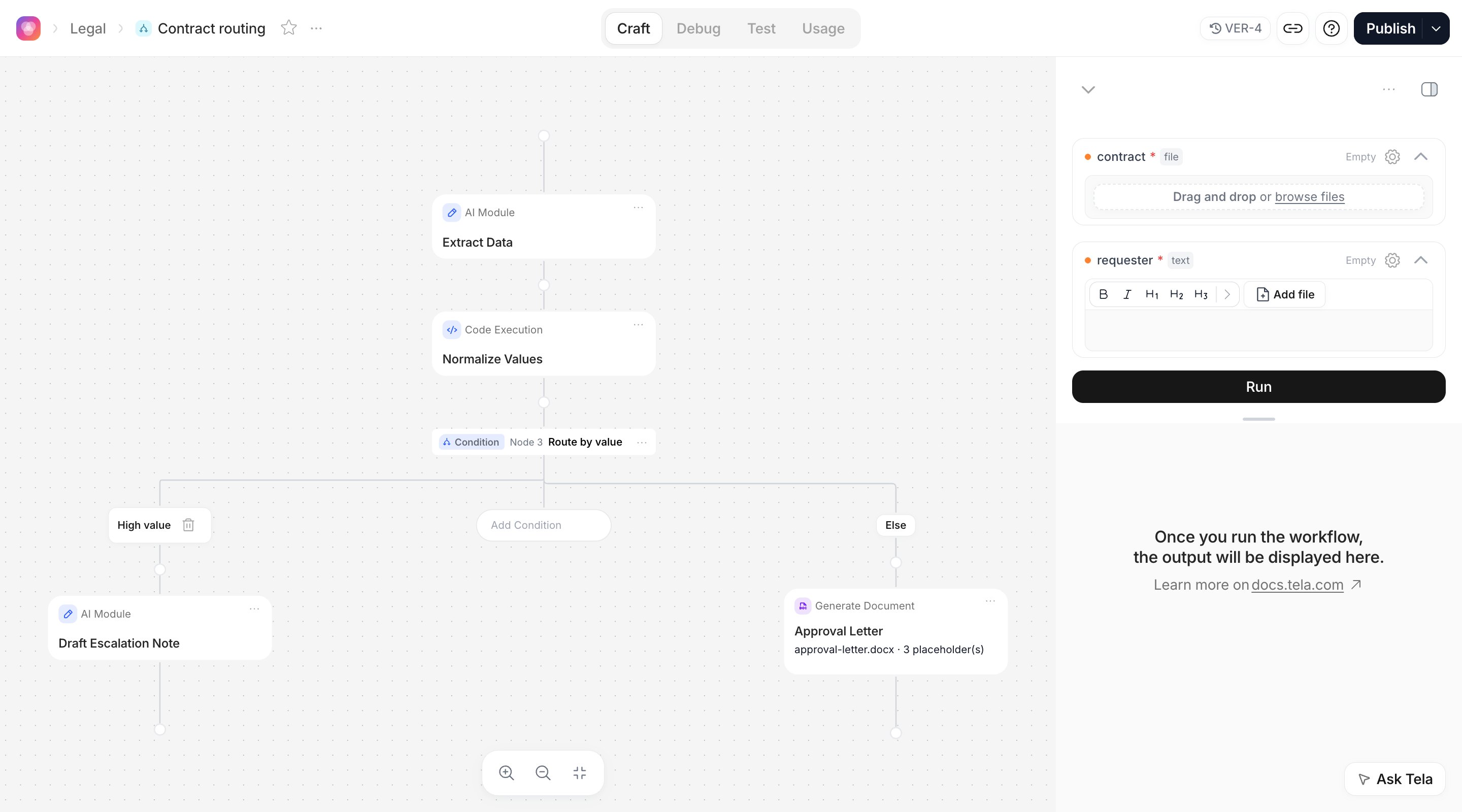
Every page in this section uses the same process, a contract routing Workflow:- Extract Data (AI Module) reads a contract and returns the counterparty, the total value, the dates and a short summary.
- Route by value (Condition) checks the total value.
- If the value is above 100,000, Draft Escalation Note (AI Module) writes a note for the legal team. Otherwise, Approval Letter (Document Templater) fills a
.docxtemplate and generates the letter.
Workflow, Canvas or Agent?
A Workflow can reuse an existing Canvas or Agent as one of its steps, so you can start with a Canvas and grow it into a Workflow later. See Key concepts for the full comparison.
Anatomy of the Workflow page
The Workflow page has four experiences at the top: Craft, Debug, Test and Usage.
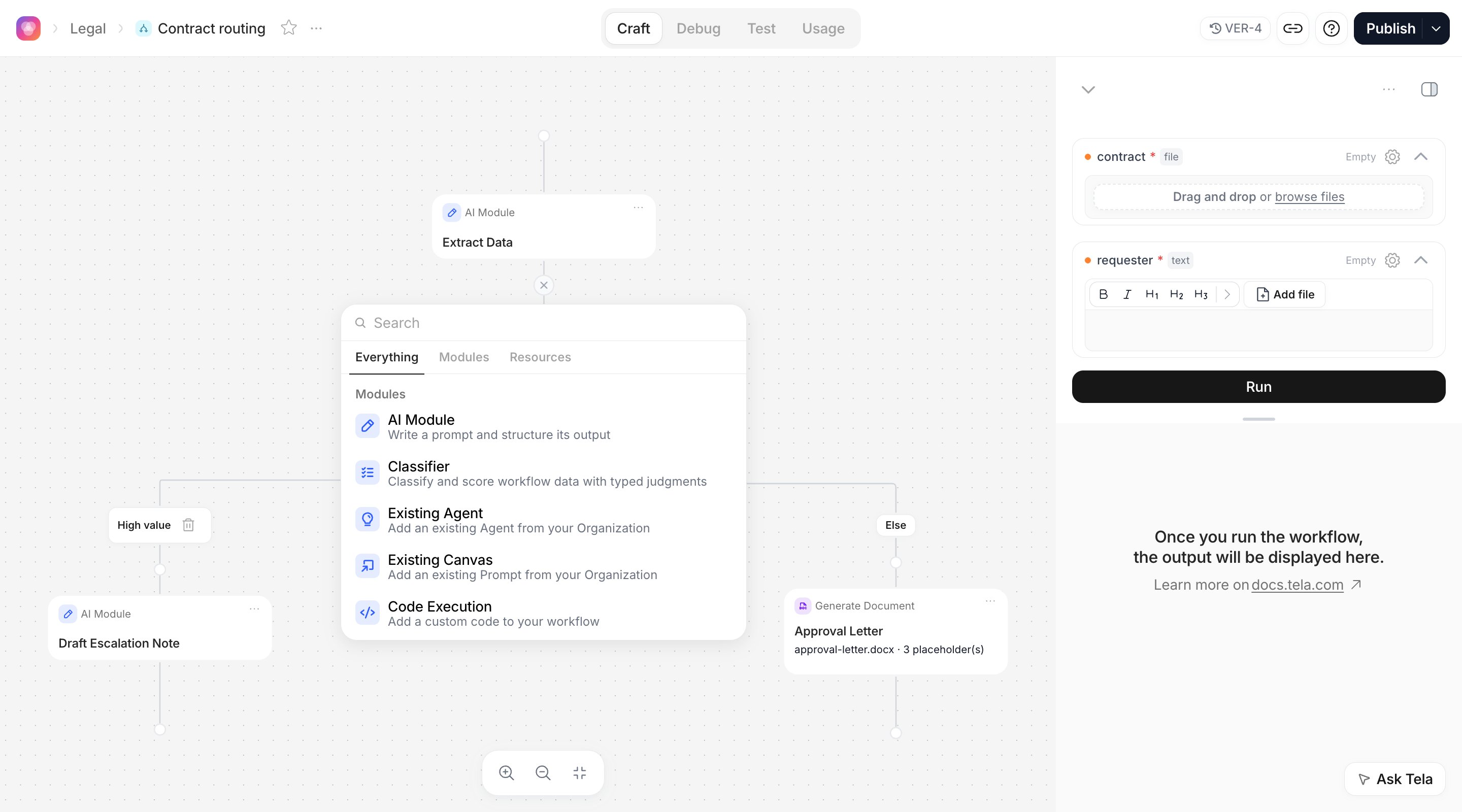
- Left side: the steps. A new Workflow opens with the module picker. Each step is a card; hover the connector below a card and click + to add the next one. Clicking a step opens its configuration. A Condition opens branches side by side, and a Map shows the steps that run inside it.
- Right side: Inputs and Run. The Inputs section is where you declare what the Workflow receives (Add Variable) and where you fill in values before a run. Below it, Run starts the Workflow, and the result of each step appears in the same pane when the run finishes, in the Preview and Debug tabs.
VER-3), Share, Publish and the … menu with Move to project, Connect via API, Execution, tags, credentials, rename, export and delete.
The other experiences:
- Debug lists every run of the Workflow, whatever started it (Craft, a Test case, a Workstation App, the API or a schedule), and lets you inspect each step of a run.
- Test keeps your Test Cases and their results, like a Canvas.
- Usage shows the executions of the published Workflow, when enabled for your Workspace.
Test is hidden when file storage is disabled for your Workspace, and Usage requires monitoring to be enabled. If you do not see them, contact your Tela team.
The modules
The module picker groups modules in tabs: Everything, Modules, Resources, Templates and Actions.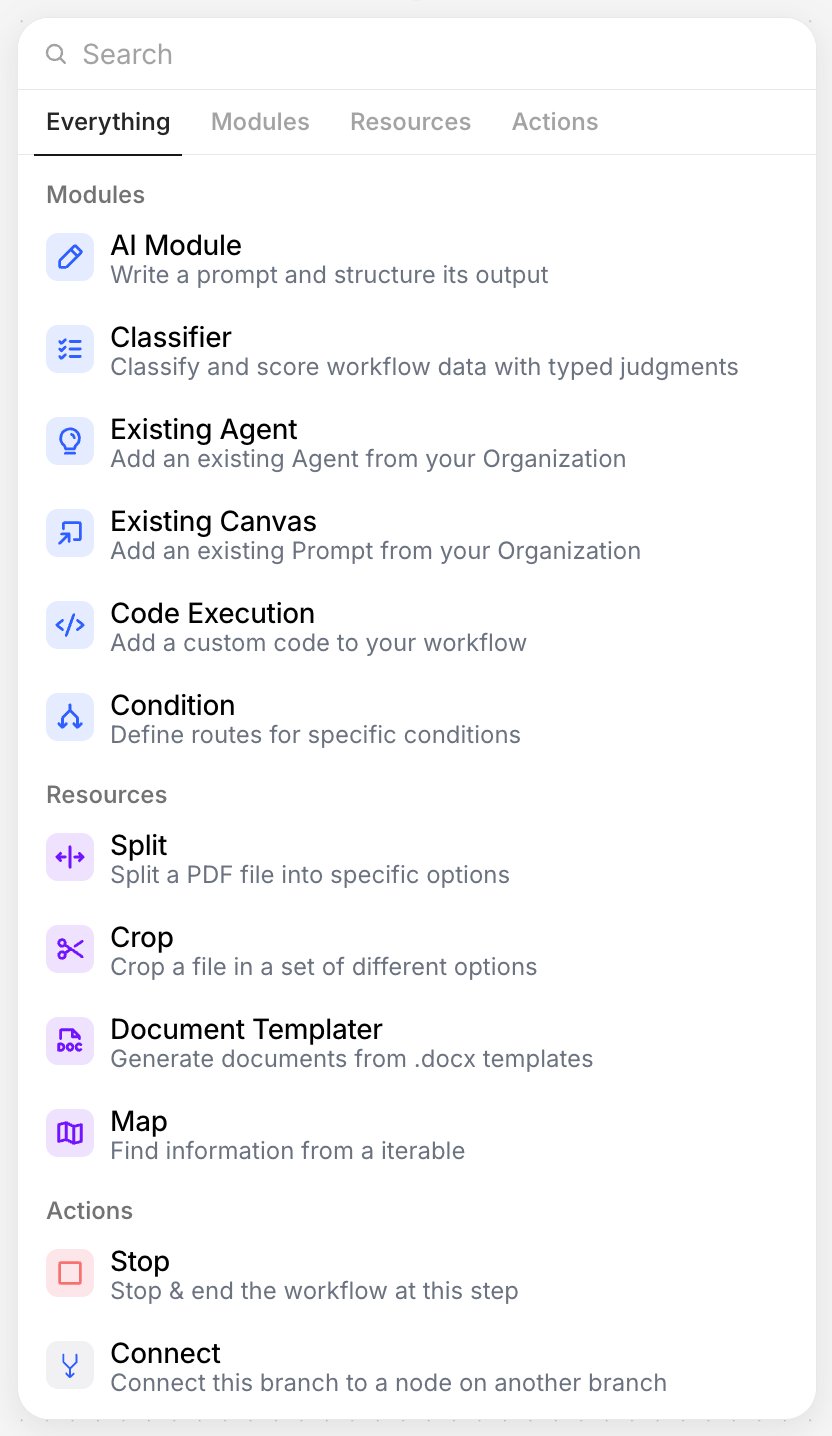
The Templates tab inserts a ready-made Workflow template into your graph.
The picker shows a fixed list of modules. What differs between Workspaces is whether the Workflow feature itself is enabled.
How a run flows
- You fill in the Inputs and click Run.
- Steps run in order. Each step receives the values it references: Inputs and the outputs of the steps before it. See Inputs and references.
- A Condition picks one branch; steps on the other branches are reported as Skipped.
- A Map runs its inner steps once per item, in parallel, and returns the list of results.
- The run ends at the last step of the path it took. That step’s output is the result of the run, and every step’s output stays available in the result pane, in Debug and through the API. See Outputs and results.
… → Execution, Parallel execution lets independent steps run at the same time; steps that depend on each other’s data still run in order.
Lifecycle: Draft, Project, publish, App and API
- A Workflow created from the Dashboard starts as a Draft, visible only to you. You can build, run and test it fully as a Draft.
- Move to project (from the
…menu, or automatically asked when you click Publish) makes it visible to your team. This cannot be undone. - Publish creates a stable version and places it in an environment (Production by default). Apps, API calls and schedules use the published version, so you can keep editing without affecting them.
- In the publish dialog, Deploy App creates a Workstation App where your team sends documents and reviews results. Connect via API gives you the ID and a snippet to run the Workflow from your systems.
In this section
Inputs and references
Declare what the Workflow receives and pass values between steps with the
@ menuAI Module and Classifier
Prompt, model and Output Format per step; typed judgments with the Classifier
Conditions and branches
Route the run with cases, Else, Stop and Connect
Split, Crop and Map
Work page by page or document by document
Code Execution
Transform data with a small function, with credentials and libraries
Reusing Canvases, Agents and templates
Existing Canvas, Existing Agent and Document Templater
Outputs and results
What a run returns and where to read it: result pane, Debug, App, API, Test
Running, testing and publishing
Run, run one step, Debug, Test Cases, Publish, Deploy App, API and schedules