

⌘ L on macOS, Ctrl L elsewhere) that writes or changes the code from a description. This page explains what the code receives and what it must return, so you can read and check what the assistant produces.
In the running example, Normalize Values sits after Extract Data and turns the extracted number into a formatted amount, builds an approval code and flags contracts above the threshold.
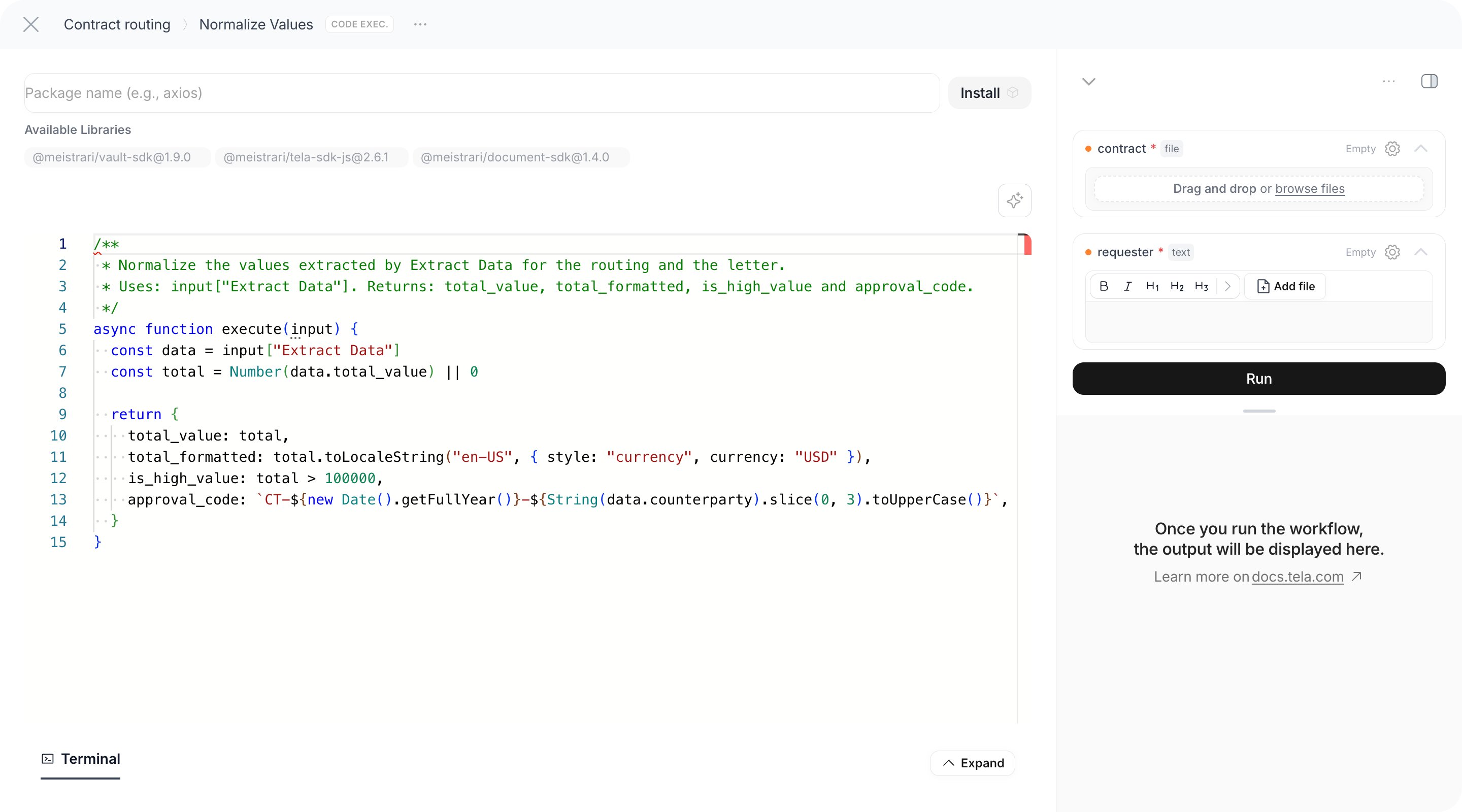
The execute function
The code must declare a function namedexecute that receives input and returns the step’s output. The step is created with this template:
execute returns becomes the output of the step: a text, a number, an object or a list. Return an object with named fields when later steps need to pick values from it; those fields show up in the @ menu of the next steps.
execute fails the step with the message: The execute(input) function was not found in the code and is required.
What input contains
input is an object with one key per Input of the Workflow and one key per step that ran before this one, using their names exactly as written in the editor:
Names with spaces need the bracket form,
input["Extract Data"]; names without spaces can use input.requester. The editor knows the shape of what each previous step returns and offers completion while you type, so input["Extract Data"]. lists the attributes of its Output Format.
Returning values
- Return an object to expose named fields:
{ total_value, is_high_value }. Each field is selectable by later steps and by a Condition. - Return a list to feed a Map.
- Return a text or number for a single value.
- Returning nothing (
undefined) produces an empty output; the step still succeeds. - Throw an error (
throw new Error("Missing total")) to fail the step on purpose. The run fails at that step and the message appears in the result pane and in Debug.
@ menu.
Working with files
File values arrive as metadata, not as bytes. To read a file’s content, use the libraries available in the step:@meistrari/document-sdkto parse documents;@meistrari/vault-sdkto read and write files in the Vault;@meistrari/tela-sdk-jsto call the Tela API (for example run a Canvas) from the code.
xlsx to read a spreadsheet or pdf-lib to assemble a PDF), type its name in Add a library and click Install. Installation takes a few seconds and the package is then available with import or require.
How to produce a file as the output of a Code Execution step (for example upload a generated spreadsheet to the Vault and return its reference) depends on the Vault SDK and is not documented here. For generating documents from a template, use the Document Templater instead.
Using credentials
Never paste an API key in the code. Store it as a Credential and read it at run time:credential("NAME") returns the value of a Workspace or Workflow-scoped credential. A missing credential fails the step with missing_credential. Values are redacted from logs, but anything you console.log explicitly may still show, so do not print them. Admins can restrict which credentials a Workflow may use from the Credentials button in the header; see Credentials.
Limits
A Code Execution step is never cached: it runs on every execution of the Workflow. A run that makes no progress for 3 hours is marked as timed out, so keep long waits out of the code; a wait of hours belongs to a schedule, not to a step.
Debugging
After a run, the step’s section in the result pane shows the returned value, and Debug adds the Terminal (stdout, stderr and exit code) and the error message when the code threw. When a Code Execution step fails, fix the code and use Run Step N on it to re-run from the start up to that step without touching the steps after it. See Running, testing and publishing.For developers: the step accepts
code, language (javascript default; typescript is accepted) and libraries (npm package specifiers). The sandbox exposes the run state as globals, so input is built from the Inputs (text unwrapped to its content, files as { files: [...] }) and the outputs of previous steps keyed by step name. {{step://…}} references are not expanded inside code.