

Extract Data › total_value. Above 100,000, the run goes to Draft Escalation Note; otherwise it goes to Approval Letter.
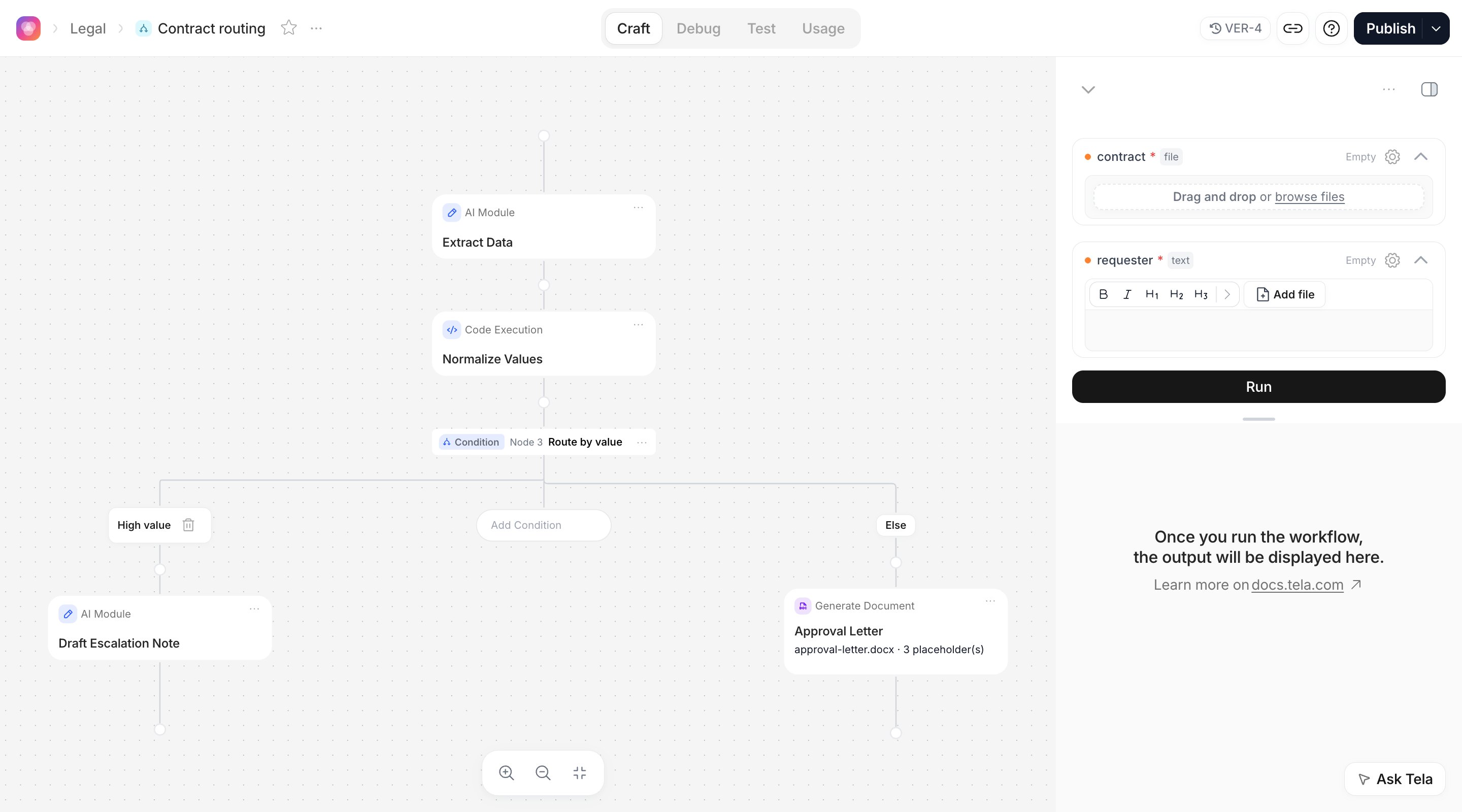
Adding a Condition
1
Add the step
Click + below the step whose output you want to route on and pick Condition from the Modules group. Name it, for example
Route by value.2
Add a case
Click Add Condition. Each case has a Condition name (
High value) and a Condition expression. The name is what you will see in results and in Debug, and it is also the output of the Condition step.3
Build the expression
In Selectors mode, pick a variable (an Input or a step output, down to an attribute), an operator and a value. Add more rows to require several things at once; rows are combined with AND.Selectors compare text and booleans. To compare numbers, as in High value, click Switch to Code and write
input["Extract Data"].total_value > 100000. See Code mode.4
Fill the branches
Each case gets its own branch, plus the Else branch for when no case matches. Click + inside a branch to add steps to it, exactly like in the main flow.
Operators
The operators list has no numeric comparisons (greater than, less than). To route on a number, use Code mode.
Code mode
Click Switch to Code to write the expression in JavaScript instead of selectors. The expression must evaluate to true or false. Inputs and step outputs are available in aninput object keyed by name. This is how you compare numbers:
input["Assess Contract"].answers.has_non_compete.noul > 0.5). Switch to Selectors goes back, as long as the expression is one selectors can represent.
For developers: in the saved Workflow a selectors case is stored as
reference|operator|value (for example step://<id>?path=counterparty|contains|Initech, several rows joined with &&), and a code case as the JavaScript expression with type: "code". Both are evaluated in the same sandbox as Code Execution.Else
The Else branch (Default condition in the configuration) runs when no case matched. It always exists; you do not have to add steps to it. An empty Else means the run simply ends there when nothing matches. In the running example the Else branch holds Approval Letter: every contract that is not high value gets a letter.How branches end
A branch can end in three ways:- At its last step. Nothing special is needed. The run ends there, and the output of that step is the result of the run.
- With Stop. Add Stop (group Actions) to end the Workflow explicitly at that point: “Stop & end the workflow at this step”. Use it when a case means “do nothing else”, for example a
Not a contractcase that should not generate anything. Stop produces no output. - With Connect. Choose Connect on a branch to join it to a step on another branch. From that step on, both paths share the same steps. Use it when branches differ only in the middle: for example, both the escalation and the approval paths could Connect to a final Register Decision step that files the outcome.
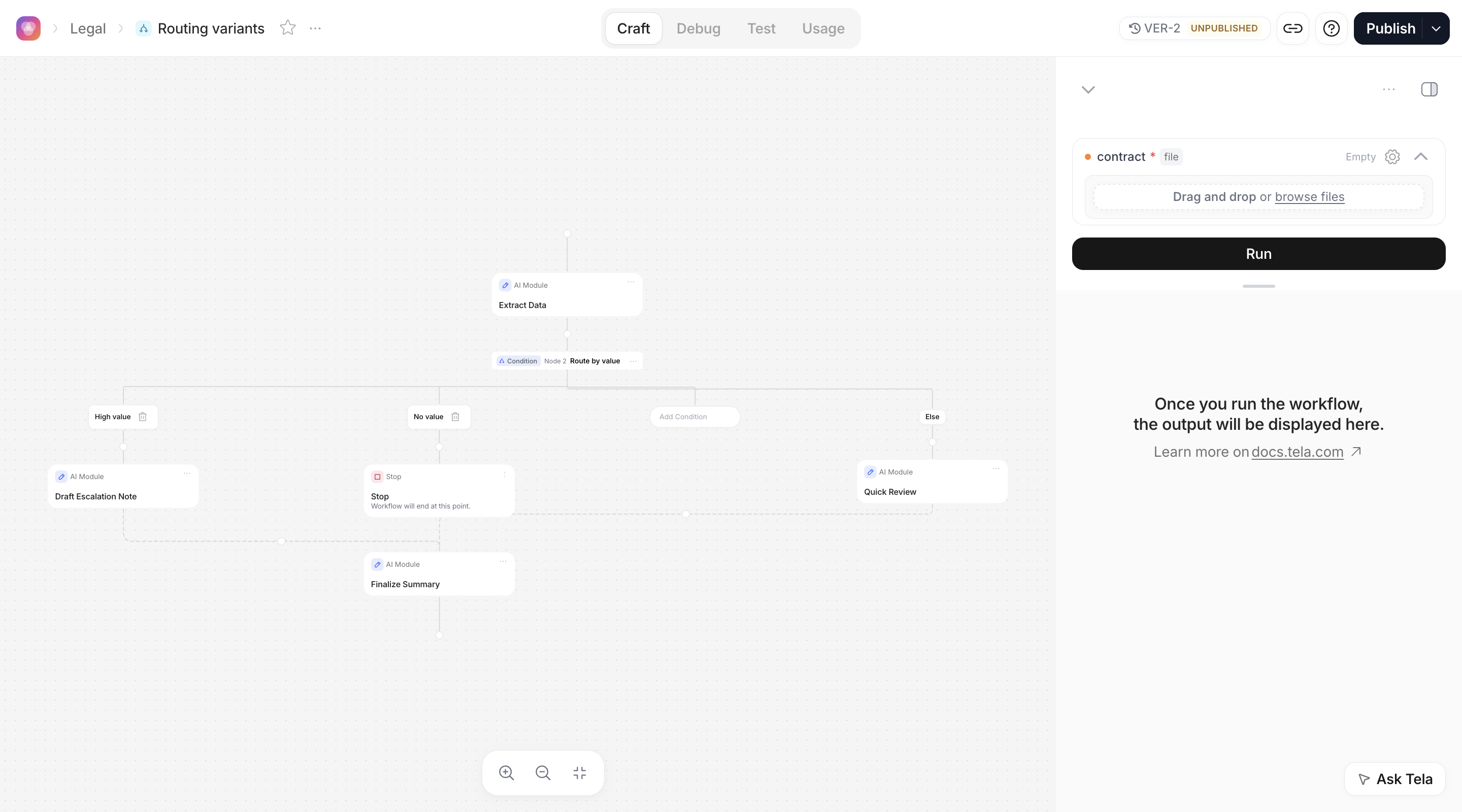
Steps have one way in and one way out, so you cannot draw two steps running in parallel after a Condition or loop back to an earlier step. Parallelism is Parallel execution in the Workflow settings or a Map; a loop over a list is a Map.
How results differ per branch
Only the steps on the branch that was taken run. In the result pane and in Debug, the other branches’ steps appear as Skipped, and the Condition shows which case Matched and which Did not match, with the Referenced values it compared. The consequence for whoever consumes the result: a high-value contract returns the escalation note, a normal one returns the generated letter. The output of the run is the last step that actually ran, so two branches can produce two different shapes. If the Workflow feeds an App or an API client, either:- make the last step of every branch produce the same attributes (same Output Format), or
- Connect the branches into one final step that produces the result, or
- read the output of the specific step you need instead of the run’s result; see Outputs and results.
Debugging a Condition
After a run, open the Condition in the result pane or in Debug. You see each case with its status (Matched, Did not match, Not evaluated for the cases after the match), the expression as it was Evaluated as with the real values, and whether Else was Taken. The Condition step’s own output is the name of the case that matched, orDefault, which you can reference in later steps or in Code Execution (input["Route by value"]).