

total_amount of the two-currency invoice applies to every run of that Test Case, on every version, and to nothing else.
Where validations live
Open a Test Case, hover an attribute and click Validations. The badge on the button counts the examples and rules of that attribute. The popover has two tabs:- Rules: the plain-language rules for this attribute, numbered. Type a rule in the box (Add rule…) and click Add or press Enter. Hover a rule to delete it.
- Examples: the Expected Answers and Wrong Answers. Choose Right answer or Bad answer in the selector, type the value (Add example…) and Add. Thumbs up and thumbs down on the result add examples here as well.
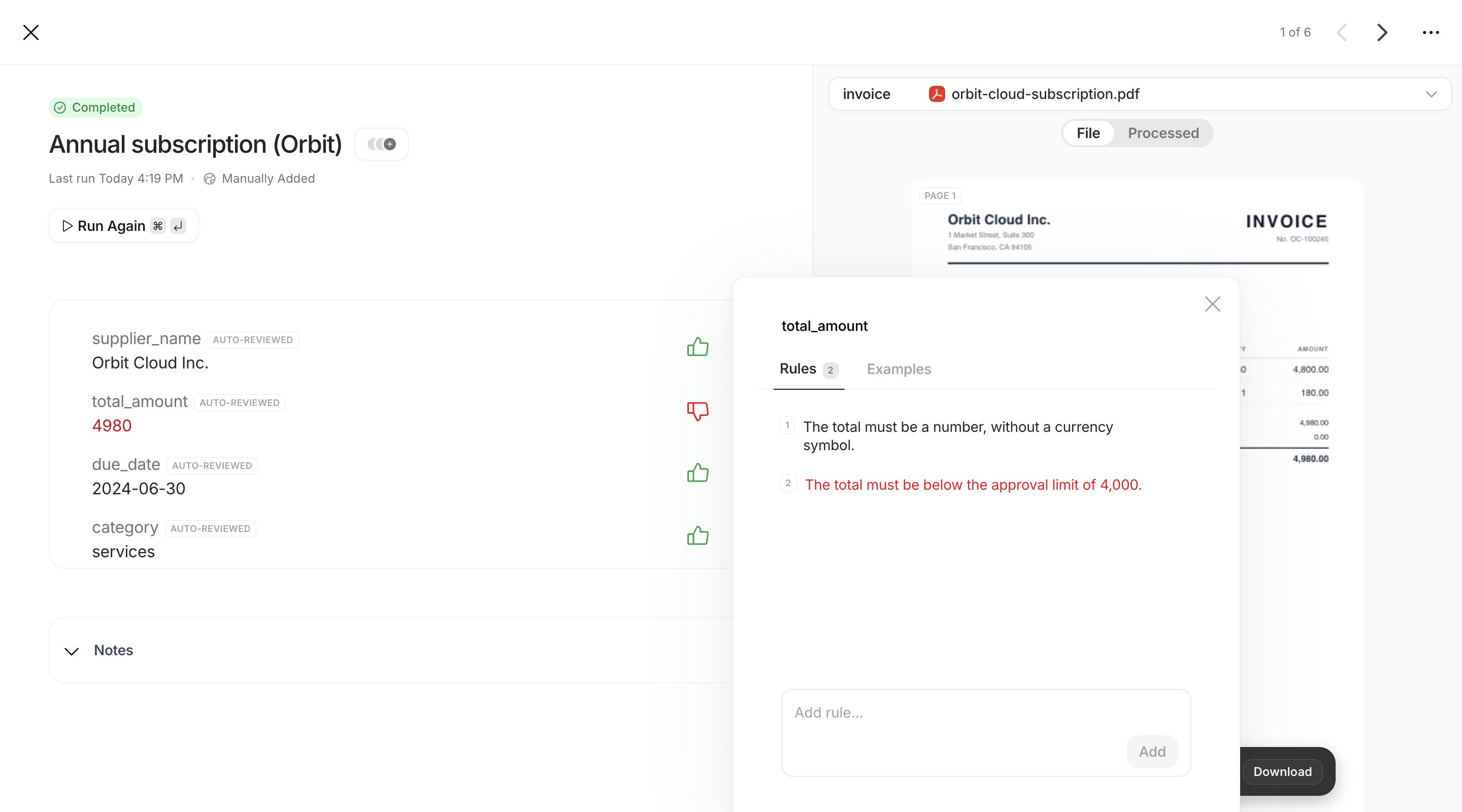
Rules and examples belong to one Test Case. There is no Canvas-wide rule set: a rule you want on every invoice has to be added to each Test Case, and a new Test Case starts with none.
Expected and Wrong Answers
An Expected Answer is a value that is right for this attribute on this Test Case; a Wrong Answer is a value that was produced once and is wrong. They come from three places:- your thumbs up (Expected) and thumbs down (Wrong) on a result;
- a Workstation task turned into a Test Case: untouched values become Expected, edited values become Wrong (the original) and Expected (the correction);
- the Examples tab, where you type them.
category of the clean invoice, Office supplies and office-supplies can both be right. Comparison ignores case and, for lists, order, so ["USD", "EUR"] matches ["eur", "usd"].
How a run is validated
When a run finishes, Tela validates each attribute of the Output Format before you see it:1
Exact match against the examples
A value equal to an Expected Answer is Good (Matches a good answer exactly). A value equal to a Wrong Answer is Bad (Matches a bad answer exactly).
2
No match, examples exist, no rules
When the attribute has Expected Answers, the value matches none of them and there are no rules, the value is Bad (Does not match expected answers).
due_date = 2024-01-05 when the only Expected Answer is 2024-05-01 fails here.3
Rules
Otherwise, when the attribute has rules, an AI judge receives the attribute, its value and all its rules at once and returns Good or Bad with a reasoning and a confidence. Below 50% confidence the verdict is inconclusive and the attribute stays pending for you.
4
Nothing applies
An empty value with no examples is flagged Attribute is empty. Any other value with no examples and no rules is left for you to review.
Choosing between examples and rules
For the Not an invoice case, the right
total_amount is empty. Mark the empty value Good so an empty result is an Expected Answer, and add the rule Must be empty, this document is not an invoice to catch a made-up total with an explanation.
Metrics
The summary card shows the metrics of the version you are viewing, computed from the last run of each Test Case on that version. Filters on the table (labels, user, date, status) restrict the metrics to the rows that match.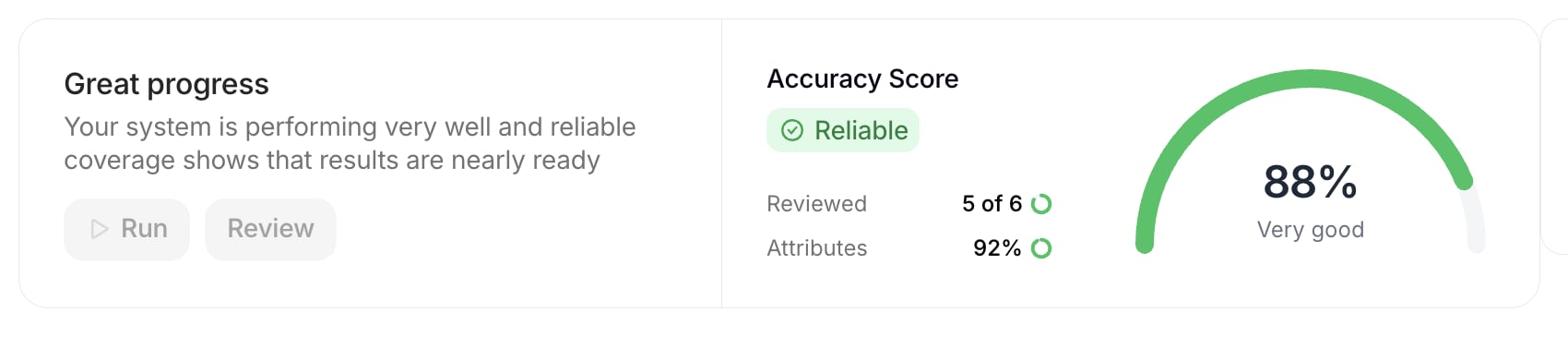
Read them together. An Accuracy Score of 100% with Low coverage means you reviewed a few attributes and they were right; it says little about the rest. The headline of the card changes with the pair, from Start reviewing to Keep reviewing to Congrats, your system looks great!, and the arc around the score stays grey until coverage reaches 40%.
Per Test Case, the Score column shows the share of attributes marked Good on the last run, and hovering the name shows the counts of positive, negative and pending attributes. A Test Case whose run is older than the version you are viewing shows no score.
Pending attributes count against the Accuracy Score of a Test Case that is partly reviewed: four attributes, two Good and two pending, give 50%. Finish the review, or use Mark as reviewed, before reading the number as a quality measure.
In Agents
Agent test cases show the same Accuracy Score, Reviewed and Attributes. Verdicts come from your thumbs and from the evaluator, which judges the whole result against the test case’s Rules and the global Configure reviewer prompt, and Criteria group attributes into separate accuracies. See Running them all.In Workflows
The attributes counted are those of the Output Formats of the Workflow’s AI steps, grouped by step. Steps without an Output Format add nothing to the metrics. See In Test Cases.Through the API
Each Test Case returned byGET /test-case carries its answers (an object keyed by attribute, with good and bad arrays) and, with includeGenerations=true, its runs with their attributeFeedback and validations. Rules are added with POST /test-case/{id}/validation-rules/{attributeKey} and a body { "description": "..." }, and removed with DELETE /test-case/{id}/validation-rules/{attributeKey}/{ruleId}.
The validation-rules endpoints and the generation feedback endpoints are not part of the published API reference yet. Their shape is taken from the application and may change.