

contract file, a question, and the outputs answer and risky_clauses.
The Test your agent panel
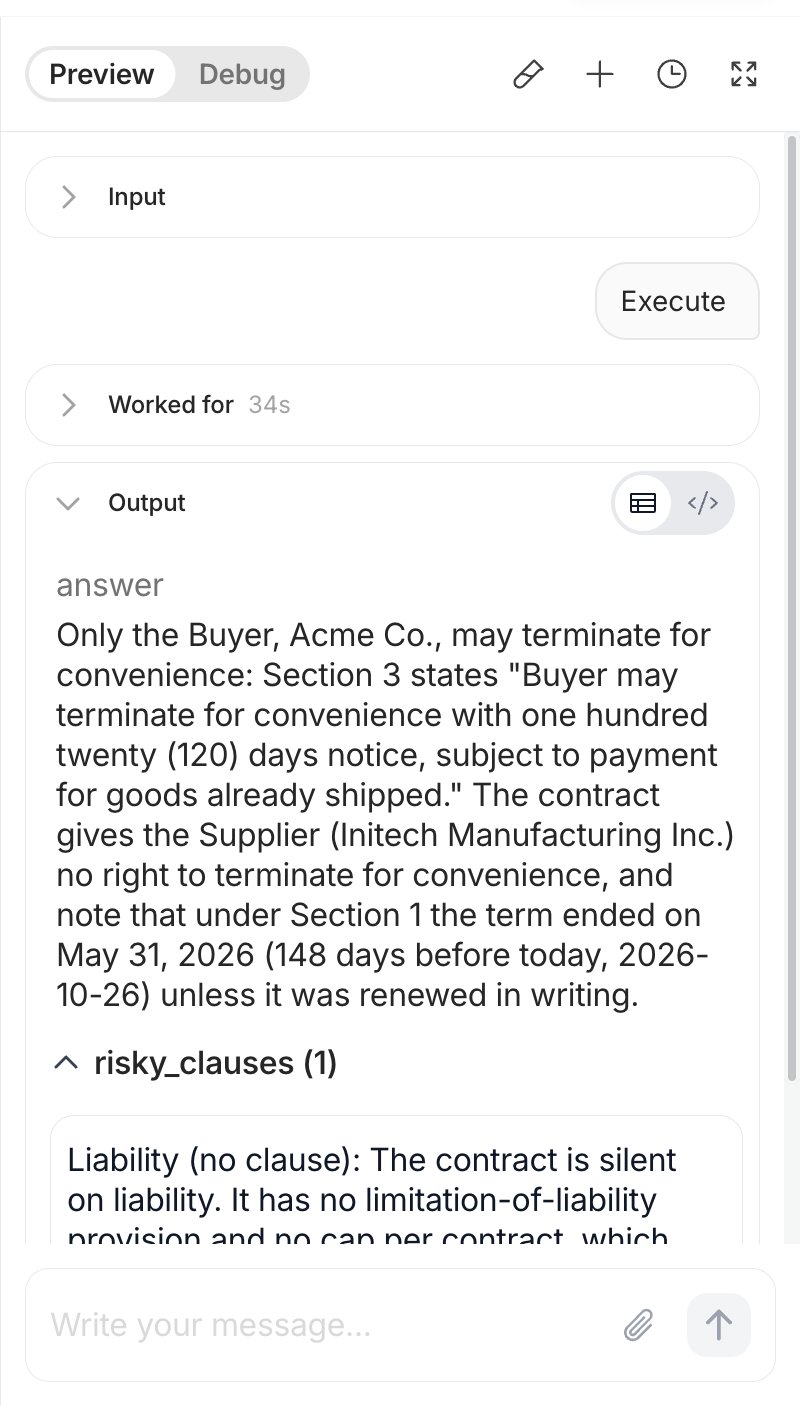
The right panel of the Craft experience is always there. Before a run it shows Test your agent and Send a message or add inputs. It runs the version you are editing (themain branch, or the branch you switched to), not the published one.
1
Fill in the Variables
Open Variables at the bottom of the panel. It lists the Inputs of the Agent, with a counter of how many are required. Drop or upload the contract into the file input, type the question into the text input.
2
Start the run
With Chat on, type a message in the box (Describe what you want the agent to do…) and send it; you can attach files to the message as well. With Chat off, click Run. Required inputs must be filled before you can start.
3
Watch it work
The button turns into Running… with a Stop control (then Cancelling…). The panel shows the Agent’s reasoning steps as they happen. When a subagent is called, click it to open its own steps and go back.
4
Read the result
A structured result appears as one card per attribute, a free-text result as Markdown. With Chat on, keep the conversation going in the box (Send a follow-up message…): the Agent keeps the context, so you can ask about another clause without uploading the contract again.
When you come back to an Agent with no run on screen, See the last run brings back the previous one. If a run ends in an error, Recover lets the Agent retry with a different approach.
Test cases
A test case is a saved set of inputs with an expected output and, optionally, rules for the evaluator. Run your test cases again after every change to the Purpose, the model or the skills, and you know whether the Agent still behaves before you publish. Open the Test experience in the top center. The summary card at the top shows the Accuracy Score of the current version, how many test cases are Reviewed and how many Attributes are covered, with two buttons: Run, which runs the test cases against the current version, and Evaluate, which starts the review of the results. Below it, the chips Pending and Completed filter the list, and you can also filter by Date and user, create Labels to organize test cases, and search by name. Criteria and New test sit on the right. The table lists each test case with its Status, Score, Labels, Cost, Duration and one column per output attribute.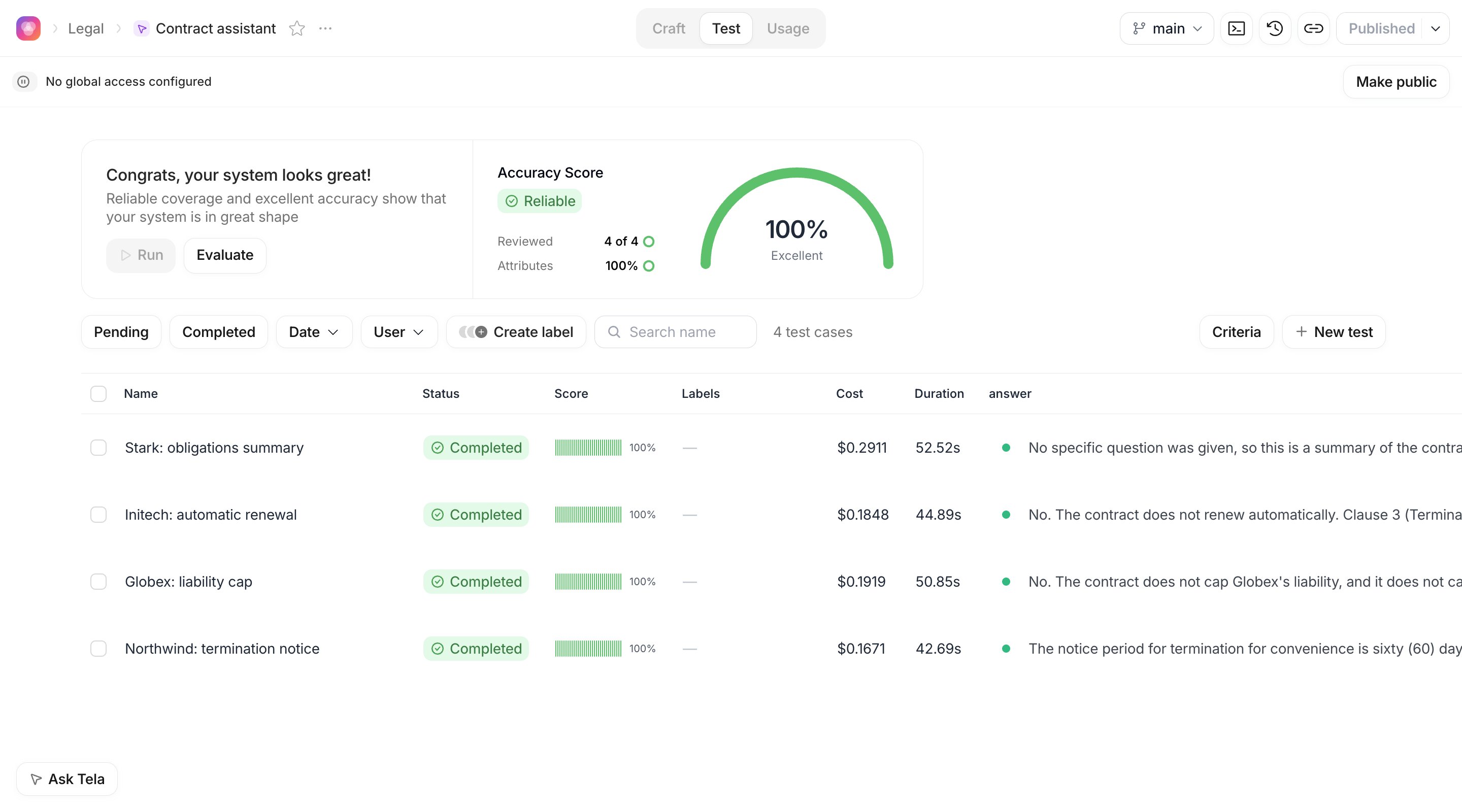
Creating a test case
There are two ways in: click Review in the Test your agent panel after a run you like, which saves the inputs, the conversation and the result as a test case, or click New test and fill in the dialog:- Input: the values of the Inputs. For the contract assistant, upload the contract and type the question.
- Expected output: what a correct result looks like. With structured Outputs you fill one field per attribute; otherwise describe or paste the expected text or JSON.
- Rules: how the evaluator should judge the result, such as The answer must cite the clause number and the list of risky clauses must include the unlimited liability clause. Leave it empty to use a generic evaluation.
Reading a result
Click a test case to open it. On the left you see the run: the Agent’s reasoning, the result card by card, and for a conversation the whole exchange. On the right, the inputs that were used. Under the result, the Evaluation result gives a pass or fail verdict with a Reason and Suggestions. Review the result yourself as well: each attribute has a thumbs up and a thumbs down. Your feedback is stored with the run of that version, counts towards Reviewed, and teaches the evaluator what a goodanswer or a complete risky_clauses looks like.
With Chat on, a test case can continue the conversation: type a follow-up under the result and the evaluator judges the new turn.
Each test case has one run per version of the Agent. When you open a test case while viewing an older version, the detail shows No execution for this version; switch back to the current version to run it. Edit a test case with Edit test case and Save and Run to run it again.
Running them all
Click Run in the summary card to run every test case against the current version, or select some rows and run only those. Test cases that already ran on this version are skipped. The Accuracy Score updates as results come in, so after a change to the Purpose you can compare it with the previous version in the Run history of each test case. Two tools refine the evaluation:- Criteria groups attributes so the summary shows the accuracy of, for example, risk flags separately from answers.
- Configure reviewer sets a global prompt that guides how every test case is evaluated, in addition to the rules of each test case.
For developers. Test runs are keyed by test case and commit hash: one run per test case per Agent version. Attribute feedback is sent as an array of
{ path, feedback } where path is an output attribute path as it appears in the run’s validation summary and feedback is 1, 0 or null.Usage: the run history
The Usage experience lists every session of the Agent: test runs, published runs from the API, Workflow steps, schedules and tasks. For each session you see its Cost, Status (successful, failed, cancelled or pending), Duration, Model, Date, Start Time and End Time, Session ID, Turns, Total Tokens and Custom Tags. Click Load more at the bottom for older sessions. Click a session to open the Run details: the status and metrics, the timeline with every step, tool call and subagent, and the files the run produced. Open in new tab gives the run its own page, and Share copies a link to it that teammates with access to the Agent can open.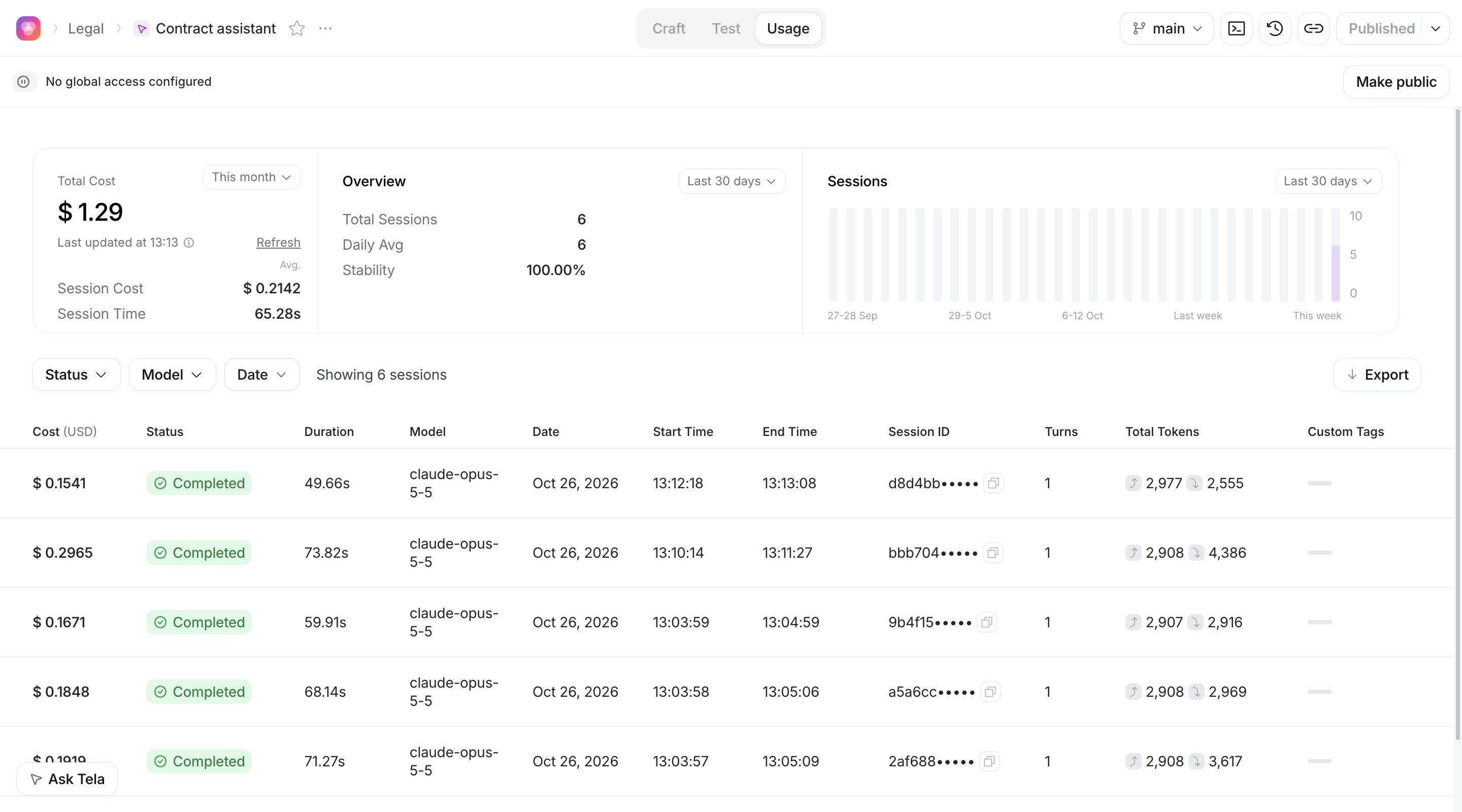
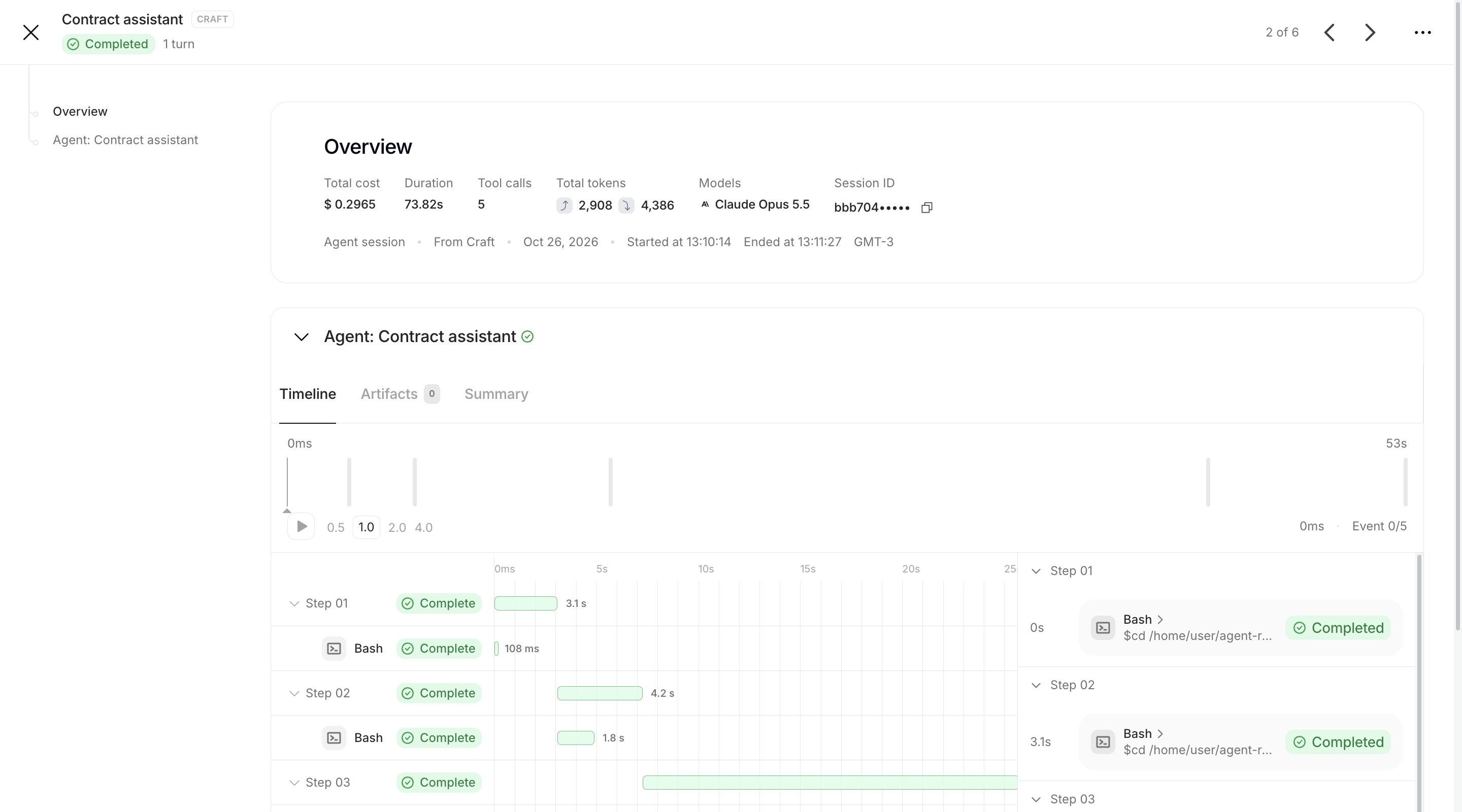
A successful run that waits for a follow-up message is still a success: the session stays open for the conversation. Only failed and cancelled runs indicate a problem.