

contract (a file, required) and question (a text), and the Outputs are answer and risky_clauses.
Inputs
The Inputs section lists every input in a table with its Name, Format (Text or File) and whether it is Required. A search box filters the list.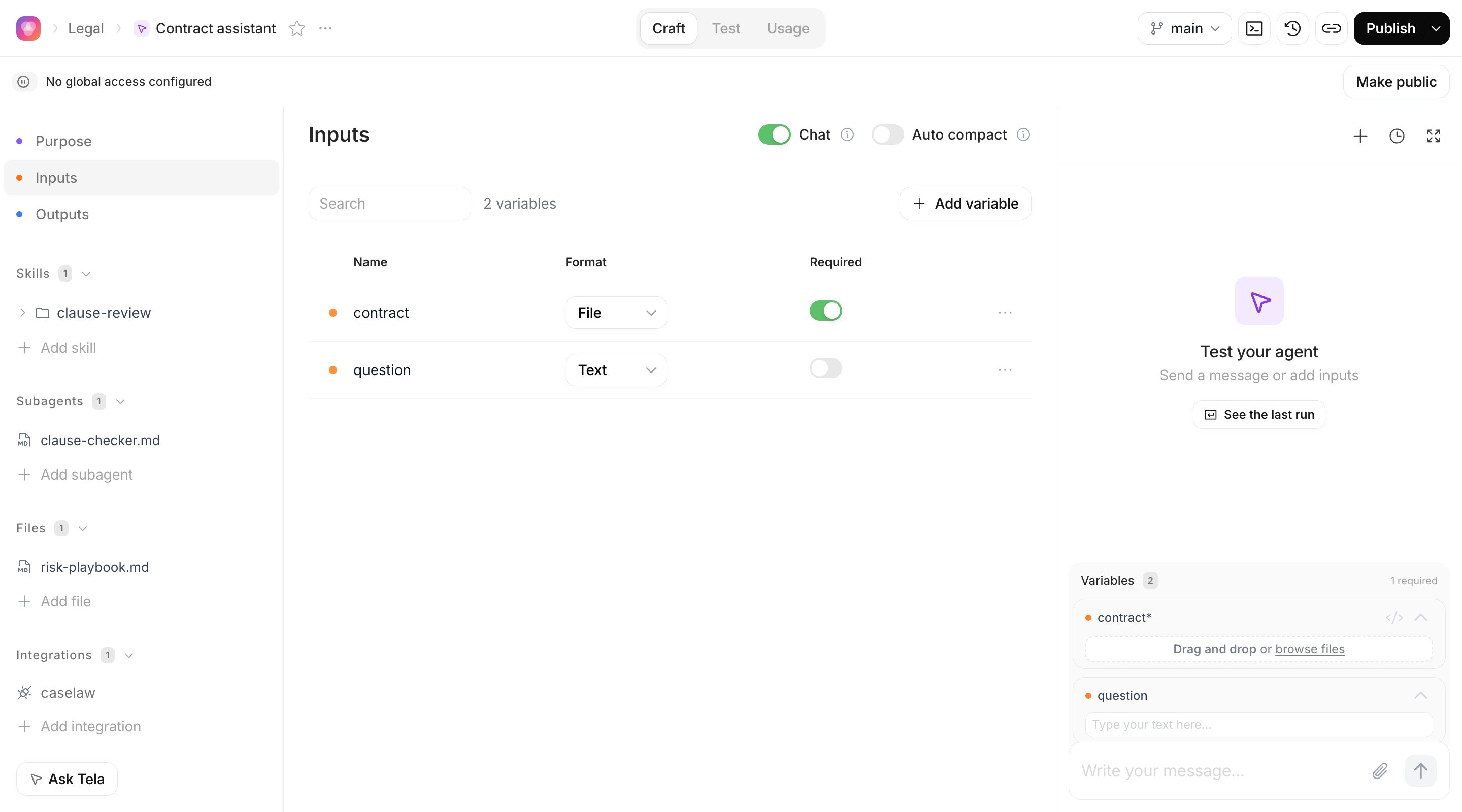
Declaring an input
1
Add a variable
Click Add variable. The New Variable dialog opens.
2
Name it
Type the Name. Names can’t contain spaces, hyphens or special characters, can’t start with a number and must be unique in the Agent. Use
snake_case or camelCase, for example contract or question.3
Choose the type
Under Type, choose Text for content typed or pasted on each run, or File for documents the Agent reads.
4
Decide if it is required
Turn on Required when the Agent can’t work without it. Required inputs must be provided when running the Agent, in the test panel and through the API.
5
Create
Click Create. The input appears in the table, and from now on the mention menu of the Purpose offers it under Inputs.
… menu at the end of a row has Edit (rename) and Delete. Deleting an input also removes its folder from the Agent’s repository, so update the Purpose afterwards.
For developers. Declaring an input creates the folder
input/<name>/ in the Agent repository: the folder is the declaration. On each run, a file input is placed in that folder and a text input is available by its name. The name references is reserved. Executions are validated against the declared inputs: an unknown name, a type mismatch or a missing required input is rejected with a 400.Chat and Auto compact
Two switches in the header of the Inputs section control the conversation:- Chat: the user can send text and files through a chat input, reply after each output, and the Agent keeps the conversation context. With Chat off, each run is a single pass with a Run button instead of a chat box.
- Auto compact: automatically compacts long conversations to preserve useful context.
Outputs
The Outputs section defines the shape of the result. Leave it empty and the Agent answers in free text (Markdown). Add attributes and the Agent returns a structured result with exactly those attributes, which Tela shows as one card per attribute, lets you review attribute by attribute in test cases, and hands to the API as JSON.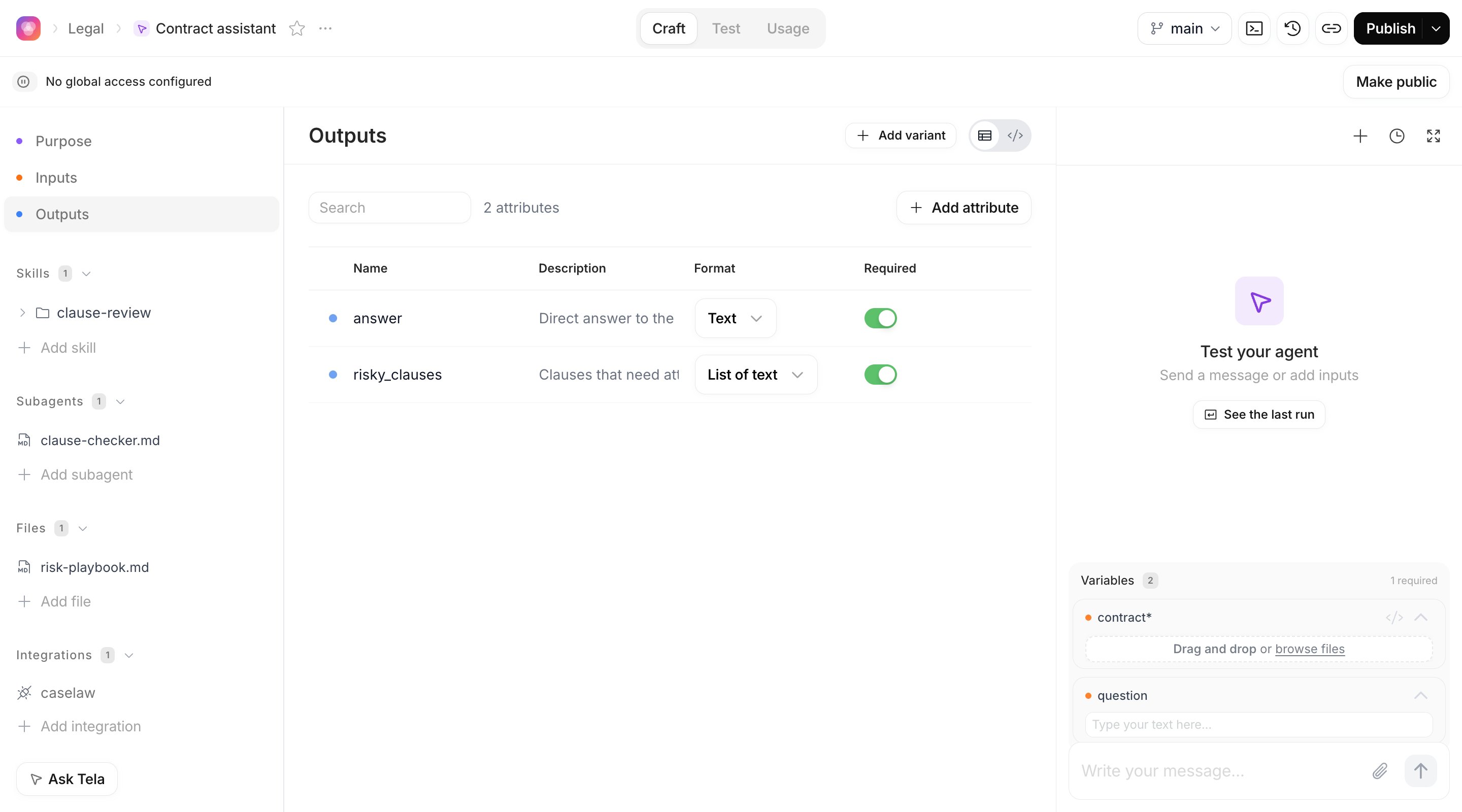
Adding attributes
The section has two views, switched with the toggle on the right: a table editor, where you add attributes one by one with a name, a type and a description, and a code view, where you edit the same definition as JSON and click Save (or Copy to take it elsewhere). The code view validates the JSON before saving. Write a description for every attribute. The Agent reads it to decide what goes there, so a description such as “clauses that expose the company to unusual risk, quoted verbatim with their number” changes the result more than any extra sentence in the Purpose. For the contract assistant, the two attributes look like this in the code view:For developers. The definition is a flat map of
attributeName -> { type, description, ... }, without a JSON Schema wrapper, stored in output-format.json. A non-empty map makes the result structured JSON; {} makes it Markdown. These attribute paths are what test case feedback and metrics reference (nested and indexed paths such as parties.0 are valid).Output variants
Some Agents need different results for different situations: the contract assistant might return one set of attributes for a lease and another for a services agreement. Variants cover this. Click Add variant. In the New variant dialog, give it a Name (lowercase letters, numbers and hyphens, up to 64 characters) and a Description that helps the Agent pick this variant, then click Add variant. The section now shows tabs: Shared fields, whose attributes are included in every variant’s output, and one tab per variant with its own attributes. In a variant tab you can edit its description inline or Delete it. The Output variant selector in the header of the Outputs section decides which variant your test runs use: Auto (agent decides), where the Agent reads the descriptions and picks one, or a specific variant you force while testing.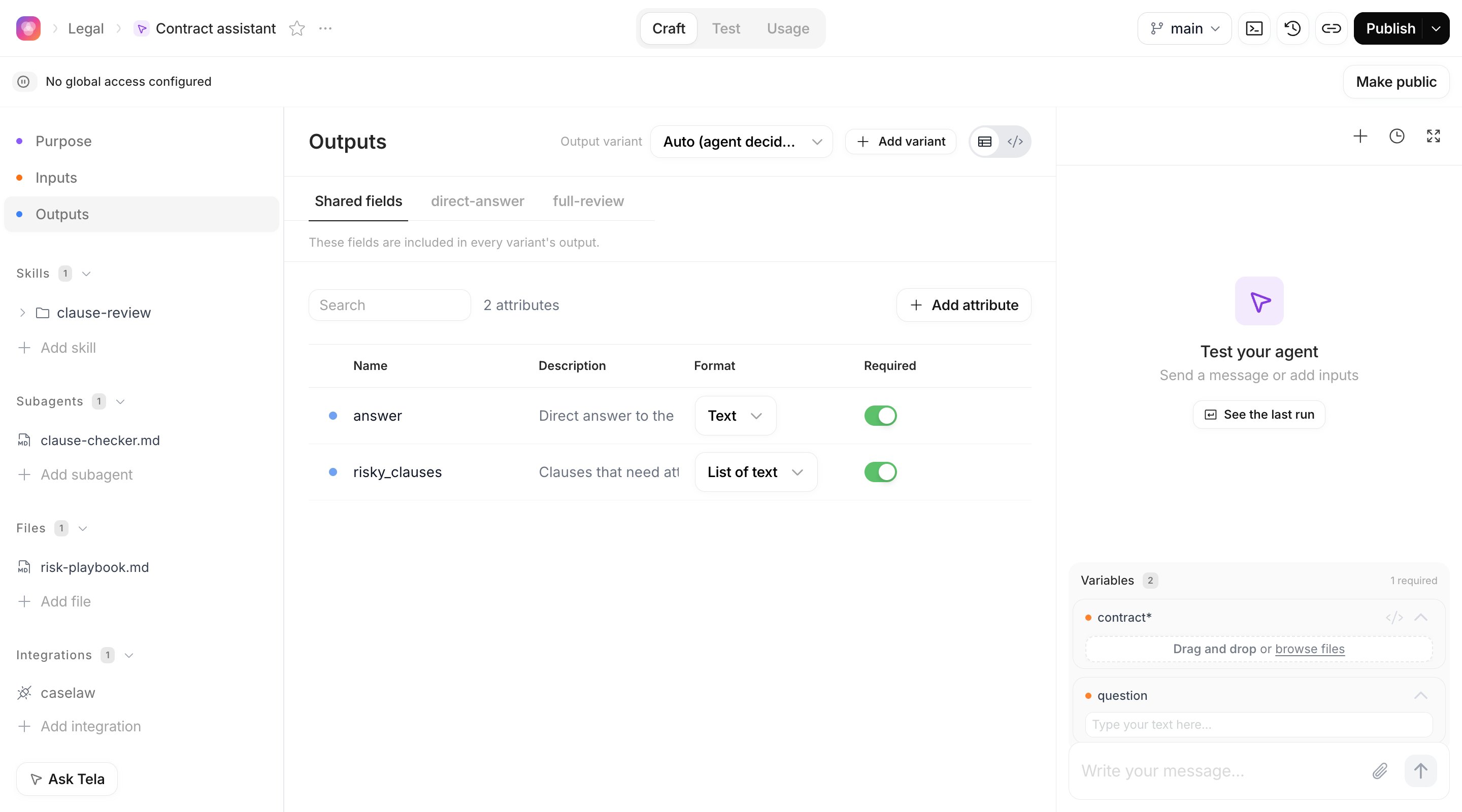
Where the result appears
- In the Test your agent panel, a structured result shows one card per attribute (for
risky_clauses, a list); a free-text result shows as Markdown. The Reasoning steps the Agent took are listed above the result. - In the Test experience, each attribute can be reviewed with a thumbs up or down and judged against the expected output. See Testing an Agent.
- Through the API, in a Workflow step and in tasks, the result is a JSON object with your attributes. See Running an Agent and getting results.