

main branch, which the Test your agent panel runs. Publish marks one version as the one the API, Workflows, schedules and tasks run. Nothing reaches production until you publish, so you can craft and test freely.
Versions
Each save of the Purpose, each change to Inputs, Outputs, skills, subagents, files, integrations or the model creates a new version. The current version is shown in the Publish dropdown asVER- followed by a short identifier.
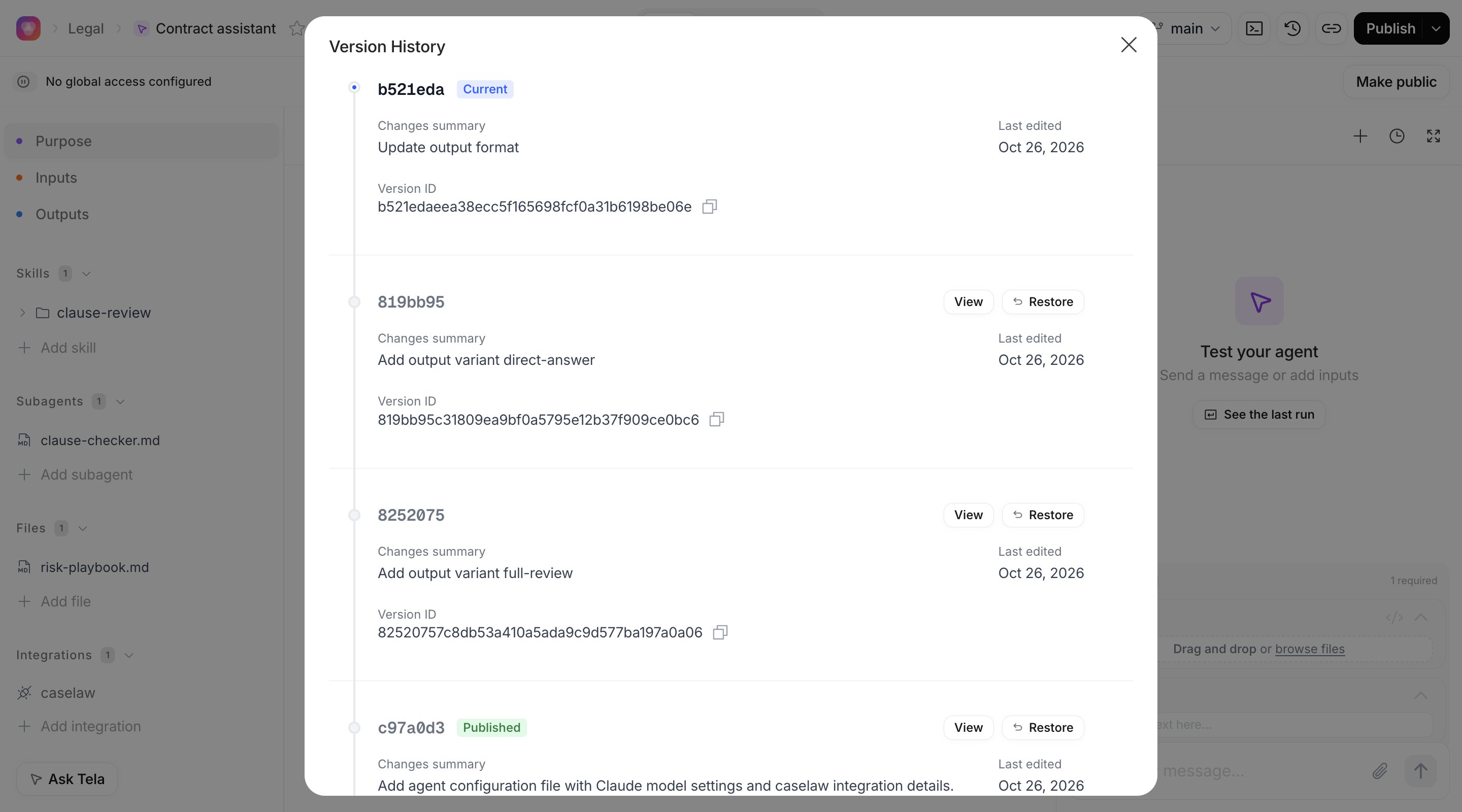
Click the Version History button (the clock icon in the header) to see them all. Each entry shows who made the change (Author), when (Last edited), a Changes summary and the Version ID, which you can copy. The version you are editing is marked Current and the published one Published. Click Load more for older versions.
Viewing and restoring a version
Click View on a version to open it as a read-only preview. A banner shows Viewing version with its short identifier and reminds you that this is a read-only preview; restore to edit. The editor, the schemas and the integrations can’t be changed while previewing. Click Exit Preview or Back to current to return. Click Restore this version to make that version your current one. Restoring copies that version over your draft, forwards or backwards in time, so anything you added since, including inputs and output attributes, disappears from the draft. Production keeps running the published version until you publish again.Publishing
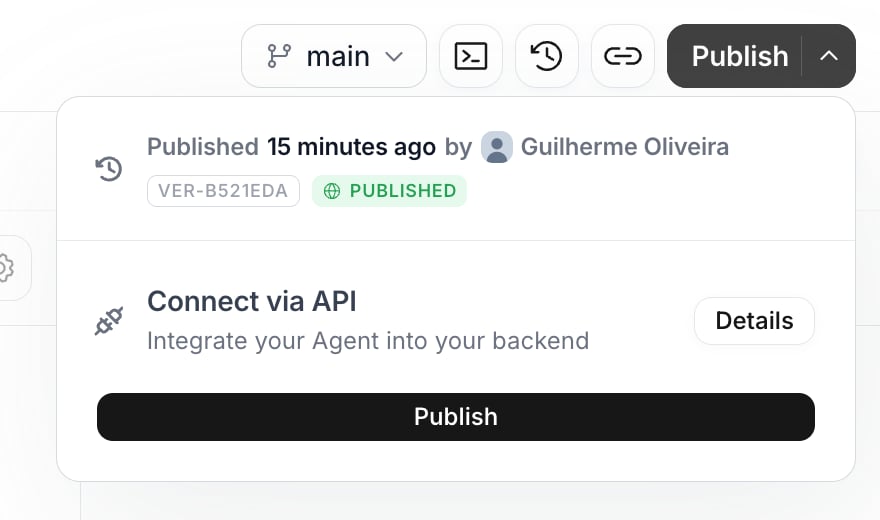
Click Publish in the header. It publishes immediately, with no environment, version or confirmation step: the version you are viewing when you click, or the current one if you are not previewing history. A Version published successfully toast confirms it, and the button reads Published while you look at the published version. The arrow next to the button opens a summary: Published with when and by whom (or Not published yet), theVER- identifier, the Published or Unpublished badge, a Connect via API card whose Details button opens the API dialog once a version is published, and a Publish button.
- Calls through Connect via API (see Running an Agent and getting results)
- Schedules: they always run the published version, so publishing changes what every existing schedule of the Agent runs next
- Tasks created for the Agent
- Make public, which requires a published version
For developers. Publishing records a commit hash as the published version. There are no environments for Agents: one published version per Agent. To publish an older version, open it in the Version History and click Publish while previewing it.
Branches
By default you work onmain. The branch selector in the header lets you create a New branch from the current one, switch between branches and delete those you no longer need. Use a branch to try a different Purpose or model without touching main; the test panel runs whichever branch you have selected, and the URL keeps a ?branch= parameter you can share.
On any branch other than main, the Publish button is replaced by Merge. Merging opens a comparison with main; when there are no conflicts, confirm to bring the changes into main, then publish from there. If the branch conflicts with main, resolve it locally with the Tela CLI and push; the merge enables itself once the conflict is gone.
Working locally with the Tela CLI
The terminal icon in the header opens Work locally with Tela CLI, for people who prefer to edit the Agent’s files on their machine:- Install Tela Dock on your computer
- Install and set up Tela CLI by following the prompts in Tela Dock
- Sync and push your agent:
tela agent sync <repository>pulls the Agent into your local environment,tela agent pushcommits and syncs your local changes back to Tela
For developers. The Agent is a git repository; the dialog shows its address. Changes pushed from the CLI appear in the Version History like changes made in the UI. Managed files such as
CLAUDE.md, agent.config.json and output-format.json are maintained by Tela; edit the Purpose, Inputs, Outputs and model through the UI or the API rather than by hand.Sharing the Agent
Share link (the link icon in the header) copies a link to the Agent page for teammates in your Workspace. Make public goes further: it lets every Tela Workspace run the published version. Open the… menu next to the title and choose Make public (the same entry reads Manage global access once configured). The dialog explains what changes: All Tela workspaces will be able to execute this agent and view the permitted read information in its repository. Editing and publishing remain restricted to the owner workspace. Confirm with Make public. The header then shows Available to all workspaces, and the same dialog offers Remove global access; running executions are not cancelled when you remove it.
Making an Agent public requires a published version and the permission to manage global access.
Templates
Administrators can turn an Agent into a starting point for new Agents. In the… menu, Make workspace template registers it as a template of your Workspace: it appears in the New agent dialog for everyone in the Workspace, under the harness it uses. Remove from templates undoes it. Make global template is reserved for the Tela team.
Agents created from a template receive an Update template button when the template changes; see What survives a template update.