Writing the Purpose
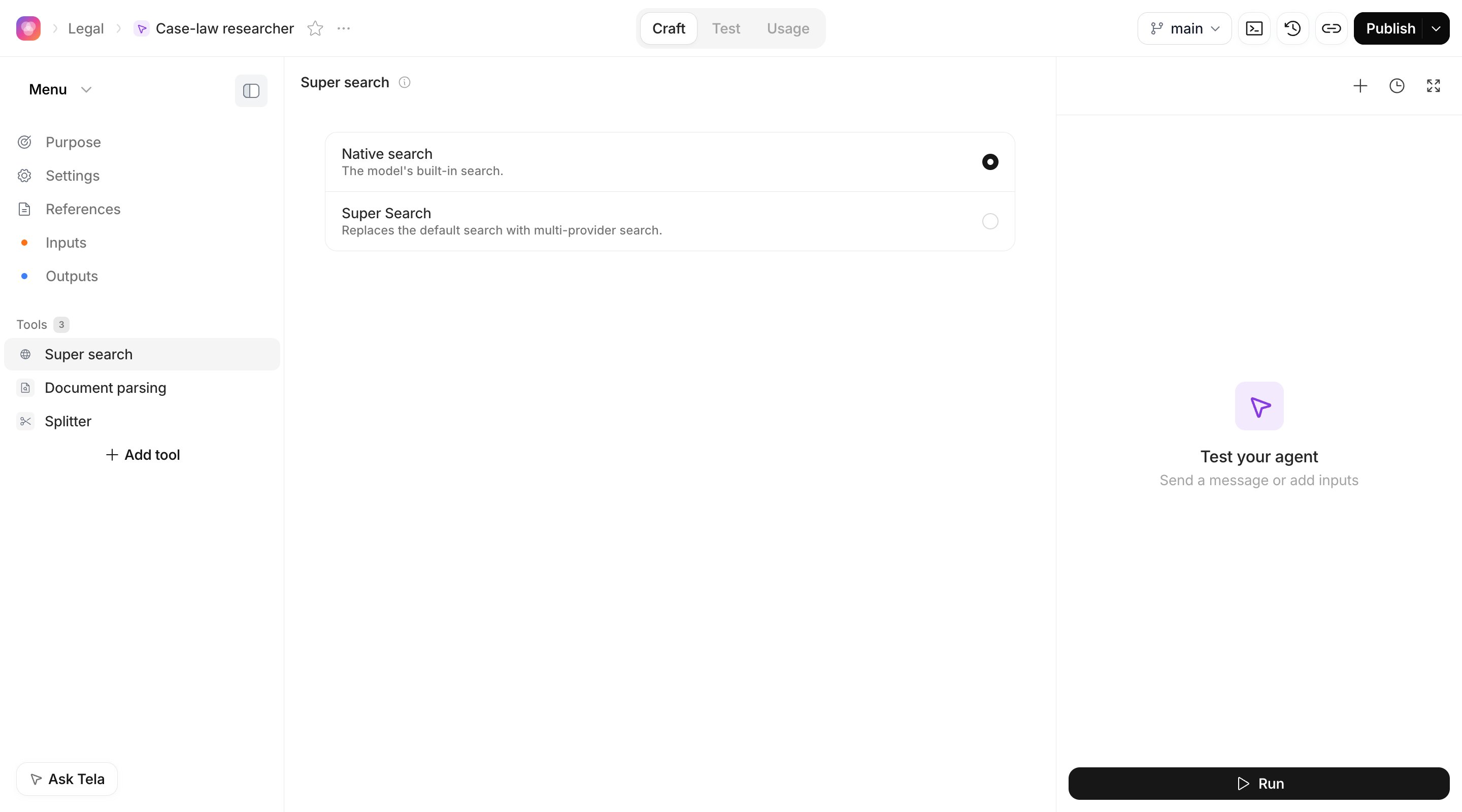
Write the Purpose the way you would brief a capable new colleague. A good Purpose covers:- Role and goal: who the Agent is and what a finished job looks like
- How to use the inputs: what each input contains and what to do with it
- Steps and rules: the order of work, what to always do, what to never do
- When to use each helper: which skill, subagent or file applies to which situation
- Tone and language of the answer
Mentioning inputs, skills, subagents and files
Type@ in the editor to open the mention menu. It lists what already exists in the Agent, grouped as Inputs, Skills, Subagents and Files. Pick an item and it is inserted as a chip, so the Agent knows exactly which input, skill, subagent or file you mean.
Because the menu only lists things that exist, declare the inputs and add the skills, subagents and files first, then write the Purpose that mentions them.
The editor placeholder reminds you of the shortcuts: Type / for commands or @ for mentions.
For developers. A chip is plain text in the Purpose file. Text inputs are written as
<inputName>, file inputs as input/<inputName>/, skills as the path to their SKILL.md (for example ./.claude/skills/clause-review/SKILL.md), subagents as the path to their file (for example ./.claude/agents/clause-checker.md) and reference files by their path. The UI only renders these as chips when they are plain text surrounded by spaces or punctuation and the target exists. Do not wrap them in backticks or code formatting, or the Agent page stops recognizing them.Saving
Changes to the Purpose are saved with the save control of the editor or withCmd+S (Ctrl+S on Windows and Linux). Every save creates a new version of the Agent, which you can find in the Version History (see Publishing and versions). An Unsaved changes indicator appears while you have edits that are not saved yet.
Choosing the model
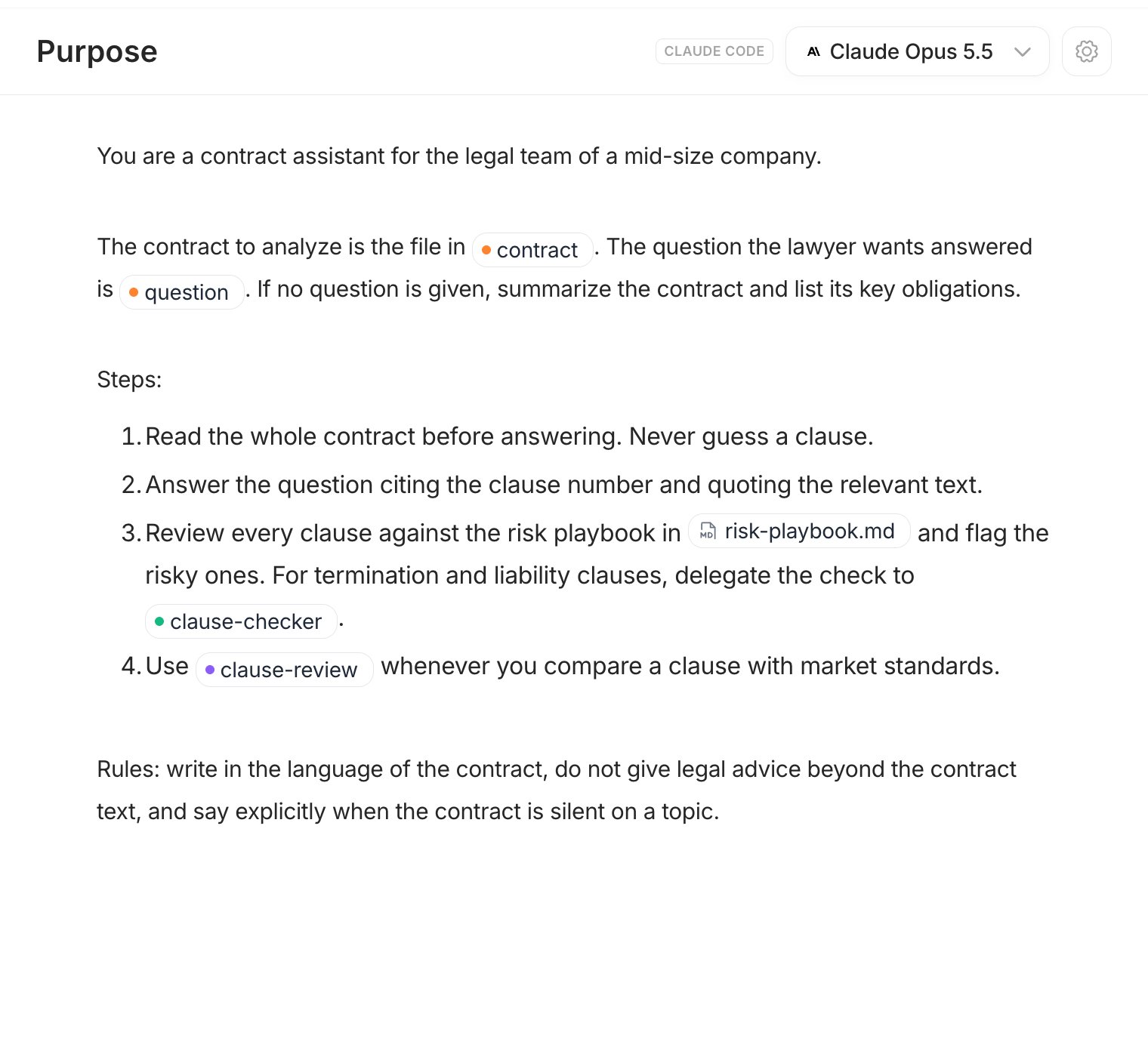
At the top of the Purpose view you find a badge with the harness (Lightweight or Claude Code) and the model dropdown (Select model). The models offered depend on the harness: the Lightweight harness lists models from several providers, Claude Code lists Claude models. Changing the model is saved as a new version like any other edit. Pick the most capable model while you craft, so you learn what the Agent can do, and only then try a faster or cheaper one against your test cases.The harness itself is fixed at creation and is not changed here. To use the other harness, create a new Agent.
Advanced settings (Claude Code harness)
With the Claude Code harness, a gear icon next to the model opens Advanced settings. Enabling these features may incur extra costs on Agent runs.
Click Save to apply.
The Lightweight Agent page
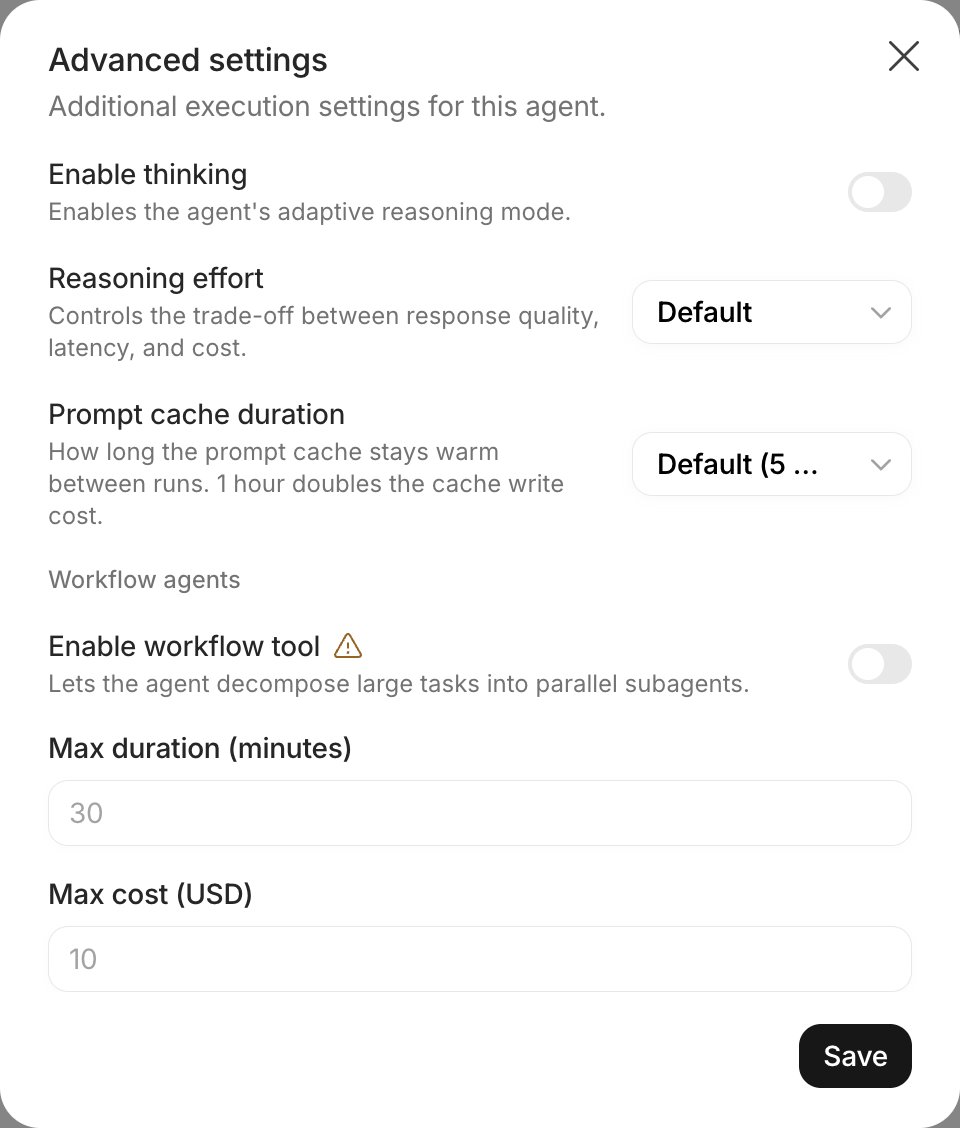
A Lightweight Agent has a different page from a Claude Code Agent. At the top of the sidebar, a switcher chooses between Menu (set up the Agent step by step) and Files (edit the Agent’s files directly). In the Menu view the sidebar has:- Purpose: the instructions and the model, as described above.
- Settings: four tabs, General, Integrations, Schedules and Sharing. In General you find the Default model (used on every run, unless another model is picked in the chat), the Harness (read-only, defined by the Agent template), the Temperature (from 0 to 2, when the model accepts it), the Compaction threshold (older messages are summarized when the context reaches this many tokens, minimum 1,000) and Chat mode (keeps the conversation open after the first answer).
- References: files the Agent reads on every run, such as templates and playbooks. Click Upload to add them and cite them in the Purpose with
@. - Inputs and Outputs: the same as in a Claude Code Agent. See Inputs and outputs.
- Tools: the Agent’s tools, described below.
Tools
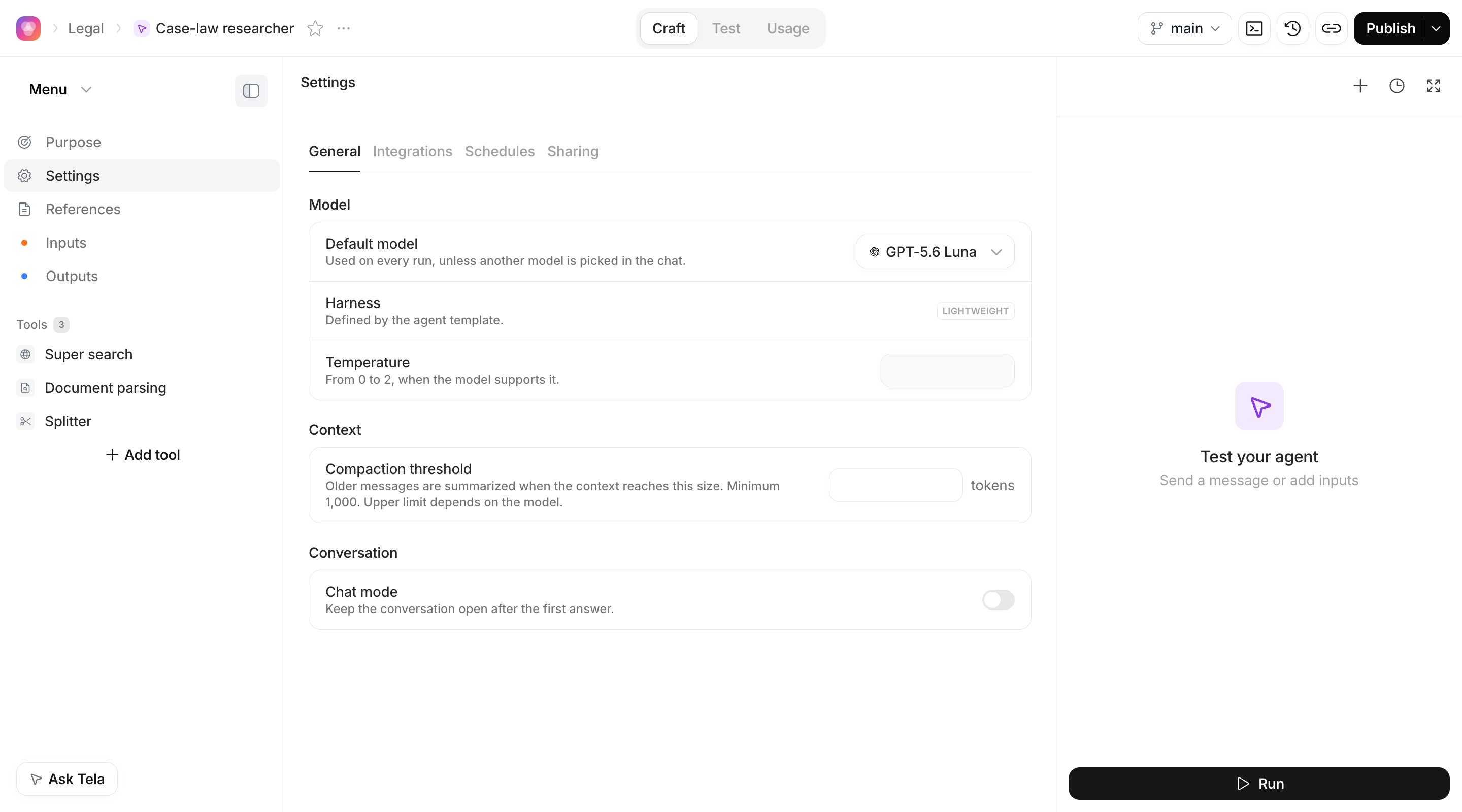
Each tool opens its own settings view. Super search controls how the Agent searches the web. Choose Native search (the model’s built-in search) or Super Search, which replaces the default with a search across several providers. With Super Search on, pick the Providers (AWS, Google, OpenAI; select at least one) and what each search returns under Result: Summary with links or Links only. Document parsing controls how the Agent reads documents. Extract text reads the text layer of PDFs and Office files: it is faster, but misses scanned pages. Extract text and recognize scanned pages adds OCR for images and scanned PDFs: it is slower and uses more credits. Splitter lets the Agent identify and extract the logical documents inside a PDF. Turn it on, and optionally add instructions for splitting (up to 2,000 characters), used either always or only as a fallback. Add tool turns a published Workflow or Canvas into a tool. Pick the resource and, optionally, write a description. The inputs and their descriptions come from the published resource, and the Agent uses them to decide which values to send.