caselaw points to the legal database the team subscribes to, so the Agent can check how a clause has been interpreted.
Integrations
The Integrations section of the sidebar lists the external services this Agent can call, with the Service name, the Header used and the Credential that authorizes it. The credential stays in the Workspace and is applied by Tela at request time; the Agent never receives the value. Only Workspace administrators can add or edit integrations. Other members see the list in read-only mode, including a Credential not found badge when the credential an integration relies on no longer exists.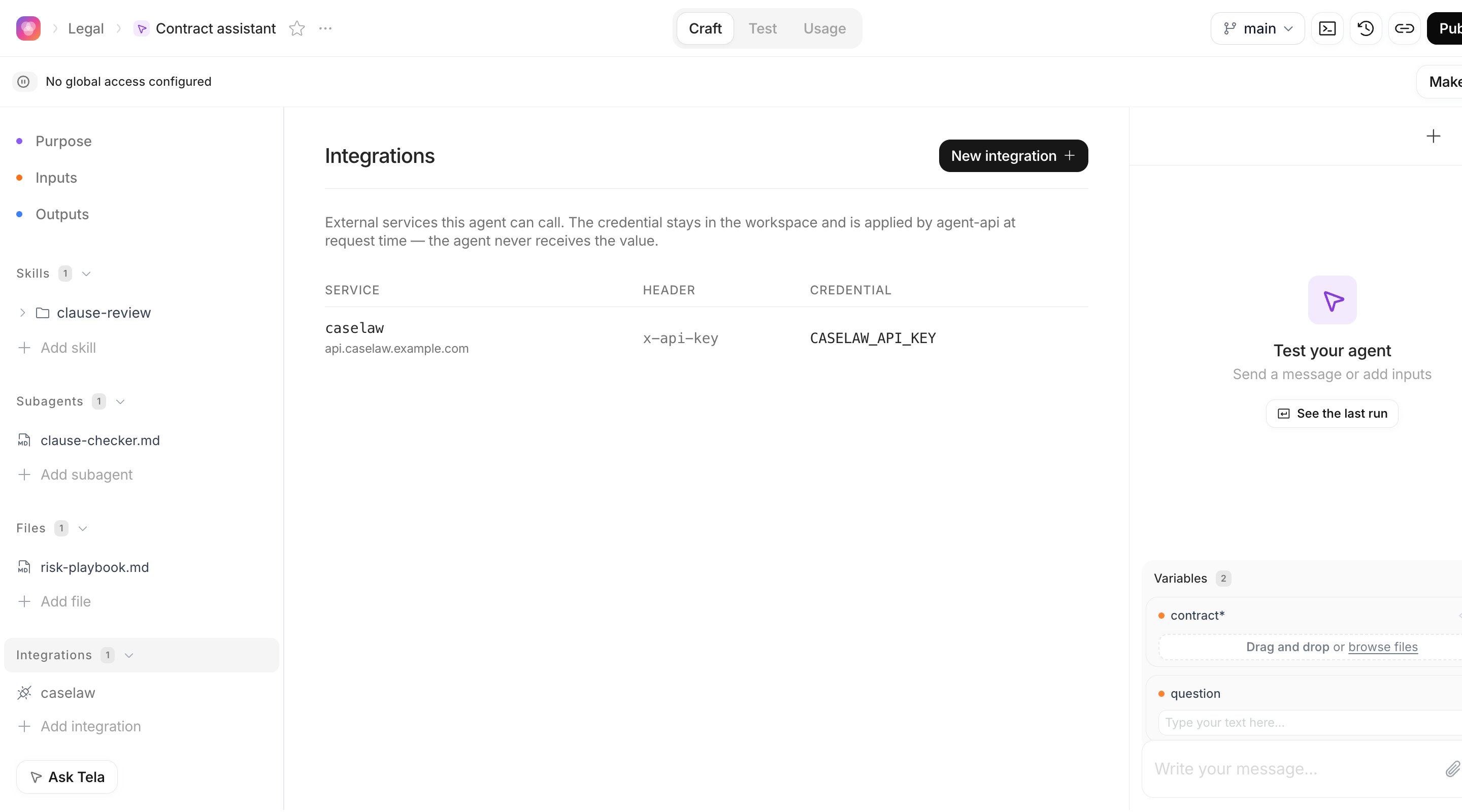
Adding an integration
1
Open the dialog
Click New integration. The Integrations dialog opens with one empty integration; click Add integration at the bottom for more.
2
Name the service
Under Name, type how the Agent will refer to the service: lowercase letters, numbers and hyphens, for example
caselaw. The names vault, tela, doc and otel are reserved, and names must be unique in the Agent.3
Set the Base URL
Under Base URL, type the root address of the service, for example
https://api.example.com. It must use https.4
Choose how the credential is sent
Under Authentication, choose API key header or Bearer token. For an API key, you can set the Header name (optional), for example
x-api-key.5
Pick or create the credential
Under Credential, select a Workspace credential (listed as
KEY · workspace) or one that belongs to this Agent (KEY · this agent). Or choose + Create a new credential and paste the value: it is stored encrypted, scoped to this Agent, under a key Tela derives from the name, such as CASELAW_API_KEY.6
Save
Click Save. The integration appears in the table.
- If you change the Base URL after choosing a credential, you must select (or re-enter) the credential again to authorize it for the new address.
- Credentials the Agent already uses as plain secrets (see below) are not listed: an integration can’t share a key with them.
Telling the Agent to use it
In the Purpose, name the service and say when to use it, in plain language: “When a clause mentions a statute, look it up in the caselaw integration before flagging it.” The Agent calls the service by name; Tela adds the credential on the way out.Which paths the Agent calls under the Base URL depends on its instructions and on the service’s API, so describe the endpoints it should use in the Purpose or in a skill. Test the integration in the Test your agent panel and read the Debug view to see the calls it made.
Agent Credentials
Integrations cover services with an API key or a token. For everything else the Agent may need as a secret, Tela uses the same Credentials as Workflows: the Agent refers to a credential by name and never sees its value. Administrators open them from the… menu next to the Agent title, under Agent Credentials. The dialog has two tabs:
- Agent Credentials: credentials specific to this Agent. They override Workspace credentials with the same key, which is useful when this Agent must use a different account than the rest of the Workspace.
- Usage Permissions: the Credential Access Control. Toggle which credentials this Agent is allowed to use; disabled credentials are not available during execution. With nothing toggled, all credentials are enabled.
Other Tela resources as tools
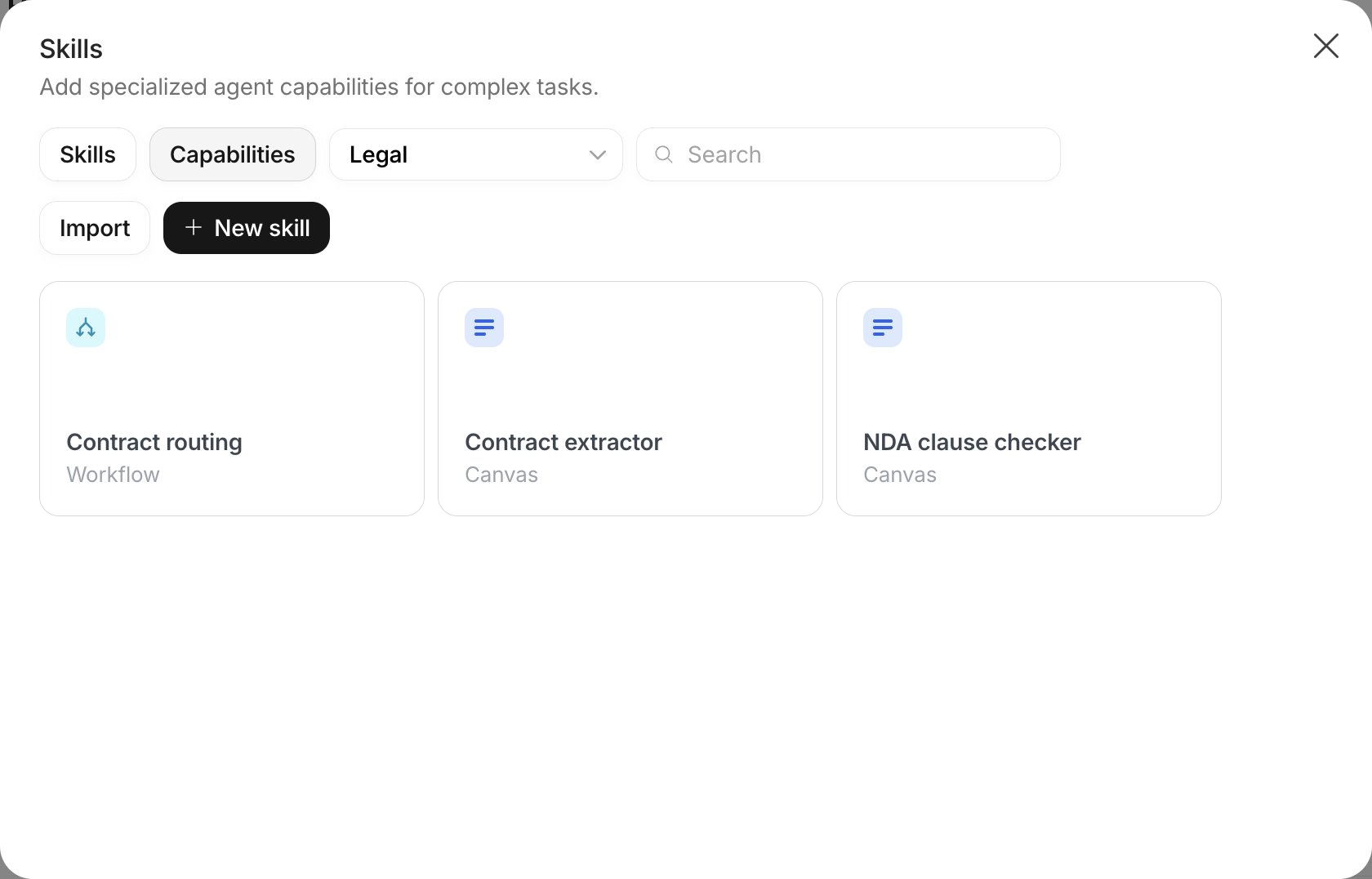
A published Canvas, Workflow or Agent of your Workspace can become a tool your Agent calls. This is how you reuse a Canvas that already extracts contract parties reliably, or a Workflow that files a document in your systems, instead of teaching the Agent to do it from scratch. Open the Skills dialog (click Add skill in the Skills section) and switch to the Capabilities tab. Pick a Project in the dropdown, search if needed, and hover a card to click Add. Each card shows the resource title and its kind: Canvas, Workflow or Agent. Only published resources are listed, and the current Agent is not offered to itself. Once added, describe in the Purpose when to call it, the same way you would for a skill. The Agent fills the resource’s inputs from what it knows and receives the published result.A Lightweight Agent has no Skills dialog. There, click Add tool in the Tools group instead, pick a published Workflow or Canvas and, optionally, write a description. The Agent uses the inputs of the published resource to decide what to send. See The Lightweight Agent page.