

@.
For the contract assistant of the running example: a clause-review skill explains how to compare a clause with market standards, a clause-checker subagent reviews termination and liability clauses, and risk-playbook.md lists what the legal team considers risky.
Skills
A skill is a set of instructions, with optional tools and settings, that the Agent loads only when a task needs it. This keeps the Purpose short and lets you reuse the same know-how across Agents. The Skills section of the sidebar lists the skills already added. Click Add skill to open the Skills dialog, described as Add specialized agent capabilities for complex tasks. It has three ways in: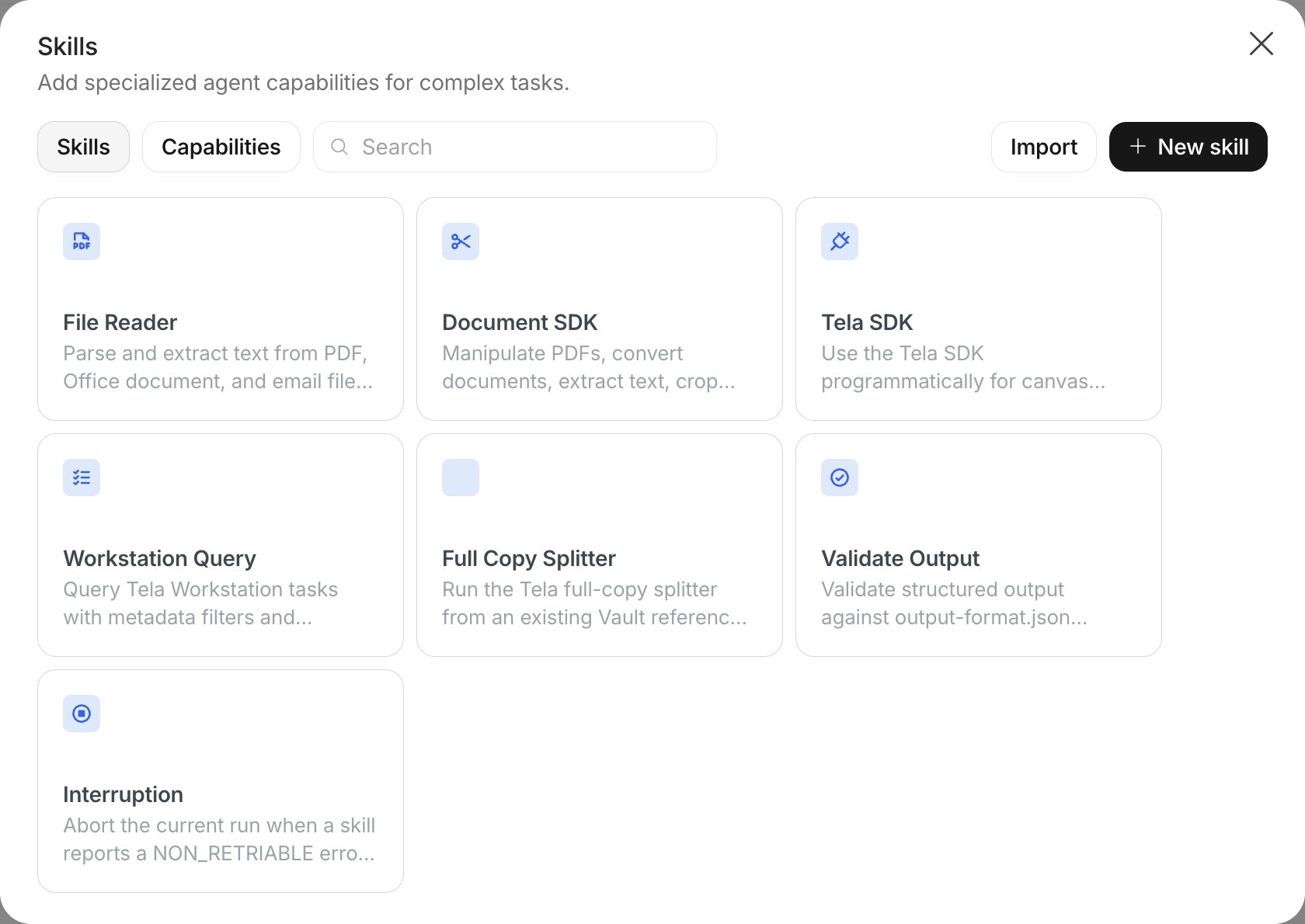
From the store
The Skills tab lists ready-made skills with a title and a description. Use the search box to filter. Hover a card and click Add; a skill already in your Agent shows Remove instead. Adding a skill copies it into the Agent, so later changes you make to it stay in this Agent.From GitHub
Click Import to open the Import skill dialog. Paste the repository URL or thegh:owner/repo/path reference of a folder that contains a SKILL.md file in Skill URL, for example github.com/owner/repo/tree/main/path. For a private repository, click Connect GitHub first. If the folder has no SKILL.md, the import fails with Skill not found; a skill already added fails with This skill has already been added.
Written by you
Click New skill to write a skill directly in the Agent. The form asks for:- Name: lowercase letters, numbers and hyphens, up to 50 characters (for example
clause-review) - Description: helps the Agent decide when to use this skill. Be concrete about the situation, not the content
- Tools: the tools the skill can call during execution, separated by spaces (for example
Read Glob Grep Bash). Leave it empty to inherit the Agent’s tools - Environment Variables: keys that must exist in the environment when the skill runs
- Model: a model for this skill, when it should differ from the Agent’s
For developers. Each skill is a folder with a
SKILL.md file whose frontmatter holds name, description, allowed-tools, environment-variables and model. In the Purpose a skill is mentioned by the path to that file, for example ./.claude/skills/clause-review/SKILL.md.Subagents
A subagent is a specialized Agent that your main Agent can delegate tasks to. It has its own description, instructions, tools and model, runs on its own and reports back. Use one when part of the work deserves undivided attention, such as checking the termination and liability clauses of a long contract while the main Agent answers the question. Click Add subagent in the Subagents section. The Create subagent dialog asks only for a name (lowercase letters, numbers and hyphens, up to 50 characters, for exampleclause-checker). Click Create subagent, then select it in the sidebar to fill in:
- Description: used when deciding when to delegate to this subagent. Write it as a trigger: “Reviews termination, liability and indemnification clauses of a contract against the risk playbook”
- Tools: the tools the subagent can use during execution
- Model: the model it runs on, if different from the main Agent
- The instructions, in the body of the editor
@ so the Agent knows when to call it. While a run is in progress you can open the subagent’s own steps from the Test your agent panel.
For developers. A subagent is a Markdown file with frontmatter under the subagents folder of the harness, for example
./.claude/agents/clause-checker.md, and is mentioned in the Purpose by that path.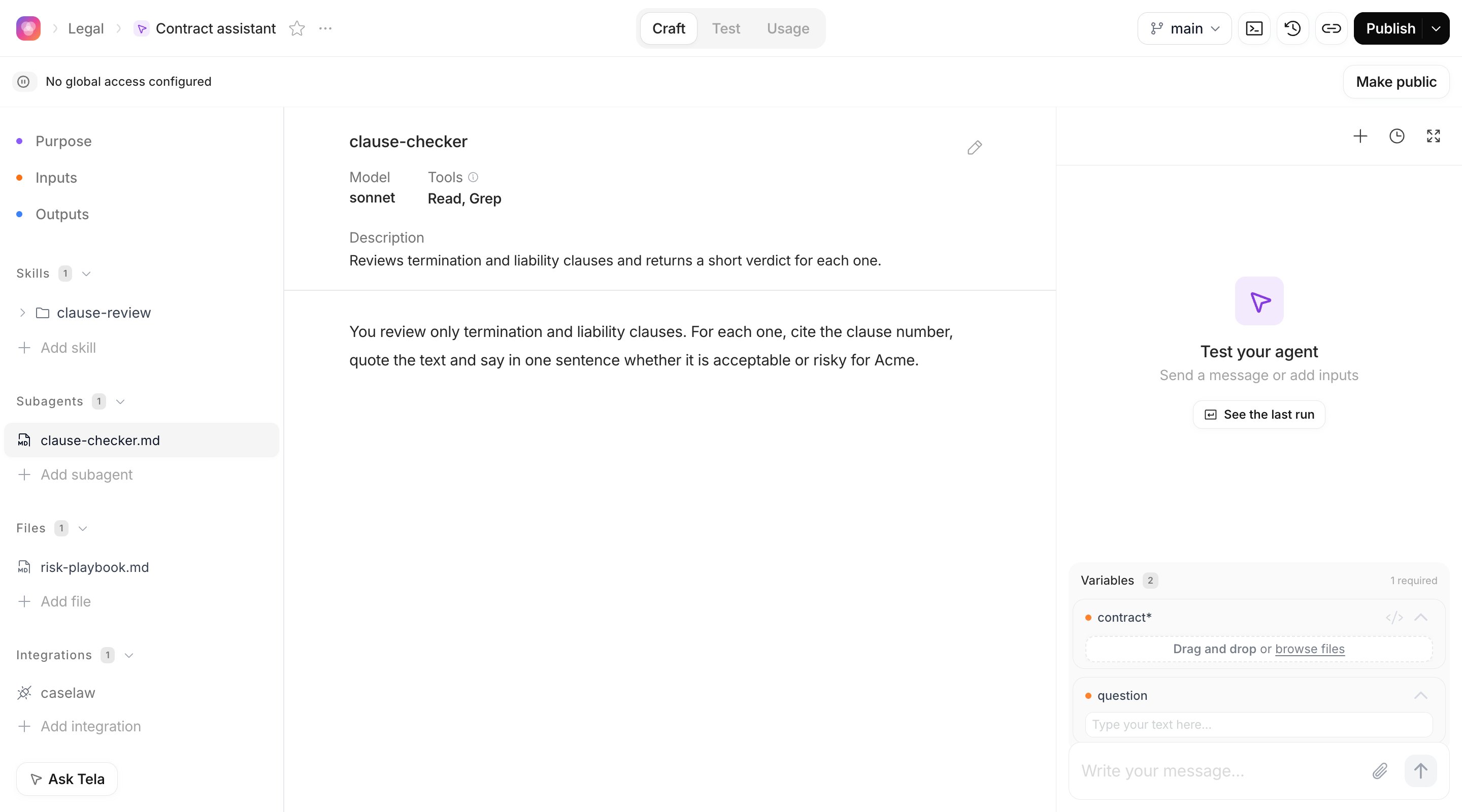
Files
The Files section holds reference documents the Agent can read while it works: playbooks, templates, glossaries, examples of good answers. They are part of the Agent, so every run sees them, unlike inputs, which change on each run. In the section header, click Add file to create an empty text file, Add folder to organize, or upload files from your computer (up to 30 MB each). Right-click a file to Rename, Download or Delete it. Text and Markdown files open in the editor; PDFs, images and other supported formats open in a preview. Mention a file in the Purpose with@ under Files when the Agent should read it in a specific step, as the contract assistant does with risk-playbook.md.
For developers. Reference files live in the
references/ folder of the repository and are mentioned by path. Never write into input/: creating input/<x>/ declares an input named x. The output/ folder is runtime-only.What survives a template update
When your Agent was created from a template and the template changes, an Update template button appears in the header. Click it to review the update: Tela prepares the changes and shows them as a merge you confirm with Apply update. Files you edited and the template also changed are left out of the automatic update, with the note Some files were left out because you edited them and the template also changed them. The Purpose, the skills and subagents you added, your reference files, Inputs and Outputs are yours and are kept. Everything else in the template’s own files may be overwritten, so put reusable behavior in skills and subagents rather than in template files.For developers. The Purpose is one block inside
CLAUDE.md; the rest of that file belongs to the template, is not shown in the UI and is overwritten on template syncs. Conflicting files are resolved locally: run tela agent sync on the branch, edit, then tela agent push. See Working locally with the Tela CLI.