

Running in Craft
1
Fill in the Inputs
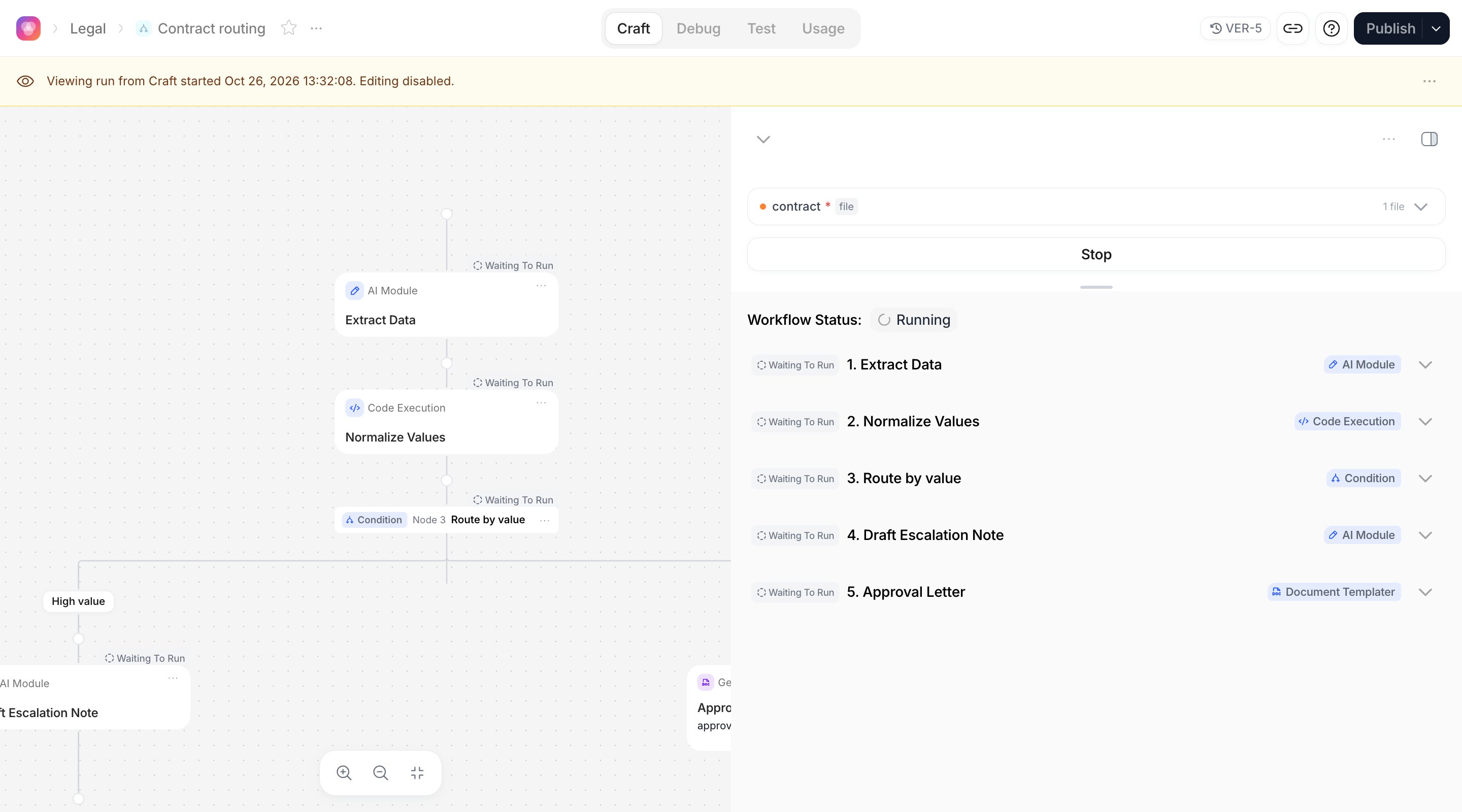
In the right-hand pane, type the text Inputs and drop files on the file Inputs. Required Inputs must be filled before the run can start.
2
Click Run
The button reads Run the first time and Rerun afterwards. While the run is in progress, each step card shows its state (Waiting To Run, Running, Completed, Failed, Skipped) and the pane shows the progress.
3
Stop if needed
Stop cancels an active run; the button shows Cancelling… until the run is marked Cancelled. A step that was already running may still finish before the cancellation lands.
4
Read the result
When the run reaches a terminal state, the Preview and Debug tabs appear in the pane. See Outputs and results.
Running a single step
Select a step and the button becomes Run Step N. It runs the Workflow from the start up to that step with the current Inputs and stops there. Use it to iterate on one prompt without paying for the steps after it, or to check what a Condition decides before building its branches. Steps after the selected one are reported as Skipped for that run.Several runs at once
When more than one run of the Workflow is active (yours, a Test Case, tasks from the Workstation, API calls), the pane lists them under Running executions with Status, Run, Source, current Step and Input/Files. Click a row to follow that run. The URL carries the selected run (executionId), so you can share a link to a specific run.
Debugging a run
For anything beyond a quick look, open the Debug experience. It lists all runs of the Workflow and, for each, the inputs, every step’s input and output, errors, the Condition decisions, the Map iterations, the Code Execution terminal, and cost and duration. The details are in Outputs and results. A typical loop when a step misbehaves:- Open the failed run in Debug and read the step’s Input (what it actually received) and Error.
- If a reference brought an empty value, check the
@chip in Craft: the step may be reading text when it needed the file, or the value sits under a different attribute. - Fix the step and use Run Step N on it to validate, then Rerun the whole Workflow.
- To test the fix with the same inputs, open the past run in Debug and choose Run actions › Edit in Craft: Craft opens on the latest version with that run’s inputs already filled in, ready to Run. Re-run, in the same menu, replays the inputs on the same version as the original run, so use it to reproduce a problem, not to check a fix.
Test Cases
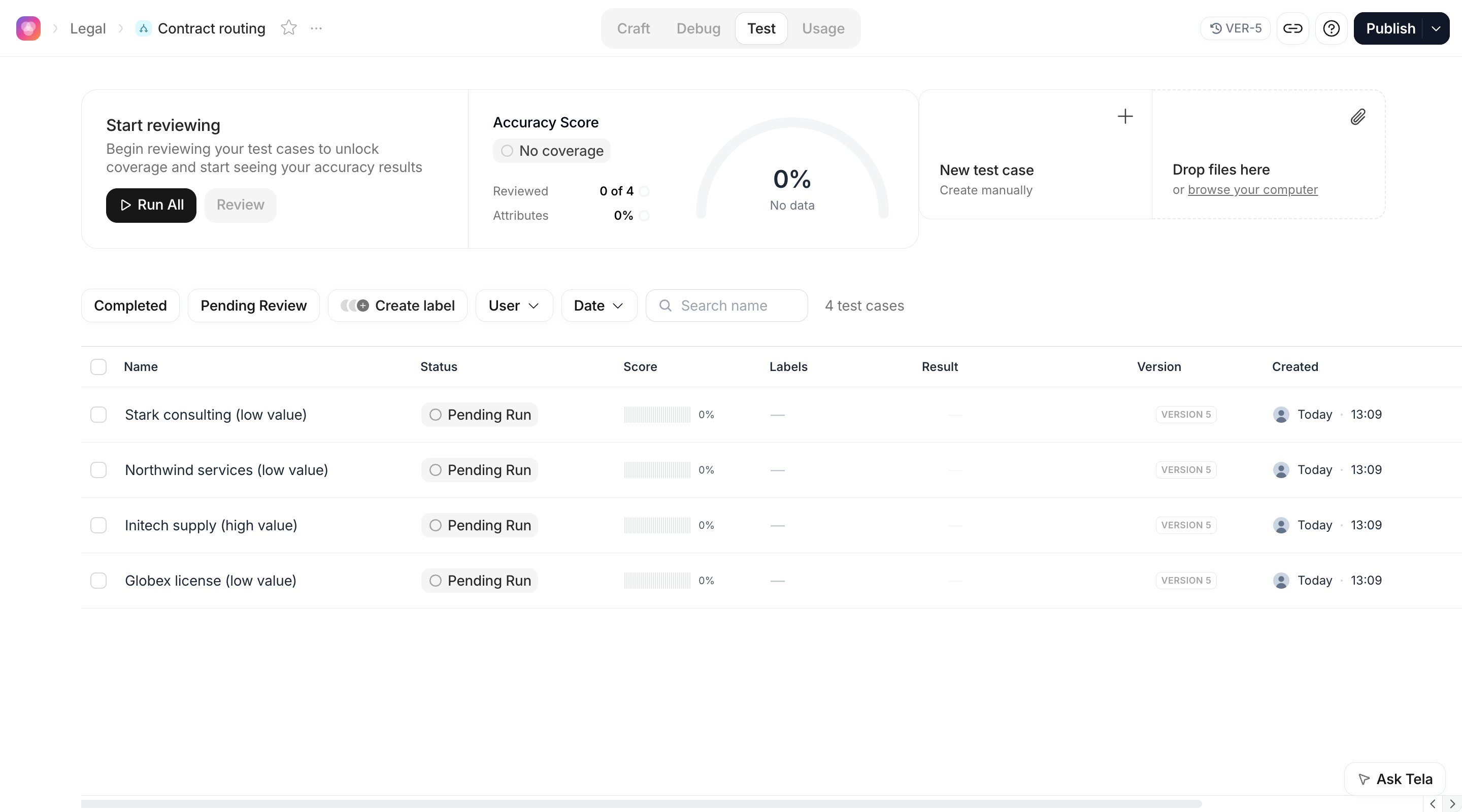
The Test experience works like a Canvas: a Test Case is a saved set of Inputs you run again after every change.1
Create Test Cases
Drop files on the Test experience to create one Test Case per file, or Create manually and fill each Input. A task reviewed in the Workstation can also be turned into a Test Case.
2
Run them
Run All, or select some and Run Selected. Each run executes the full Workflow for that case and appears in Debug with source Test case.
3
Review the attributes
Open a case and mark each attribute Good or Bad. Add Expected Answers and Wrong Answers so future runs are classified automatically, and Validation Rules in plain language (“The total must be a number without currency symbol”) that an AI judge applies on every run. Labels help you group cases.
4
Compare versions
The Score and Accuracy of a version come from reviewed attributes only. Switch versions in the Version History and run the same cases on each to compare them before you publish. See Comparing versions.
Test is hidden when file storage is disabled for your Workspace. Running a Test Case requires the Workflow’s current version to be saved; an edit that is still being persisted blocks the run for a moment.
Publishing
Publishing creates a stable version that Apps, the API and schedules use. You keep editing the Workflow freely afterwards; only what you publish is in production.1
Complete every step
Publish is unavailable while a step has pending configuration (Complete all steps first) or the Workflow has no step.
2
Move the Draft into a project, if needed
On a Draft, clicking Publish first opens Move to project. Choose the project; this cannot be undone, and the Workflow becomes visible to your team.
3
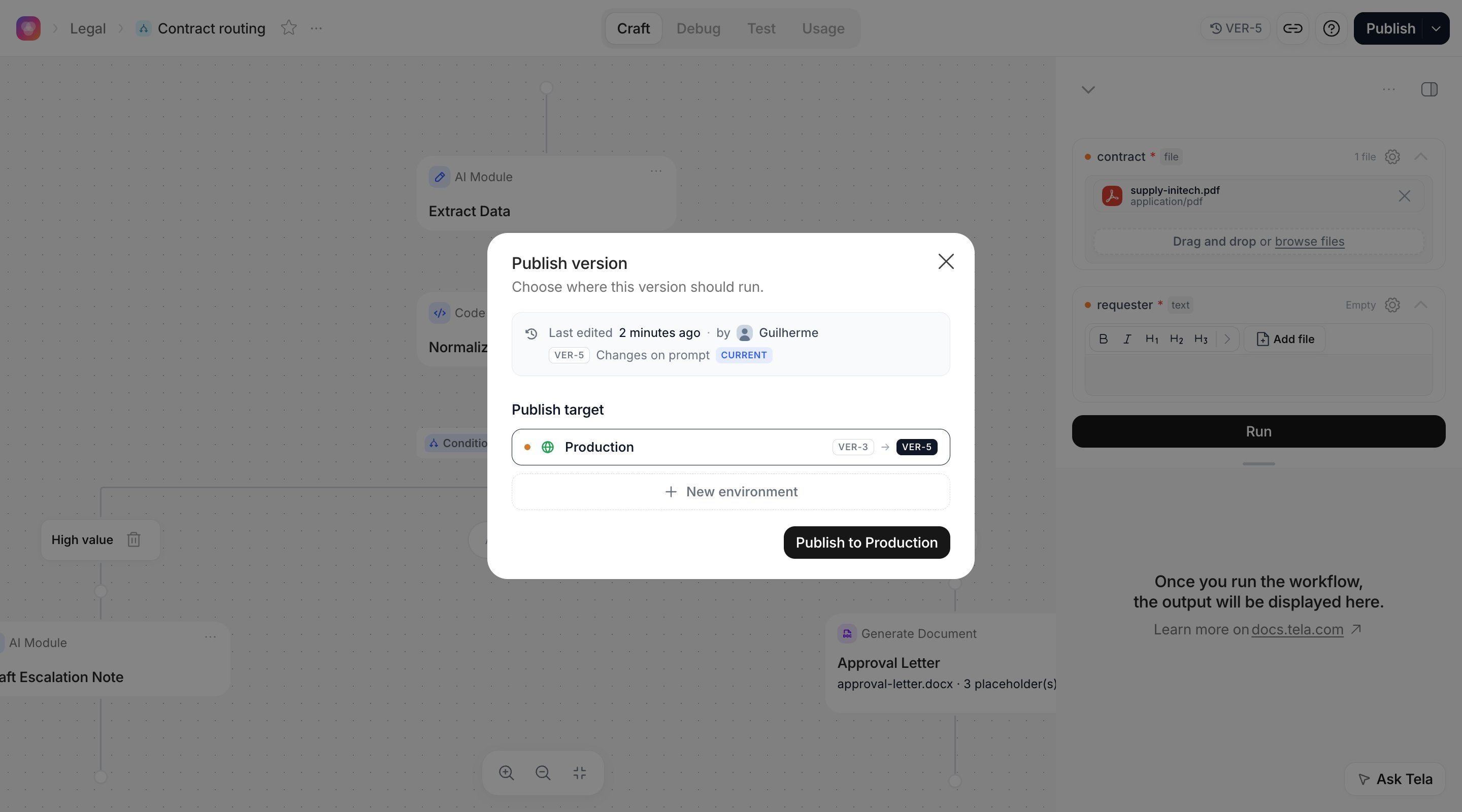
Choose the environments
In the publish dialog, select the Publish target: Production by default, and any other environment of the Workflow. + New environment creates one inline, for example
staging, to try the version through the API before Production.4
Optionally deploy an App
The Deploy App switch appears when the Workflow has no App yet. Turn it on to create a Workstation App with this version.
5
Confirm
The button reads Publish to Production (or Publish to Production and staging). Publishing to an environment replaces the version it was serving; Apps and API calls on that environment pick up the new version immediately.
Workflow settings worth checking before publishing
From the… menu next to the title:
- Execution → Parallel execution: runs independent steps at the same time; steps with data dependencies still run in order. Turn it on when the Workflow has steps that do not depend on each other and speed matters.
- Credentials (admins): which credentials the Workflow may use, and Workflow-scoped values. See Credentials.
- Custom tags: stored with every run, useful to filter Usage. See Tags.
Deploying an App
With Deploy App on, publishing creates a Workstation App bound to the published version. Open its Settings to name it, choose who can access it, require approval and hide it from the Dashboard. Your team then sends documents, each becoming a task, reviews the attributes and approves; see Outputs and results. The App runs the version it was published with. Publishing a new version to the App’s environment updates it.Calling the Workflow through the API
1
Open Connect via API
From the
… menu, choose Connect via API (disabled on Drafts: move to a project first). The dialog shows the Workflow ID and a snippet with its Inputs already listed.2
Send the Inputs as variables
Call
POST /v2/chat/completions with canvas_id set to the Workflow ID and variables holding the Inputs by name, text or files. Add environment_name to run the version published to another environment.3
Choose how to wait
Workflows take longer than a single prompt. Use
async: true and poll, or webhook_url to be called back. See Async and webhooks.4
Read the steps if you need them
Use the Workflow Run API to list runs and read every step; see Outputs and results.
application_id instead of canvas_id; see Creating tasks via API.
Running on a schedule
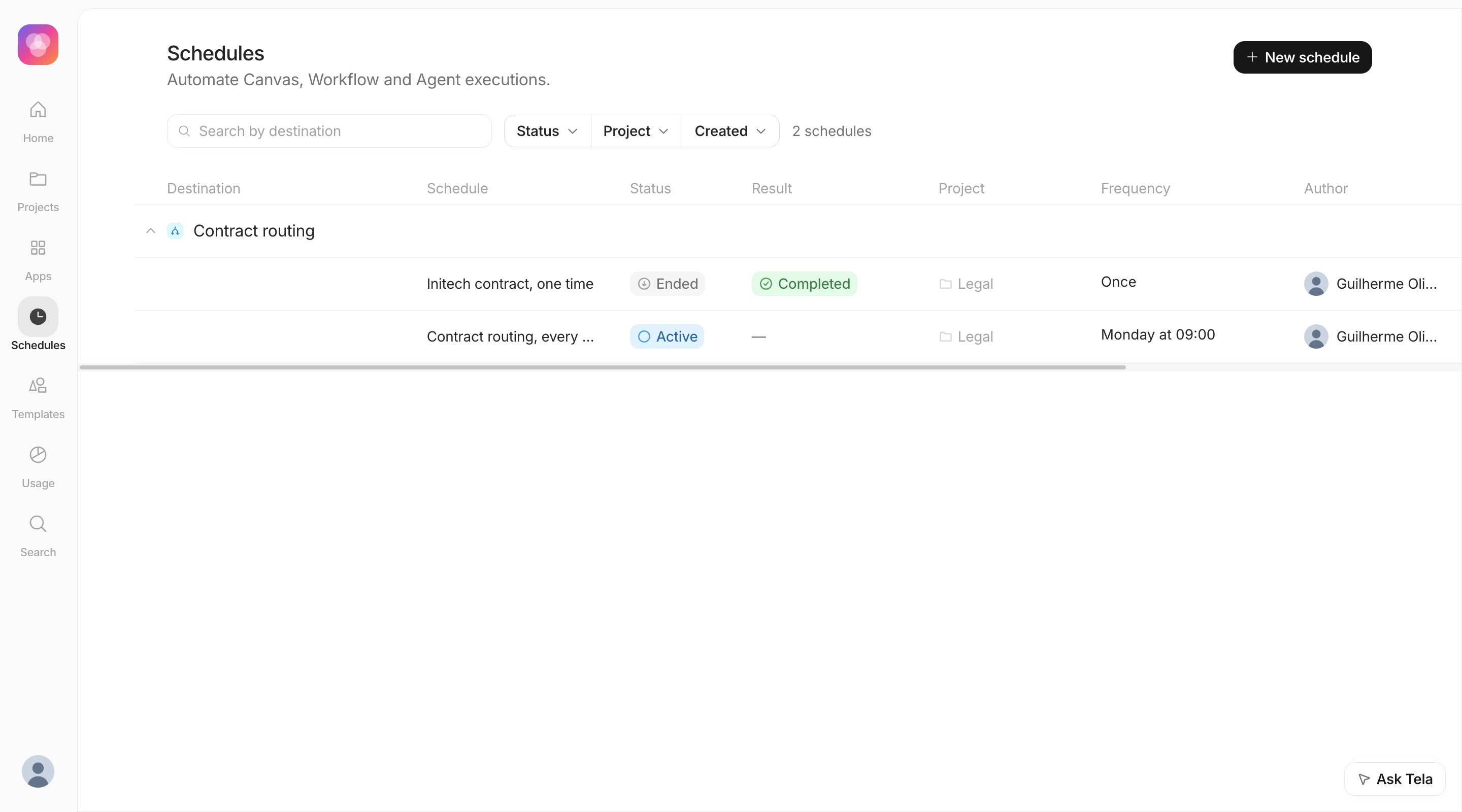
A Workflow with a version in Production can run by itself from Schedules: open the… menu next to the title and choose Schedule, or go to Schedules and click New schedule. Each occurrence is an ordinary run: it appears in Debug with source Schedule, and in Usage. The whole procedure is in Schedules.
- The schedule runs the Production version resolved at run time, so publishing a new version to Production changes what the next occurrence runs.
- Pause stops new occurrences; Resume continues from the next due time without replaying missed ones.
- A recurring schedule that keeps failing is paused automatically and its creator is notified.
A schedule decides when a run starts; there is no wait or delay step inside a Workflow. A run that makes no progress for 3 hours is marked Timed out. For a process that waits hours or days for something external, make two Workflows (or two schedules): one that records what is pending, and one that picks it up.
Checklist before going live
- Every step named, no Pending Config.
- Every reviewable value is an attribute of an Output Format.
- Branches end the way the consumer expects (same attributes, or a Connect into a final step).
- Test Cases reviewed on the version you are about to publish.
- Credentials created in the Workspace and allowed for this Workflow.
- Published to
stagingand called through the API once, then published to Production.