

POST /v2/chat/completions sends the inputs of a run (variables, files, chat history) and gets back what the Canvas produced, either in the same response or later through polling or a callback.
The same endpoint also runs a published Workflow, and creates a task in a Workstation App when you pass an application_id instead of a canvas_id. This section covers every way to call it:
Variables and files
Fill the Canvas variables with text, file URLs, base64 content or uploaded files
Messages
Send a chat history along with the variables
Versions and environments
Control which version of the Canvas runs
Streaming
Receive the answer as it is generated
Async and webhooks
Run in the background, poll the result or get a callback, and list past runs
Errors and retries
Status codes, the error body and what is safe to retry
Prerequisites
- A published Canvas. Only versions published to an environment can be run through the API, and a Draft must be moved into a Project first.
- An API key, created in your Workspace settings under API Keys. Keep it on your server. See Authentication.
- The Canvas ID, from Connect via API.
1
Open Connect via API
Click the 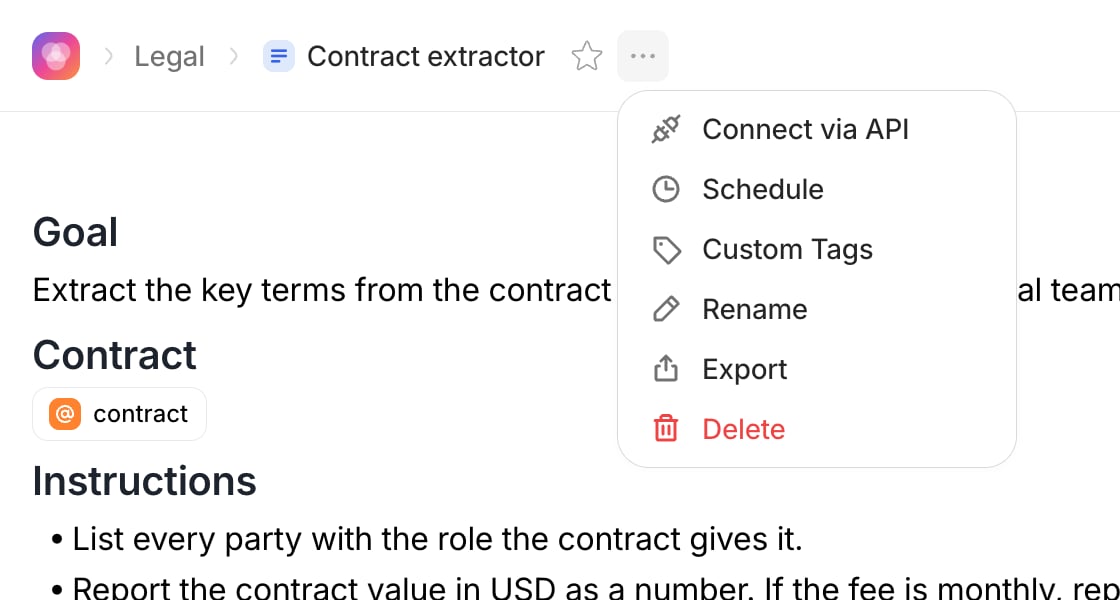
… button next to your Canvas title at the top left of the page and select Connect via API.2
Copy the Canvas ID and a snippet
The dialog shows your Canvas ID and a ready-to-use snippet in the language of your choice. The snippet already lists the variables of the Canvas.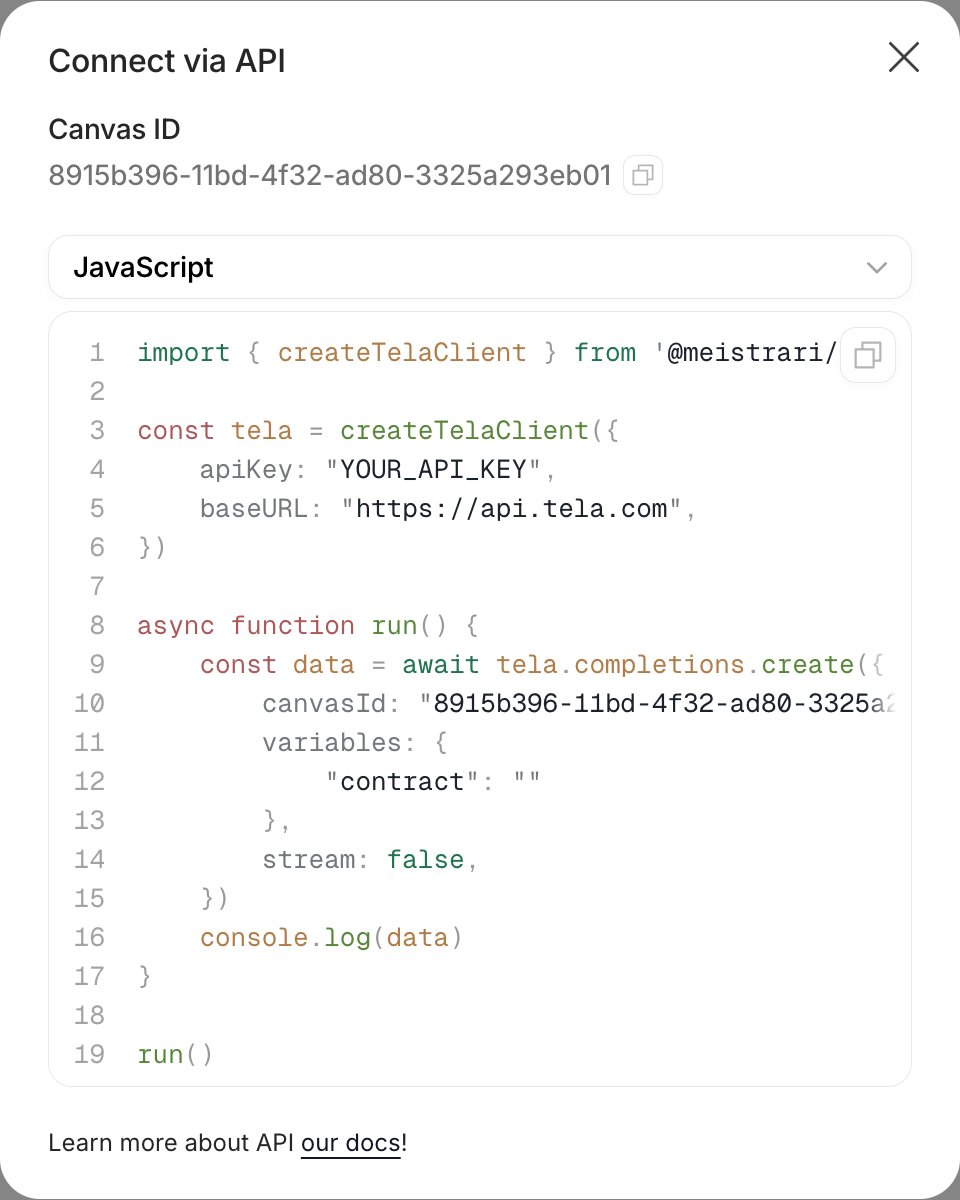
SDK or HTTP
You can call the API with the Tela SDKs (@meistrari/tela-sdk-js for TypeScript and JavaScript, tela for Python) or with any HTTP client. The SDKs map the request fields to camelCase (canvasId, applicationId) and add helpers such as createFile. Over HTTP you send the fields exactly as they appear in the API reference, in snake_case.
Every HTTP request goes to https://api.tela.com, with Content-Type: application/json and Authorization: Bearer YOUR_API_KEY.
Minimal request
With only acanvas_id and the variables, the call runs the version published to Production and waits for the result.
The response
A synchronous call answers with achat.completion object. The result is in choices[0].message.content: an object with the fields of your Output Format when the Canvas has one, or the text of the answer otherwise.
stream: true) or run in the background (async: true or webhook_url). Those shapes are described in Streaming and Async and webhooks.
Request fields
Exactly one of
canvas_id, version_id or application_id identifies what to run. stream and async are only available with canvas_id and version_id: tasks always run asynchronously.
Completions or tasks?
A completion is a stateless run: you send the inputs, you get the output, and the run is recorded in the Canvas Usage. Use it when your system is the one that consumes the result. A task is a run created inside a Workstation App, where your team reviews, edits and approves the output before it is used. Use it when a person must check each result, or when you want the approved results to feed Test Cases. To create one, pass theapplication_id of the App instead of the canvas_id; the rest of the request is the same. Tasks are always asynchronous and are read back through the /task endpoints. See Creating tasks via API.
Running a Workflow
A published Workflow is run the same way as a Canvas: connect it via the API, send its Inputs asvariables and read the result the same way. To follow each step of a run, use the Workflow Run API.