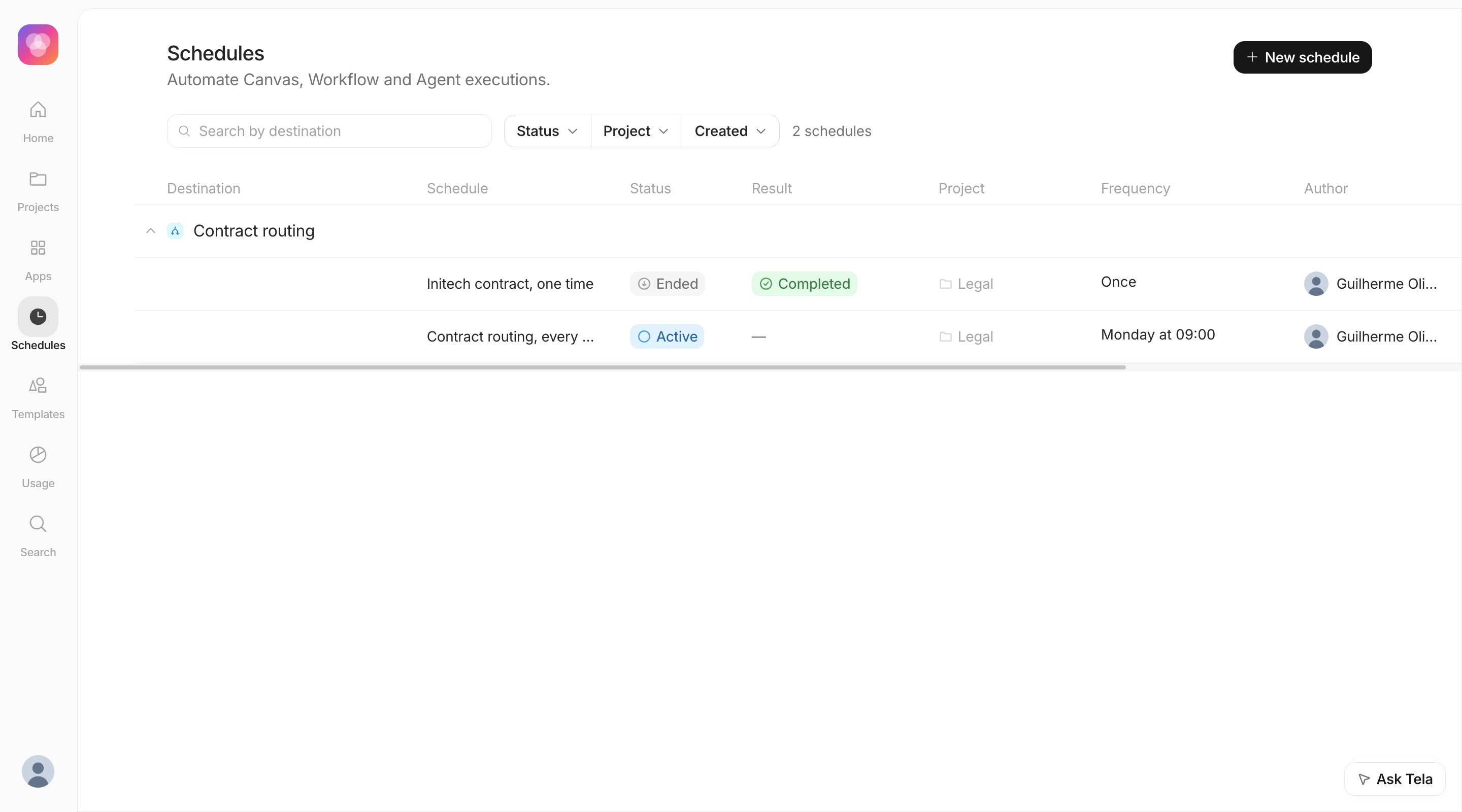
The Schedules page lists schedules grouped by destination, with these columns: Destination, Schedule, Status, Result, Project, Frequency, Author, the last execution and the next execution.
Use the search box to find a destination by name, the filters Status, Project and Created, and the sort options Most recent, Name and Next execution. The counter Needs attention shows schedules whose latest run failed or could not start.
Each entry shows the scheduled time, the status and when it was dispatched. For runs that started, the links View in Usage and View in Debug open the run itself, where you read the result like any other run.
Status
Meaning
Waiting for dispatch
The time has not come yet.
Dispatched
Tela started the run.
Waiting to execute, Pending, Running
The run was created and is going.
Completed
The run finished.
Failed
The run started and failed. Open it in Usage or Debug to see why.
Failed to dispatch
The run never started. The entry records the reason.
Cancelled
The run was cancelled, for example because the schedule was deleted before it fired.
Pause stops new runs. Runs that were already prepared can still execute.
Resume continues from the next due time. Runs missed while it was paused are not replayed.
Edit in the Configuration tab changes the name, the frequency, the time zone, who can see it and the inputs. A change applies from the next run. The inputs you save replace the previous ones as a whole.
Delete cancels the runs that were waiting. Runs already dispatched go on, and the history stays in Usage.
Most failures are one of two kinds. They look different in the history.The run never started (Failed to dispatch). The schedule could not hand the run to the destination. The usual causes are:
The inputs no longer match the published version, for example a variable was renamed or became required.
The schedule’s owner lost access to the destination.
A service was unavailable at that moment.
Open the Configuration tab, fix the inputs and save.The run started and failed (Failed). This is an ordinary failed run. Open it with View in Usage or View in Debug and investigate it as you would any other.
A recurring schedule that keeps failing is paused automatically and its creator is notified. After you fix the cause, click Resume.
The destination is published and you tested the version that is in Production (Agent: the published version).
The inputs saved on the schedule are the ones you want on every run.
The time zone is the one of the people who expect the result.
The frequency is as slow as the work allows, because every run spends credits.
{"docsConfig":{"theme":"mint","$schema":"https://mintlify.com/docs.json","name":"Tela","colors":{"primary":"#171717","light":"#EBECED","dark":"#171717"},"logo":{"light":"https://mintcdn.com/meistrari/pblu7JGV78zF0-_0/logo/tela-docs-logo-light.svg?fit=max\u0026auto=format\u0026n=pblu7JGV78zF0-_0\u0026q=85\u0026s=2203db70c6af3499a392576fba857701","dark":"https://mintcdn.com/meistrari/pblu7JGV78zF0-_0/logo/tela-docs-logo-dark.svg?fit=max\u0026auto=format\u0026n=pblu7JGV78zF0-_0\u0026q=85\u0026s=a654991459d67d985930d693c2c84d53"},"favicon":"https://mintcdn.com/meistrari/pblu7JGV78zF0-_0/favicon.svg?fit=max\u0026auto=format\u0026n=pblu7JGV78zF0-_0\u0026q=85\u0026s=d467e03abcb66668deda7bd0eb39b121","background":{"color":{"dark":"#020913"}},"navbar":{"primary":{"type":"button","label":"Open Dashboard","href":"https://tela.com/app/dashboard"}},"search":{"prompt":"Search in TelaDocs"},"fonts":{"family":"Inter"},"styling":{"latex":false},"navigation":{"languages":[{"language":"en","default":true,"href":"en/welcome"},{"language":"pt-BR","href":"pt/welcome"}]}},"deployment":{"deploymentMetadataValue":{"subdomain":"meistrari","hasAudioNarration":false,"actualSubdomain":"meistrari","customDomains":["docs.tela.com"],"gitSource":{"type":"github","owner":"meistrari","repo":"tela-docs","deployBranch":"main","contentDirectory":"","isPrivate":true,"mountPath":"","label":""},"chroma":{"liveDeploymentHistoryId":"6adf3bdd258d3ce783651549","collectionId":"fccc23ee-57b8-4c6f-9a06-f67c1e48014a","schemaVersion":"v3","latestBuiltDeploymentHistoryId":"6adf3bdd258d3ce783651549"},"entitlements":{},"buildId":"6ae399c78fc5c9e41494669d","clientVersion":"0.0.4021","searchFilterCounts":[{"language":"default","tag":"API Reference","count":67},{"language":"en","tag":"Documentation","count":54},{"language":"pt-BR","tag":"Documentação","count":54},{"language":"en","tag":"Build","count":26},{"language":"pt-BR","tag":"Construir","count":26},{"language":"en","tag":"Integrate","count":12},{"language":"pt-BR","tag":"Integrar","count":12},{"language":"default","tag":"Workstation Events","count":10},{"language":"en","tag":"Workflow","count":10},{"language":"pt-BR","tag":"Workflow","count":10},{"language":"default","tag":"Versions","count":9},{"language":"default","tag":"Tasks","count":9},{"language":"default","tag":"Test case tags","count":9},{"language":"default","tag":"Test cases","count":8},{"language":"en","tag":"Agent","count":8},{"language":"pt-BR","tag":"Agente","count":8},{"language":"en","tag":"Completion API","count":7},{"language":"pt-BR","tag":"Completion API","count":7},{"language":"default","tag":"Environments","count":6},{"language":"en","tag":"Canvas","count":6},{"language":"en","tag":"Operate","count":6},{"language":"pt-BR","tag":"Canvas","count":6},{"language":"pt-BR","tag":"Operar","count":6},{"language":"default","tag":"Version messages","count":5},{"language":"en","tag":"Workstation","count":5},{"language":"en","tag":"Get started","count":5},{"language":"pt-BR","tag":"Workstation","count":5},{"language":"pt-BR","tag":"Primeiros passos","count":5},{"language":"default","tag":"Completions","count":3},{"language":"default","tag":"Workflow runs","count":3}]},"assistantConfig":{},"basePath":"","hasChatPermissions":false,"hasWebMcpPermissions":false,"toggles":[{"name":"kill-isr","enabled":true,"variant":{"name":"disabled","enabled":false,"feature_enabled":true},"impressionData":false},{"name":"agent-mintlify-slack","enabled":true,"variant":{"name":"disabled","enabled":false,"feature_enabled":true},"impressionData":false},{"name":"agent-integrations-settings","enabled":true,"variant":{"name":"disabled","enabled":false,"feature_enabled":true},"impressionData":false},{"name":"automations-pr-grouping","enabled":true,"variant":{"name":"disabled","enabled":false,"feature_enabled":true},"impressionData":false},{"name":"custom-prefix","enabled":true,"variant":{"name":"disabled","enabled":false,"feature_enabled":true},"impressionData":false},{"name":"analytics-v7","enabled":true,"variant":{"name":"disabled","enabled":false,"feature_enabled":true},"impressionData":false},{"name":"user-flows-analytics","enabled":true,"variant":{"name":"disabled","enabled":false,"feature_enabled":true},"impressionData":false},{"name":"no-publish-flow","enabled":true,"variant":{"name":"disabled","enabled":false,"feature_enabled":true},"impressionData":false},{"name":"workos-onboarding","enabled":true,"variant":{"name":"disabled","enabled":false,"feature_enabled":true},"impressionData":false},{"name":"llms-txt-v2","enabled":true,"variant":{"name":"disabled","enabled":false,"feature_enabled":true},"impressionData":false},{"name":"snapshot-serving-live","enabled":true,"variant":{"name":"disabled","enabled":false,"feature_enabled":true},"impressionData":false},{"name":"stripTemperatureMiddleware","enabled":true,"variant":{"name":"disabled","enabled":false,"feature_enabled":true},"impressionData":false},{"name":"per-site-search-delta","enabled":true,"variant":{"name":"disabled","enabled":false,"feature_enabled":true},"impressionData":false},{"name":"support-platform-pylon-zendesk","enabled":true,"variant":{"name":"disabled","enabled":false,"feature_enabled":true},"impressionData":false},{"name":"snapshot-serving","enabled":true,"variant":{"name":"disabled","enabled":false,"feature_enabled":true},"impressionData":false},{"name":"instant-rollback","enabled":true,"variant":{"name":"disabled","enabled":false,"feature_enabled":true},"impressionData":false},{"name":"granular-notifications-server","enabled":true,"variant":{"name":"disabled","enabled":false,"feature_enabled":true},"impressionData":false},{"name":"granular-notifications","enabled":true,"variant":{"name":"disabled","enabled":false,"feature_enabled":true},"impressionData":false},{"name":"editor-private-page-search","enabled":true,"variant":{"name":"disabled","enabled":false,"feature_enabled":true},"impressionData":false},{"name":"automations-fable","enabled":true,"variant":{"name":"disabled","enabled":false,"feature_enabled":true},"impressionData":false},{"name":"fixed-ai-action-pricing","enabled":true,"variant":{"name":"disabled","enabled":false,"feature_enabled":true},"impressionData":false},{"name":"automation-resolve-merge-conflict","enabled":true,"variant":{"name":"disabled","enabled":false,"feature_enabled":true},"impressionData":false},{"name":"scoped-publishing","enabled":true,"variant":{"name":"disabled","enabled":false,"feature_enabled":true},"impressionData":false},{"name":"mintql","enabled":true,"variant":{"name":"disabled","enabled":false,"feature_enabled":true},"impressionData":false},{"name":"page-level-analytics","enabled":true,"variant":{"name":"disabled","enabled":false,"feature_enabled":true},"impressionData":false},{"name":"editor-version-history-v2","enabled":true,"variant":{"name":"disabled","enabled":false,"feature_enabled":true},"impressionData":false},{"name":"billing-page-v2","enabled":true,"variant":{"name":"disabled","enabled":false,"feature_enabled":true},"impressionData":false},{"name":"workspace-projects","enabled":true,"variant":{"name":"disabled","enabled":false,"feature_enabled":true},"impressionData":false},{"name":"assistant-v5","enabled":true,"variant":{"name":"disabled","enabled":false,"feature_enabled":true},"impressionData":false},{"name":"byok-sep-25","enabled":true,"variant":{"name":"disabled","enabled":false,"feature_enabled":true},"impressionData":false},{"name":"fork-pr-previews","enabled":true,"variant":{"name":"disabled","enabled":false,"feature_enabled":true},"impressionData":false},{"name":"revalidation-jwt","enabled":true,"variant":{"name":"disabled","enabled":false,"feature_enabled":true},"impressionData":false},{"name":"vite-origin","enabled":true,"variant":{"name":"disabled","enabled":false,"feature_enabled":true},"impressionData":false},{"name":"billing-updated-9-15","enabled":true,"variant":{"name":"disabled","enabled":false,"feature_enabled":true},"impressionData":false},{"name":"workos-sso-scim","enabled":true,"variant":{"name":"disabled","enabled":false,"feature_enabled":true},"impressionData":false},{"name":"hobby-abuse-scan","enabled":true,"variant":{"name":"disabled","enabled":false,"feature_enabled":true},"impressionData":false},{"name":"dashboard-inbox","enabled":true,"variant":{"name":"disabled","enabled":false,"feature_enabled":true},"impressionData":false},{"name":"workos-signup","enabled":true,"variant":{"name":"disabled","enabled":false,"feature_enabled":true},"impressionData":false},{"name":"workos-enabled","enabled":true,"variant":{"name":"disabled","enabled":false,"feature_enabled":true},"impressionData":false}],"googleFontsInlined":false},"customCss":[{"filePath":"style.css","content":":root{--tela-text-primary:#262626;--tela-text-secondary:#737373;--tela-text-contrast:#171717;--tela-border:#e8e8e8;--tela-bg-hover:#f5f5f5;--tela-bg-active:#e8e8e8;--tela-weight-medium:460;--tela-weight-semibold:540;--tela-weight-heading:520}html.dark{--tela-text-primary:#e8e8e8;--tela-text-secondary:#a3a3a3;--tela-text-contrast:#ffffff;--tela-border:rgba(255, 255, 255, 0.08);--tela-bg-hover:rgba(255, 255, 255, 0.04);--tela-bg-active:rgba(255, 255, 255, 0.08)}body{-webkit-font-smoothing:antialiased;-moz-osx-font-smoothing:grayscale}#navbar-transition{border-bottom:.5px solid var(--tela-border)}#sidebar{border-right:.5px solid var(--tela-border)}#header .eyebrow,#sidebar .sidebar-group-header{font-weight:var(--tela-weight-semibold);letter-spacing:.05em;text-transform:uppercase}#sidebar li>a,#sidebar li>button{border-radius:10px;font-size:14px;line-height:18px;letter-spacing:-.15px;font-weight:var(--tela-weight-medium);color:var(--tela-text-secondary)}#sidebar li>a:hover,#sidebar li>button:hover{background-color:var(--tela-bg-hover);color:var(--tela-text-primary)}#sidebar li[data-active-nav-item=true]>a{background-color:var(--tela-bg-active);color:var(--tela-text-primary);font-weight:var(--tela-weight-semibold);text-shadow:none}#sidebar li[data-active-nav-item=true]>a svg{background-color:var(--tela-text-primary)}#header .eyebrow,#sidebar .sidebar-group-header,[data-layout-item=toc-item-link]{font-size:12px;line-height:16px;color:var(--tela-text-secondary)}[data-layout-item=toc-item-link]:hover,[data-layout-item=toc-item-link][data-active=true]{color:var(--tela-text-contrast)}#content-area .mdx-content h2,#content-area .mdx-content h3,#page-title{font-size:32px;line-height:36px;letter-spacing:-1px;font-weight:var(--tela-weight-heading);color:var(--tela-text-contrast)}#content-area .mdx-content{color:var(--tela-text-primary);font-size:16px;line-height:28px;letter-spacing:-.18px}#content-area .mdx-content h2,#content-area .mdx-content h3{font-size:24px;line-height:28px;letter-spacing:-.8px}#content-area .mdx-content h3{font-size:20px;line-height:24px;letter-spacing:-.5px}#content-area .mdx-content h4,#content-area .mdx-content h5,#content-area .mdx-content h6{font-size:16px;line-height:20px;letter-spacing:-.2px;font-weight:var(--tela-weight-heading);color:var(--tela-text-contrast)}#content-area .mdx-content h5,#content-area .mdx-content h6{font-size:14px;line-height:16px;letter-spacing:-.15px}#content-area .mdx-content h6{font-size:12px;line-height:14px;letter-spacing:-.1px}#content-area .mdx-content strong{font-weight:var(--tela-weight-semibold)}#content-area .mdx-content .callout,#content-area .mdx-content .card{border-radius:12px}#content-area .mdx-content .card{border:.5px solid var(--tela-border)}#content-area .mdx-content .frame{width:fit-content;max-width:100%;margin-inline:auto}#content-area .mdx-content .frame img{width:auto;max-width:100%;max-height:560px}"}],"page":{"pagePath":"en/schedules/managing-schedules","slug":"/en/schedules/managing-schedules","pageMetadata":{"title":"Managing schedules and history","description":"Find a schedule, pause, edit or delete it, read its history and fix runs that failed","icon":"list-timeline","href":"/en/schedules/managing-schedules"},"description":{"compiledSource":"\"use strict\";\nconst {jsx: _jsx} = arguments[0];\nconst {useMDXComponents: _provideComponents} = arguments[0];\nfunction _createMdxContent(props) {\n const _components = {\n p: \"p\",\n ..._provideComponents(),\n ...props.components\n };\n return _jsx(_components.p, {\n children: \"Find a schedule, pause, edit or delete it, read its history and fix runs that failed\"\n });\n}\nfunction MDXContent(props = {}) {\n const {wrapper: MDXLayout} = {\n ..._provideComponents(),\n ...props.components\n };\n return MDXLayout ? _jsx(MDXLayout, {\n ...props,\n children: _jsx(_createMdxContent, {\n ...props\n })\n }) : _createMdxContent(props);\n}\nreturn {\n default: MDXContent\n};\n","frontmatter":{},"scope":{}},"pageType":"default","mdx":{"mdxSource":{"compiledSource":"\"use strict\";const{Fragment:_Fragment,jsx:_jsx,jsxs:_jsxs}=arguments[0];const{useMDXComponents:_provideComponents}=arguments[0];function _createMdxContent(props){const _components={li:`li`,p:`p`,strong:`strong`,tbody:`tbody`,td:`td`,th:`th`,thead:`thead`,tr:`tr`,ul:`ul`,..._provideComponents(),...props.components},{Frame,Heading,OptimizedImage,Table,Warning}=_components;if(!Frame)_missingMdxReference(`Frame`,true);if(!Heading)_missingMdxReference(`Heading`,true);if(!OptimizedImage)_missingMdxReference(`OptimizedImage`,true);if(!Table)_missingMdxReference(`Table`,true);if(!Warning)_missingMdxReference(`Warning`,true);return _jsxs(_Fragment,{children:[_jsx(Heading,{level:`2`,id:`the-list`,children:`The list`}),`\n`,_jsxs(_components.p,{children:[`The `,_jsx(_components.strong,{children:`Schedules`}),` page lists schedules grouped by destination, with these columns: `,_jsx(_components.strong,{children:`Destination`}),`, `,_jsx(_components.strong,{children:`Schedule`}),`, `,_jsx(_components.strong,{children:`Status`}),`, `,_jsx(_components.strong,{children:`Result`}),`, `,_jsx(_components.strong,{children:`Project`}),`, `,_jsx(_components.strong,{children:`Frequency`}),`, `,_jsx(_components.strong,{children:`Author`}),`, the last execution and the next execution.`]}),`\n`,_jsx(Frame,{children:_jsx(OptimizedImage,{class:`mint-rounded-2xl`,src:`https://mintcdn.com/meistrari/M2w7BduKZAFA1Sbx/images/schedules/list.png?fit=max\u0026auto=format\u0026n=M2w7BduKZAFA1Sbx\u0026q=85\u0026s=25a8eafb6e1d93d233b24ed6d19f810e`,alt:`Schedules list expanded for Contract routing, with one Ended schedule with a Completed result and one Active weekly schedule`,\"data-og-width\":`2880`,width:`2880`,\"data-og-height\":`1600`,height:`1600`,\"data-path\":`images/schedules/list.png`,\"data-optimize\":`true`,\"data-opv\":`3`,srcset:`https://mintcdn.com/meistrari/M2w7BduKZAFA1Sbx/images/schedules/list.png?w=280\u0026fit=max\u0026auto=format\u0026n=M2w7BduKZAFA1Sbx\u0026q=85\u0026s=08cac2b8039ca2722fe06c79ae349bd8 280w, https://mintcdn.com/meistrari/M2w7BduKZAFA1Sbx/images/schedules/list.png?w=560\u0026fit=max\u0026auto=format\u0026n=M2w7BduKZAFA1Sbx\u0026q=85\u0026s=ffad5108d7ec3034d14fb0982a7be3e3 560w, https://mintcdn.com/meistrari/M2w7BduKZAFA1Sbx/images/schedules/list.png?w=840\u0026fit=max\u0026auto=format\u0026n=M2w7BduKZAFA1Sbx\u0026q=85\u0026s=a92ad881a829c702ebb2767188dfa12e 840w, https://mintcdn.com/meistrari/M2w7BduKZAFA1Sbx/images/schedules/list.png?w=1100\u0026fit=max\u0026auto=format\u0026n=M2w7BduKZAFA1Sbx\u0026q=85\u0026s=eb8d99d073c9e4564737d1e125ef4b72 1100w, https://mintcdn.com/meistrari/M2w7BduKZAFA1Sbx/images/schedules/list.png?w=1650\u0026fit=max\u0026auto=format\u0026n=M2w7BduKZAFA1Sbx\u0026q=85\u0026s=74c328448d823b8f4f24c98e28a8b3b7 1650w, https://mintcdn.com/meistrari/M2w7BduKZAFA1Sbx/images/schedules/list.png?w=2500\u0026fit=max\u0026auto=format\u0026n=M2w7BduKZAFA1Sbx\u0026q=85\u0026s=b410f6ba270eb529196f3ec446dbf070 2500w`})}),`\n`,_jsxs(_components.p,{children:[`Use the search box to find a destination by name, the filters `,_jsx(_components.strong,{children:`Status`}),`, `,_jsx(_components.strong,{children:`Project`}),` and `,_jsx(_components.strong,{children:`Created`}),`, and the sort options `,_jsx(_components.strong,{children:`Most recent`}),`, `,_jsx(_components.strong,{children:`Name`}),` and `,_jsx(_components.strong,{children:`Next execution`}),`. The counter `,_jsx(_components.strong,{children:`Needs attention`}),` shows schedules whose latest run failed or could not start.`]}),`\n`,_jsx(Heading,{level:`2`,id:`statuses`,children:`Statuses`}),`\n`,_jsxs(Table,{children:[_jsx(_components.thead,{children:_jsxs(_components.tr,{children:[_jsx(_components.th,{children:`Status`}),_jsx(_components.th,{children:`Meaning`})]})}),_jsxs(_components.tbody,{children:[_jsxs(_components.tr,{children:[_jsx(_components.td,{children:_jsx(_components.strong,{children:`Active`})}),_jsx(_components.td,{children:`It will run at the next due time.`})]}),_jsxs(_components.tr,{children:[_jsx(_components.td,{children:_jsx(_components.strong,{children:`Paused`})}),_jsx(_components.td,{children:`No new runs. Runs already prepared can still execute.`})]}),_jsxs(_components.tr,{children:[_jsx(_components.td,{children:_jsx(_components.strong,{children:`Ended`})}),_jsx(_components.td,{children:`A one-time schedule that already ran. Its configuration is read-only.`})]})]})]}),`\n`,_jsx(Heading,{level:`2`,id:`open-a-schedule`,children:`Open a schedule`}),`\n`,_jsx(_components.p,{children:`Click a row to open its details. The dialog has two tabs.`}),`\n`,_jsxs(_components.ul,{children:[`\n`,_jsxs(_components.li,{children:[_jsx(_components.strong,{children:`History`}),` lists every time the schedule fired.`]}),`\n`,_jsxs(_components.li,{children:[_jsx(_components.strong,{children:`Configuration`}),` is the same form you used to create it. Change what you need and click `,_jsx(_components.strong,{children:`Save changes`}),`.`]}),`\n`]}),`\n`,_jsx(Frame,{children:_jsx(OptimizedImage,{class:`mint-rounded-2xl`,src:`https://mintcdn.com/meistrari/M2w7BduKZAFA1Sbx/images/schedules/history.png?fit=max\u0026auto=format\u0026n=M2w7BduKZAFA1Sbx\u0026q=85\u0026s=c792679cade51b40d34e4bcdd1c0cc88`,alt:`Details of the finished one-time schedule, History tab, with the Completed run and the links View in Usage and View in Debug`,\"data-og-width\":`960`,width:`960`,\"data-og-height\":`642`,height:`642`,\"data-path\":`images/schedules/history.png`,\"data-optimize\":`true`,\"data-opv\":`3`,srcset:`https://mintcdn.com/meistrari/M2w7BduKZAFA1Sbx/images/schedules/history.png?w=280\u0026fit=max\u0026auto=format\u0026n=M2w7BduKZAFA1Sbx\u0026q=85\u0026s=0b2f3bf172e4212be2c6620bbc7328da 280w, https://mintcdn.com/meistrari/M2w7BduKZAFA1Sbx/images/schedules/history.png?w=560\u0026fit=max\u0026auto=format\u0026n=M2w7BduKZAFA1Sbx\u0026q=85\u0026s=d92653c2c5828dc793810eb018aea0b2 560w, https://mintcdn.com/meistrari/M2w7BduKZAFA1Sbx/images/schedules/history.png?w=840\u0026fit=max\u0026auto=format\u0026n=M2w7BduKZAFA1Sbx\u0026q=85\u0026s=838d9ef1908a03bf7d4cff552d589de1 840w, https://mintcdn.com/meistrari/M2w7BduKZAFA1Sbx/images/schedules/history.png?w=1100\u0026fit=max\u0026auto=format\u0026n=M2w7BduKZAFA1Sbx\u0026q=85\u0026s=b25a7807c3eedea15cf4df0404822912 1100w, https://mintcdn.com/meistrari/M2w7BduKZAFA1Sbx/images/schedules/history.png?w=1650\u0026fit=max\u0026auto=format\u0026n=M2w7BduKZAFA1Sbx\u0026q=85\u0026s=92dba06e52a730250127f63333bbe48c 1650w, https://mintcdn.com/meistrari/M2w7BduKZAFA1Sbx/images/schedules/history.png?w=2500\u0026fit=max\u0026auto=format\u0026n=M2w7BduKZAFA1Sbx\u0026q=85\u0026s=c348fc3e89859202befa0391762f64d3 2500w`})}),`\n`,_jsx(Frame,{children:_jsx(OptimizedImage,{class:`mint-rounded-2xl`,src:`https://mintcdn.com/meistrari/M2w7BduKZAFA1Sbx/images/schedules/configuration.png?fit=max\u0026auto=format\u0026n=M2w7BduKZAFA1Sbx\u0026q=85\u0026s=1eef44fa995921bd10649ec8983a7481`,alt:`Configuration tab of an active weekly schedule, with name, destination, frequency, time zone and inputs`,\"data-og-width\":`960`,width:`960`,\"data-og-height\":`1536`,height:`1536`,\"data-path\":`images/schedules/configuration.png`,\"data-optimize\":`true`,\"data-opv\":`3`,srcset:`https://mintcdn.com/meistrari/M2w7BduKZAFA1Sbx/images/schedules/configuration.png?w=280\u0026fit=max\u0026auto=format\u0026n=M2w7BduKZAFA1Sbx\u0026q=85\u0026s=1fbb8780ac197c869cfda284c61a1938 280w, https://mintcdn.com/meistrari/M2w7BduKZAFA1Sbx/images/schedules/configuration.png?w=560\u0026fit=max\u0026auto=format\u0026n=M2w7BduKZAFA1Sbx\u0026q=85\u0026s=f2a2e96d90df8736174d2952280aae81 560w, https://mintcdn.com/meistrari/M2w7BduKZAFA1Sbx/images/schedules/configuration.png?w=840\u0026fit=max\u0026auto=format\u0026n=M2w7BduKZAFA1Sbx\u0026q=85\u0026s=d92187364e7f975cc680846c7e1e924d 840w, https://mintcdn.com/meistrari/M2w7BduKZAFA1Sbx/images/schedules/configuration.png?w=1100\u0026fit=max\u0026auto=format\u0026n=M2w7BduKZAFA1Sbx\u0026q=85\u0026s=66505ea9a86a348e64f167b103ed223d 1100w, https://mintcdn.com/meistrari/M2w7BduKZAFA1Sbx/images/schedules/configuration.png?w=1650\u0026fit=max\u0026auto=format\u0026n=M2w7BduKZAFA1Sbx\u0026q=85\u0026s=b99fd4c67c87738cfd2cfb5b98bf31a1 1650w, https://mintcdn.com/meistrari/M2w7BduKZAFA1Sbx/images/schedules/configuration.png?w=2500\u0026fit=max\u0026auto=format\u0026n=M2w7BduKZAFA1Sbx\u0026q=85\u0026s=96cb0473cb96595b6e010989f16f3dbc 2500w`})}),`\n`,_jsx(Heading,{level:`3`,id:`history`,children:`History`}),`\n`,_jsxs(_components.p,{children:[`Each entry shows the scheduled time, the status and when it was dispatched. For runs that started, the links `,_jsx(_components.strong,{children:`View in Usage`}),` and `,_jsx(_components.strong,{children:`View in Debug`}),` open the run itself, where you read the result like any other run.`]}),`\n`,_jsxs(Table,{children:[_jsx(_components.thead,{children:_jsxs(_components.tr,{children:[_jsx(_components.th,{children:`Status`}),_jsx(_components.th,{children:`Meaning`})]})}),_jsxs(_components.tbody,{children:[_jsxs(_components.tr,{children:[_jsx(_components.td,{children:_jsx(_components.strong,{children:`Waiting for dispatch`})}),_jsx(_components.td,{children:`The time has not come yet.`})]}),_jsxs(_components.tr,{children:[_jsx(_components.td,{children:_jsx(_components.strong,{children:`Dispatched`})}),_jsx(_components.td,{children:`Tela started the run.`})]}),_jsxs(_components.tr,{children:[_jsxs(_components.td,{children:[_jsx(_components.strong,{children:`Waiting to execute`}),`, `,_jsx(_components.strong,{children:`Pending`}),`, `,_jsx(_components.strong,{children:`Running`})]}),_jsx(_components.td,{children:`The run was created and is going.`})]}),_jsxs(_components.tr,{children:[_jsx(_components.td,{children:_jsx(_components.strong,{children:`Completed`})}),_jsx(_components.td,{children:`The run finished.`})]}),_jsxs(_components.tr,{children:[_jsx(_components.td,{children:_jsx(_components.strong,{children:`Failed`})}),_jsx(_components.td,{children:`The run started and failed. Open it in Usage or Debug to see why.`})]}),_jsxs(_components.tr,{children:[_jsx(_components.td,{children:_jsx(_components.strong,{children:`Failed to dispatch`})}),_jsx(_components.td,{children:`The run never started. The entry records the reason.`})]}),_jsxs(_components.tr,{children:[_jsx(_components.td,{children:_jsx(_components.strong,{children:`Cancelled`})}),_jsx(_components.td,{children:`The run was cancelled, for example because the schedule was deleted before it fired.`})]})]})]}),`\n`,_jsx(Heading,{level:`2`,id:`pause-resume-edit-and-delete`,children:`Pause, resume, edit and delete`}),`\n`,_jsxs(_components.ul,{children:[`\n`,_jsxs(_components.li,{children:[_jsx(_components.strong,{children:`Pause`}),` stops new runs. Runs that were already prepared can still execute.`]}),`\n`,_jsxs(_components.li,{children:[_jsx(_components.strong,{children:`Resume`}),` continues from the next due time. Runs missed while it was paused are not replayed.`]}),`\n`,_jsxs(_components.li,{children:[_jsx(_components.strong,{children:`Edit`}),` in the Configuration tab changes the name, the frequency, the time zone, who can see it and the inputs. A change applies from the next run. The inputs you save replace the previous ones as a whole.`]}),`\n`,_jsxs(_components.li,{children:[_jsx(_components.strong,{children:`Delete`}),` cancels the runs that were waiting. Runs already dispatched go on, and the history stays in `,_jsx(_components.strong,{children:`Usage`}),`.`]}),`\n`]}),`\n`,_jsx(Heading,{level:`2`,id:`when-a-run-fails`,children:`When a run fails`}),`\n`,_jsx(_components.p,{children:`Most failures are one of two kinds. They look different in the history.`}),`\n`,_jsxs(_components.p,{children:[_jsx(_components.strong,{children:`The run never started (Failed to dispatch).`}),` The schedule could not hand the run to the destination. The usual causes are:`]}),`\n`,_jsxs(_components.ul,{children:[`\n`,_jsx(_components.li,{children:`The inputs no longer match the published version, for example a variable was renamed or became required.`}),`\n`,_jsx(_components.li,{children:`The schedule’s owner lost access to the destination.`}),`\n`,_jsx(_components.li,{children:`A service was unavailable at that moment.`}),`\n`]}),`\n`,_jsxs(_components.p,{children:[`Open the `,_jsx(_components.strong,{children:`Configuration`}),` tab, fix the inputs and save.`]}),`\n`,_jsxs(_components.p,{children:[_jsx(_components.strong,{children:`The run started and failed (Failed).`}),` This is an ordinary failed run. Open it with `,_jsx(_components.strong,{children:`View in Usage`}),` or `,_jsx(_components.strong,{children:`View in Debug`}),` and investigate it as you would any other.`]}),`\n`,_jsxs(Warning,{children:[`A recurring schedule that keeps failing is paused automatically and its creator is notified. After you fix the cause, click `,_jsx(_components.strong,{children:`Resume`}),`.`]}),`\n`,_jsx(Heading,{level:`2`,id:`checklist-before-scheduling`,children:`Checklist before scheduling`}),`\n`,_jsxs(_components.ul,{children:[`\n`,_jsx(_components.li,{children:`The destination is published and you tested the version that is in Production (Agent: the published version).`}),`\n`,_jsx(_components.li,{children:`The inputs saved on the schedule are the ones you want on every run.`}),`\n`,_jsx(_components.li,{children:`The time zone is the one of the people who expect the result.`}),`\n`,_jsx(_components.li,{children:`The frequency is as slow as the work allows, because every run spends credits.`}),`\n`]})]})}function MDXContent(props={}){const{wrapper:MDXLayout}={..._provideComponents(),...props.components};return MDXLayout?_jsx(MDXLayout,{...props,children:_jsx(_createMdxContent,{...props})}):_createMdxContent(props)}return{default:MDXContent};function _missingMdxReference(id,component){throw new Error(`Expected `+(component?`component`:`object`)+\" `\"+id+\"` to be defined: you likely forgot to import, pass, or provide it.\")}","frontmatter":{},"scope":{"config":{},"pageMetadata":{"title":"Managing schedules and history","description":"Find a schedule, pause, edit or delete it, read its history and fix runs that failed","icon":"list-timeline","href":"/en/schedules/managing-schedules"}}},"mdxSourceWithNoJs":null},"mdxExtracts":{"tableOfContents":[{"title":"The list","slug":"the-list","depth":2,"children":[]},{"title":"Statuses","slug":"statuses","depth":2,"children":[]},{"title":"Open a schedule","slug":"open-a-schedule","depth":2,"children":[{"title":"History","slug":"history","depth":3,"children":[]}]},{"title":"Pause, resume, edit and delete","slug":"pause-resume-edit-and-delete","depth":2,"children":[]},{"title":"When a run fails","slug":"when-a-run-fails","depth":2,"children":[]},{"title":"Checklist before scheduling","slug":"checklist-before-scheduling","depth":2,"children":[]}],"codeExamples":{}},"jsLinks":["/_mintlify/custom/meistrari/7fb0cf41bd7567c7/scripts/code-samples/chat/completions/v2/example.js"],"dynamicCss":".mint-rounded-2xl {\n border-radius: 1rem\n}","subdomain":"meistrari","siteName":"Tela","title":"Managing schedules and history - Tela","navMaps":{"firstHrefInVersion":{},"firstHrefInLanguage":{"en":{"href":"/en/schedules/managing-schedules","matchLevel":0},"pt-BR":{"href":"/pt/schedules/managing-schedules","matchLevel":1}}},"lastModified":"2026-10-29T19:09:46.194Z","originalFileLocation":"en/schedules/managing-schedules.mdx","locale":"en"},"headHtml":"\u003cscript data-mint-head>(function(){var d=document.documentElement,p=null;if(!p){try{p=localStorage.getItem(\"isDarkMode\")}catch(e){}if(p==='true')p='dark';else if(p==='false')p='light';if(p!=='light'\u0026\u0026p!=='dark'\u0026\u0026p!=='system')p=\"system\"}var r=p==='system'?(matchMedia(\"(prefers-color-scheme: dark)\").matches?'dark':'light'):p;d.classList.remove(r==='dark'?'light':'dark');d.classList.add(r);d.setAttribute(\"data-theme-preference\",p)})();\u003c/script>\u003cmeta data-mint-head name=\"description\" content=\"Find a schedule, pause, edit or delete it, read its history and fix runs that failed\">\u003cmeta data-mint-head name=\"application-name\" content=\"Tela\">\u003cmeta data-mint-head name=\"generator\" content=\"Mintlify\">\u003clink data-mint-head rel=\"icon\" type=\"image/png\" sizes=\"192x192\" href=\"/mintlify-assets/_mintlify/favicons/meistrari/iDbVYACJhr5G8i3-/_generated/favicon/android-chrome-192x192.png\" media=\"(prefers-color-scheme: light)\">\u003clink data-mint-head rel=\"apple-touch-icon\" type=\"image/png\" sizes=\"180x180\" href=\"/mintlify-assets/_mintlify/favicons/meistrari/iDbVYACJhr5G8i3-/_generated/favicon/apple-touch-icon.png\">\u003clink data-mint-head rel=\"icon\" type=\"image/png\" sizes=\"16x16\" href=\"/mintlify-assets/_mintlify/favicons/meistrari/iDbVYACJhr5G8i3-/_generated/favicon/favicon-16x16.png\" media=\"(prefers-color-scheme: light)\">\u003clink data-mint-head rel=\"icon\" type=\"image/png\" sizes=\"32x32\" href=\"/mintlify-assets/_mintlify/favicons/meistrari/iDbVYACJhr5G8i3-/_generated/favicon/favicon-32x32.png\" media=\"(prefers-color-scheme: light)\">\u003clink data-mint-head rel=\"shortcut icon\" type=\"image/x-icon\" href=\"/mintlify-assets/_mintlify/favicons/meistrari/iDbVYACJhr5G8i3-/_generated/favicon/favicon.ico\" media=\"(prefers-color-scheme: light)\">\u003clink data-mint-head rel=\"icon\" type=\"image/png\" sizes=\"192x192\" href=\"/mintlify-assets/_mintlify/favicons/meistrari/iDbVYACJhr5G8i3-/_generated/favicon-dark/android-chrome-192x192.png\" media=\"(prefers-color-scheme: dark)\">\u003clink data-mint-head rel=\"icon\" type=\"image/png\" sizes=\"16x16\" href=\"/mintlify-assets/_mintlify/favicons/meistrari/iDbVYACJhr5G8i3-/_generated/favicon-dark/favicon-16x16.png\" media=\"(prefers-color-scheme: dark)\">\u003clink data-mint-head rel=\"icon\" type=\"image/png\" sizes=\"32x32\" href=\"/mintlify-assets/_mintlify/favicons/meistrari/iDbVYACJhr5G8i3-/_generated/favicon-dark/favicon-32x32.png\" media=\"(prefers-color-scheme: dark)\">\u003clink data-mint-head rel=\"shortcut icon\" type=\"image/x-icon\" href=\"/mintlify-assets/_mintlify/favicons/meistrari/iDbVYACJhr5G8i3-/_generated/favicon-dark/favicon.ico\" media=\"(prefers-color-scheme: dark)\">\u003cmeta data-mint-head property=\"og:title\" content=\"Managing schedules and history - Tela\">\u003cmeta data-mint-head property=\"og:description\" content=\"Find a schedule, pause, edit or delete it, read its history and fix runs that failed\">\u003cmeta data-mint-head property=\"og:site_name\" content=\"Tela\">\u003cmeta data-mint-head property=\"og:url\" content=\"https://docs.tela.com/en/schedules/managing-schedules\">\u003cmeta data-mint-head property=\"og:type\" content=\"website\">\u003cmeta data-mint-head property=\"og:image\" content=\"https://meistrari.mintlify.app/_mintlify/api/og/v2?division=Schedules\u0026amp;title=Managing+schedules+and+history\u0026amp;description=Find+a+schedule%2C+pause%2C+edit+or+delete+it%2C+read+its+history+and+fix+runs+that+failed\u0026amp;theme=bc02c453c572dc454ca5d848\u0026amp;signature=80a1304c1a7b6b42bc686263f5c7b5e1e248199caab282529a164711638fc36f\">\u003cmeta data-mint-head property=\"og:image:width\" content=\"1200\">\u003cmeta data-mint-head property=\"og:image:height\" content=\"630\">\u003cmeta data-mint-head name=\"twitter:card\" content=\"summary_large_image\">\u003cmeta data-mint-head name=\"twitter:title\" content=\"Managing schedules and history - Tela\">\u003cmeta data-mint-head name=\"twitter:description\" content=\"Find a schedule, pause, edit or delete it, read its history and fix runs that failed\">\u003cmeta data-mint-head name=\"twitter:image\" content=\"https://meistrari.mintlify.app/_mintlify/api/og/v2?division=Schedules\u0026amp;title=Managing+schedules+and+history\u0026amp;description=Find+a+schedule%2C+pause%2C+edit+or+delete+it%2C+read+its+history+and+fix+runs+that+failed\u0026amp;theme=bc02c453c572dc454ca5d848\u0026amp;signature=80a1304c1a7b6b42bc686263f5c7b5e1e248199caab282529a164711638fc36f\">\u003cmeta data-mint-head name=\"twitter:image:width\" content=\"1200\">\u003cmeta data-mint-head name=\"twitter:image:height\" content=\"630\">\u003cmeta data-mint-head name=\"msapplication-config\" content=\"/mintlify-assets/_mintlify/favicons/meistrari/iDbVYACJhr5G8i3-/_generated/favicon/browserconfig.xml\">\u003cmeta data-mint-head name=\"apple-mobile-web-app-title\" content=\"Tela\">\u003cmeta data-mint-head name=\"msapplication-TileColor\" content=\"#171717\">\u003clink data-mint-head rel=\"canonical\" href=\"https://docs.tela.com/en/schedules/managing-schedules\">\u003clink data-mint-head rel=\"alternate\" type=\"application/xml\" href=\"/sitemap.xml\">\u003clink data-mint-head rel=\"alternate\" type=\"text/markdown\" href=\"/en/schedules/managing-schedules.md\">\u003clink data-mint-head rel=\"alternate\" hreflang=\"en\" href=\"https://docs.tela.com/en/schedules/managing-schedules\">\u003clink data-mint-head rel=\"alternate\" hreflang=\"pt-BR\" href=\"https://docs.tela.com/pt/schedules/managing-schedules\">\u003clink data-mint-head rel=\"alternate\" hreflang=\"x-default\" href=\"https://docs.tela.com/en/schedules/managing-schedules\">\u003cscript data-mint-head type=\"application/ld+json\">{\"@context\":\"https://schema.org\",\"@graph\":[{\"@type\":\"Organization\",\"@id\":\"https://docs.tela.com/#organization\",\"name\":\"Tela\",\"url\":\"https://docs.tela.com\",\"logo\":{\"@type\":\"ImageObject\",\"url\":\"https://mintcdn.com/meistrari/pblu7JGV78zF0-_0/logo/tela-docs-logo-light.svg?fit=max\u0026auto=format\u0026n=pblu7JGV78zF0-_0\u0026q=85\u0026s=2203db70c6af3499a392576fba857701\"}},{\"@type\":\"WebSite\",\"@id\":\"https://docs.tela.com#website\",\"name\":\"Tela\",\"url\":\"https://docs.tela.com\",\"publisher\":{\"@id\":\"https://docs.tela.com/#organization\"}},{\"@type\":\"WebPage\",\"@id\":\"https://docs.tela.com/en/schedules/managing-schedules#webpage\",\"url\":\"https://docs.tela.com/en/schedules/managing-schedules\",\"name\":\"Managing schedules and history\",\"description\":\"Find a schedule, pause, edit or delete it, read its history and fix runs that failed\",\"dateModified\":\"2026-10-29T19:09:46.194Z\",\"isPartOf\":{\"@id\":\"https://docs.tela.com#website\"},\"breadcrumb\":{\"@id\":\"https://docs.tela.com/en/schedules/managing-schedules#breadcrumb\"}},{\"@type\":\"BreadcrumbList\",\"@id\":\"https://docs.tela.com/en/schedules/managing-schedules#breadcrumb\",\"itemListElement\":[{\"@type\":\"ListItem\",\"position\":1,\"name\":\"Operate\",\"item\":\"https://docs.tela.com/en/workstation/creating-apps\"},{\"@type\":\"ListItem\",\"position\":2,\"name\":\"Schedules\",\"item\":\"https://docs.tela.com/en/schedules/overview\"},{\"@type\":\"ListItem\",\"position\":3,\"name\":\"Managing schedules and history\",\"item\":\"https://docs.tela.com/en/schedules/managing-schedules\"}]},{\"@type\":[\"Article\",\"TechArticle\"],\"@id\":\"https://docs.tela.com/en/schedules/managing-schedules#article\",\"headline\":\"Managing schedules and history\",\"name\":\"Managing schedules and history\",\"description\":\"Find a schedule, pause, edit or delete it, read its history and fix runs that failed\",\"url\":\"https://docs.tela.com/en/schedules/managing-schedules\",\"mainEntityOfPage\":{\"@id\":\"https://docs.tela.com/en/schedules/managing-schedules#webpage\"},\"dateModified\":\"2026-10-29T19:09:46.194Z\",\"publisher\":{\"@id\":\"https://docs.tela.com/#organization\"},\"isPartOf\":{\"@id\":\"https://docs.tela.com#website\"}}]}\u003c/script>\u003cscript data-mint-head type=\"application/ld+json\">{\"@context\":\"https://schema.org\",\"@type\":\"WebSite\",\"name\":\"Tela\",\"creator\":{\"@type\":\"Organization\",\"name\":\"Mintlify\",\"url\":\"https://mintlify.com\"}}\u003c/script>","siteName":"Tela","nav":{"global":null,"languages":[{"language":"en","default":true,"tabs":[{"tab":"Documentation","groups":[{"group":"Get started","pages":[{"title":"Welcome to Tela","icon":"house","href":"/en/welcome"},{"title":"Key concepts","icon":"book","href":"/en/key-concepts"},{"title":"Your first Canvas","icon":"table-layout","href":"/en/creating-your-first-canvas"},{"title":"Your first Workflow","icon":"diagram-project","href":"/en/creating-your-first-workflow"},{"title":"Your first Agent","icon":"robot","href":"/en/creating-your-first-agent"}]},{"group":"Build","pages":[{"group":"Canvas","pages":[{"title":"Editing prompts","icon":"pen-to-square","href":"/en/craft/editing-prompts"},{"title":"Variables","icon":"brackets-curly","href":"/en/craft/using-variables"},{"title":"Supported file formats","icon":"file","href":"/en/supported-file-formats"},{"title":"Output Format","icon":"table-tree","href":"/en/craft/output-format"},{"title":"Selecting a model","icon":"microchip","href":"/en/craft/selecting-models"},{"title":"Tags","icon":"tags","href":"/en/tags"}]},{"group":"Workflow","pages":[{"title":"How a Workflow works","icon":"route","href":"/en/workflow/overview"},{"title":"Inputs and references","icon":"at","href":"/en/workflow/inputs-and-references"},{"title":"AI Module and Classifier","icon":"wand-magic-sparkles","href":"/en/workflow/ai-module-and-classifier"},{"title":"Conditions and branches","icon":"split","href":"/en/workflow/conditions-and-branches"},{"title":"Split, Crop and Map","icon":"scissors","href":"/en/workflow/documents-split-crop-map"},{"title":"Code Execution","icon":"code","href":"/en/workflow/code-execution"},{"title":"Reusing Canvases, Agents and templates","icon":"recycle","href":"/en/workflow/reusing-canvases-agents-and-templates"},{"title":"Outputs and results","icon":"clipboard-check","href":"/en/workflow/outputs-and-results"},{"title":"Running, testing and publishing","icon":"flag-checkered","href":"/en/workflow/running-testing-and-publishing"},{"title":"Building .docx templates","icon":"file-word","href":"/en/how-to-build-docx-templates"}]},{"group":"Agent","pages":[{"title":"Agent overview","icon":"sitemap","href":"/en/agent/overview"},{"title":"Purpose and model","icon":"bullseye","href":"/en/agent/purpose-and-model"},{"title":"Inputs and outputs","icon":"right-left","href":"/en/agent/inputs-and-outputs"},{"title":"Skills, subagents and files","icon":"puzzle-piece","href":"/en/agent/skills-subagents-and-files"},{"title":"Integrations and credentials","icon":"plug","href":"/en/agent/integrations-and-credentials"},{"title":"Testing an Agent","icon":"vial","href":"/en/agent/testing"},{"title":"Publishing and versions","icon":"clock-rotate-left","href":"/en/agent/publishing-and-versions"},{"title":"Running an Agent and getting results","icon":"play","href":"/en/agent/running-and-results"}]},{"title":"Credentials","icon":"key","href":"/en/credentials"},{"title":"Publishing and environments","icon":"rocket","href":"/en/craft/publishing"}]},{"group":"Test","pages":[{"title":"Test Cases overview","icon":"flask","href":"/en/test-cases/overview"},{"title":"Creating Test Cases","icon":"circle-plus","href":"/en/test-cases/creating-test-cases"},{"title":"Running and reviewing Test Cases","icon":"clipboard-list","href":"/en/test-cases/running-and-reviewing"},{"title":"Validation rules and metrics","icon":"gauge","href":"/en/test-cases/validation-rules-and-metrics"},{"title":"Comparing versions","icon":"code-compare","href":"/en/test-cases/comparing-versions"}]},{"group":"Operate","pages":[{"title":"Creating an App","icon":"grid-2-plus","href":"/en/workstation/creating-apps"},{"title":"Workstation","icon":"grid-dividers","href":"/en/workstation/workstation"},{"title":"Downloading results","icon":"download","href":"/en/workstation/downloading-results"},{"group":"Schedules","pages":[{"title":"Schedules overview","icon":"calendar-clock","href":"/en/schedules/overview"},{"title":"Creating a schedule","description":"Fill in the New schedule form: destination, frequency, time zone, visibility and the inputs of each run","icon":"calendar-plus","href":"/en/schedules/creating-schedules"},{"title":"Managing schedules and history","icon":"list-timeline","href":"/en/schedules/managing-schedules"}]}]},{"group":"Integrate","pages":[{"group":"Completion API","pages":[{"title":"Completion API overview","description":"Run a published Canvas or Workflow from your code with POST /v2/chat/completions","icon":"terminal","href":"/en/completion-api/overview"},{"title":"Variables and files","icon":"paperclip","href":"/en/completion-api/variables-and-files"},{"title":"Messages","icon":"comments","href":"/en/completion-api/messages"},{"title":"Versions and environments","icon":"code-branch","href":"/en/completion-api/versions-and-environments"},{"title":"Streaming","icon":"wave-square","href":"/en/completion-api/streaming"},{"title":"Async and webhooks","icon":"bell","href":"/en/completion-api/async-and-webhooks"},{"title":"Errors and retries","icon":"triangle-exclamation","href":"/en/completion-api/errors-and-retries"}]},{"group":"Workstation","pages":[{"title":"Creating tasks via API","icon":"list-check","href":"/en/creating-tasks"},{"title":"Workstation Events overview","icon":"webhook","href":"/en/workstation/events/overview"},{"title":"Configuring events","icon":"gear","href":"/en/workstation/events/configuration"},{"title":"Authentication and headers","icon":"lock","href":"/en/workstation/events/authentication"},{"title":"Payload reference","icon":"file-code","href":"/en/workstation/events/payload-reference"}]}]}]},{"tab":"API Reference","pages":[{"title":"API Reference","href":"/api-reference/introduction"}]}]},{"language":"pt-BR","pages":[{"title":"pt-BR","href":"/pt/schedules/managing-schedules"}]}]},"title":"Managing schedules and history - Tela","buildId":"dpl_EnxDqhjaNc9a8MVa833TGULPd9uJ","deploymentId":"dpl_EnxDqhjaNc9a8MVa833TGULPd9uJ","dynamics":["07c022d89b","a74be98ba7"],"chunks":["Frame-CIbhtp2j.js","DynamicMarkdown-CtpgKJwj.js","zoom-image-lightbox-CVZVK4hN.js","lightbox-handle-r17bVUz3.js"]}