

Create it
1
Open the form
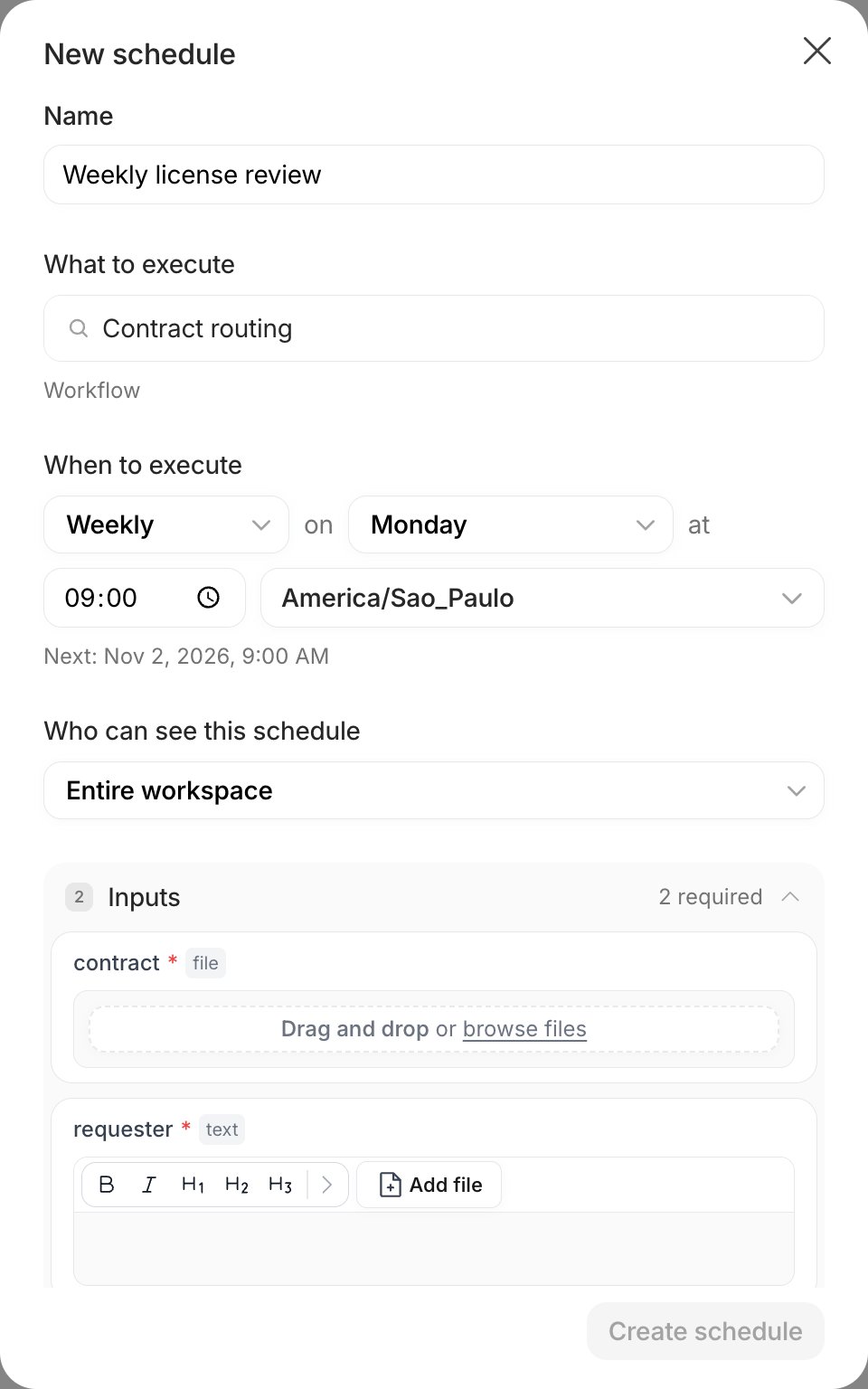
Go to Schedules in the left sidebar and click New schedule. You can also open the
… menu of a Canvas, Workflow or Agent and choose Schedule, which fills the destination for you.2
Name it
Under Name, say what runs and when, for example Contract routing, every Monday at 9am. The name is what you read in the list, so make it specific.
3
Choose what to execute
Under What to execute, type the name of the destination or paste its ID. The list shows the kind (Canvas, Workflow or Agent) and the Project. Only published destinations you have access to appear. When you choose another destination after filling the inputs, the inputs are cleared.
4
Set when to execute
Pick a frequency, a time and a Time zone. The form shows the next time it will run, for example Next: Nov 2, 2026, 9:00, so you can check it before saving.
5
Choose who can see it
Under Who can see this schedule, keep Entire workspace or pick one of your teams. See Who can see it.
6
Fill in the inputs
The Inputs section lists the variables of the published version. Fill in the required ones, then click Create schedule.
Frequencies
For custom cron, a few common forms:
Time zone
Times are always in the time zone you pick in the Time zone field. A schedule at 09:00 inAmerica/Sao_Paulo runs at 09:00 there, whatever the time zone of whoever created it.
Daylight saving time can make a time not exist or happen twice. The form refuses those times and asks you to choose another one.
Inputs
Every run of a schedule uses the same input values you saved. The inputs behave like the ones in the Craft experience:- Text variables take the text you type, and can also carry files in a Canvas or Workflow.
- File variables take the files you drop on the field. Agents take one file per variable.
- A required input must be filled before Create schedule is enabled.
The values are checked against the published version when you save and again when each run starts. If you publish a version that renames or removes a variable, the next run can fail to start. See what to do when a run fails.
Who can see it
- Entire workspace: everyone in the Workspace sees the schedule.
- A team: only members of that team see it.